
Getting Started With a New Smartphone: The First Week Done Right
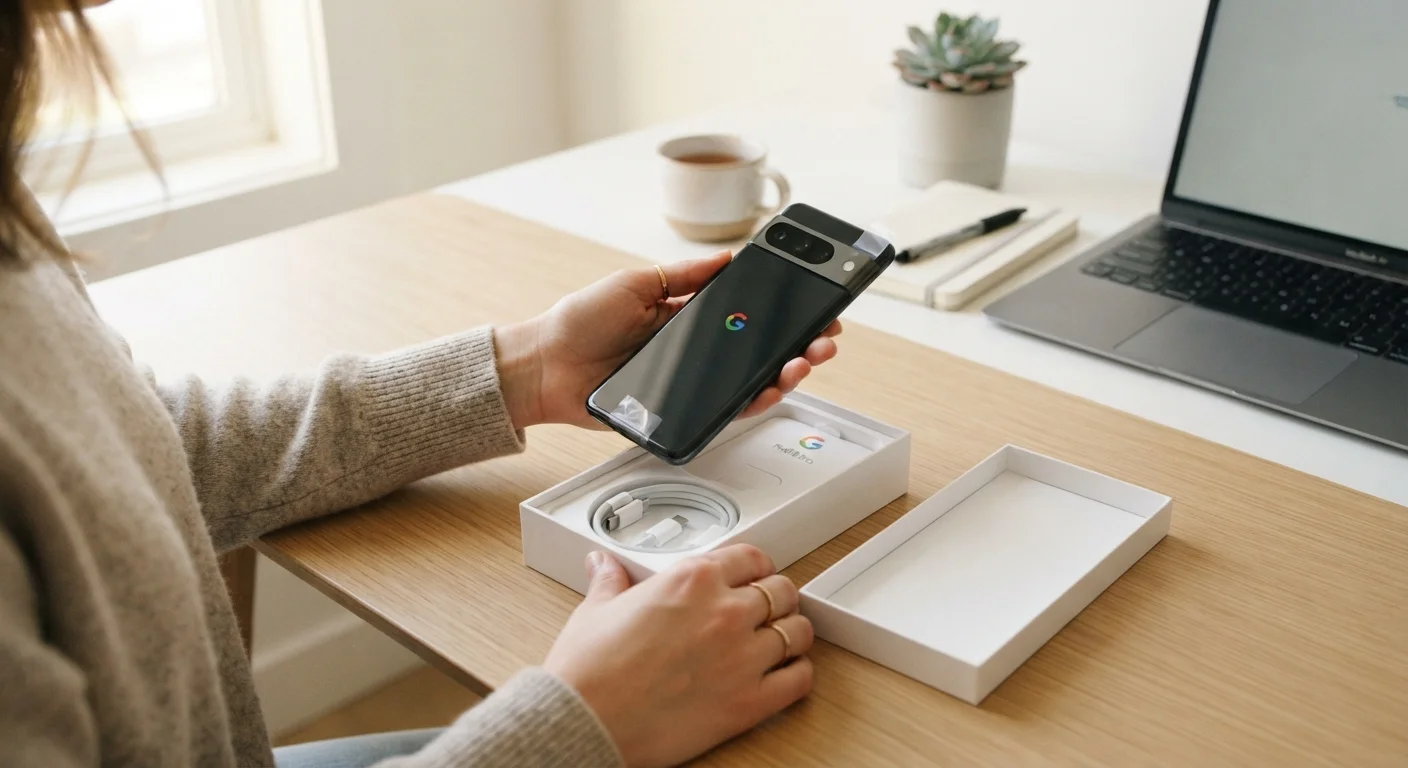
Photo credit: GadgetLite.net | All Things Tech
In this article
From restoring backups to adjusting notifications, here's how to set up a new phone so it works for you from day one.
Key Takeaways
- Charge your phone fully and install software updates before restoring any data.
- Restoring a backup is faster than rebuilding from scratch, but not always the right choice.
- Setting up a strong screen lock and two-factor authentication on day one prevents most account takeovers.
- Auditing notifications in the first week saves significant attention drain long-term.
- Small personalization steps — home screen layout, display settings — make daily use noticeably smoother.
Before You Do Anything Else
Unboxing a new phone is exciting, but the first 10 minutes are worth slowing down. Two quick steps now prevent hours of frustration later.
Charge it fully. Run your new phone to 100% before starting setup. Updates and data transfers can take a while, and a dying battery mid-restore is a common cause of corrupted data.
Install software updates first. Once you power on and connect to Wi-Fi, check for system updates before doing anything else. New phones often ship with firmware that's already a version or two behind. Installing updates on a clean device — before any apps or accounts are loaded — is cleaner and faster than patching later.
If you're completely new to device setup in general, the first-timer's walkthrough covers the foundational steps across device types.
Do Updates on Wi-Fi, Not Mobile Data
System updates can be several gigabytes in size. Make sure you're connected to a reliable Wi-Fi network before initiating any update or backup restore. Using mobile data for this can eat through your plan's data allowance and take significantly longer.
Restore Your Backup (or Start Fresh Intentionally)
The biggest setup decision you'll make is whether to restore a backup from your old phone or start from scratch. Both are valid — but each has real trade-offs.
Restoring a backup brings back your apps, contacts, photos, and most settings automatically. It's faster and preserves your workflow. The downside: you also carry over clutter — apps you haven't opened in two years, redundant photos, and settings you never understood in the first place.
Starting fresh gives you a cleaner slate. You reinstall only what you actually use, which can meaningfully improve performance and battery life. The catch is it takes more time upfront and you may lose some app-specific data that wasn't backed up.
A middle path: restore your backup to get your contacts and core apps, then spend 15 minutes deleting anything you don't need. For a detailed walkthrough of migrating data without losing anything, see this step-by-step migration guide.
Cloud backup
A copy of your phone's data — apps, contacts, photos, settings — saved to an internet-connected server (like Google Drive or iCloud) so it can be restored on a new device.
Two-factor authentication (2FA)
A security method that requires two separate forms of verification to log in — typically your password plus a one-time code from an app or text message.
Firmware
The core operating software built into your phone that controls how hardware and apps function. Keeping it updated patches security vulnerabilities and improves stability.
App permissions
The access rights an app requests on your device — such as location, microphone, camera, or contacts. You control which apps get which permissions through your phone's Settings.
Do Not Disturb (DND)
A phone mode that silences calls, alerts, and notifications for a set period. You can schedule it to activate automatically at specific times, like during sleep.
Lock Down Security From the Start
Security setup is the least glamorous part of getting a new phone, and the most skipped. Do it on day one while you're in setup mode — it takes under 10 minutes.
- Screen lock: Use a PIN of at least six digits, a strong pattern, or biometrics (fingerprint or face). Avoid four-digit PINs and simple swipe patterns — they offer minimal protection.
- Two-factor authentication (2FA): Enable 2FA on your email and any account tied to your phone number or payment info. An authenticator app is more secure than SMS codes.
- Review app permissions: During app installs, decline location, microphone, and camera access unless the app clearly needs it to function. You can always grant permissions later.
Authenticator Apps Don't Back Up Automatically
If you use an authenticator app for two-factor authentication codes, those codes are typically stored locally on your device — not in your regular phone backup. Before switching phones, export or migrate your authenticator accounts explicitly. Losing access to 2FA codes can lock you out of important accounts.
If you're setting up a wearable alongside your new phone, wait until the phone's security setup is fully complete. Pairing accessories too early can create incomplete permission handshakes. Our guide to pairing wearables without frustration walks through the right order of operations.
Tame Notifications Before They Take Over
Within 48 hours of setting up a new phone, most users have granted notification access to a dozen apps — and within a week, the lock screen is a wall of noise. A few deliberate choices early on prevent this entirely.
Default to off. When any app asks for notification permission during setup, decline it unless you have a clear reason to say yes. You can grant permission later through Settings if you find you're missing something important.
After the first day, go to Settings > Notifications and review what's been granted. Group apps into three categories: always on (messages, calls, calendar), useful sometimes (delivery tracking, news), and off by default (social media, games, retail). Most apps belong in the third group.
This single audit — done once in the first week — is one of the highest-return setup steps you can take for daily focus and phone usability.
Personalize for How You Actually Use Your Phone
Once the practical setup is done, spend 20 minutes shaping the phone around your actual habits. This is where the device starts feeling like yours.
Home screen: Put the four to six apps you open daily on the first page. Everything else goes in the app drawer or a secondary screen. Resist the urge to fill every slot — blank space makes navigation faster, not slower.
Display settings: Adjust brightness and text size to comfortable levels. Most phones default to settings optimized for demos, not extended daily use. Enable Night Mode or a blue-light filter if you use your phone in the evenings.
Do Not Disturb schedule: Set a recurring DND window for sleeping hours. This is a two-minute task that makes a real difference to sleep quality.
Once your core setup is solid, the phone's camera is worth exploring — and it likely performs better than you expect right out of the box. See how to get better photos without changing any settings for practical techniques. And for a complete pre-use checklist covering firmware, privacy, and account security, the setup checklist for new gadgets is a useful companion read.
Setting Up a New Phone Without Losing Your Apps and Data
A practical walkthrough for transferring your everyday apps, settings, and files when switching to a new device — covers both Android and iPhone migration paths.
Before You Unbox That New Gadget: A Setup Checklist
A short checklist covering the steps most people skip — firmware updates, privacy settings, account security — when setting up a new phone or gadget.
Making the Most of a New Phone's Camera Without Changing Any Settings
Modern smartphone cameras perform well straight out of the box. This guide shares practical habits and techniques for better results without diving into menus.
Frequently Asked Questions

Author
Gadgets Editorial Team
Gadgets Editorial Team is the collective byline for our editorial team and contributor network. Articles published under this byline or an editorial pen name are researched, written, and reviewed according to our editorial standards for clarity, consistency, and independence before publication.
View all articles →