
App Storage Explained: Clearing Cache, Data, and Downloads Without Breaking Things
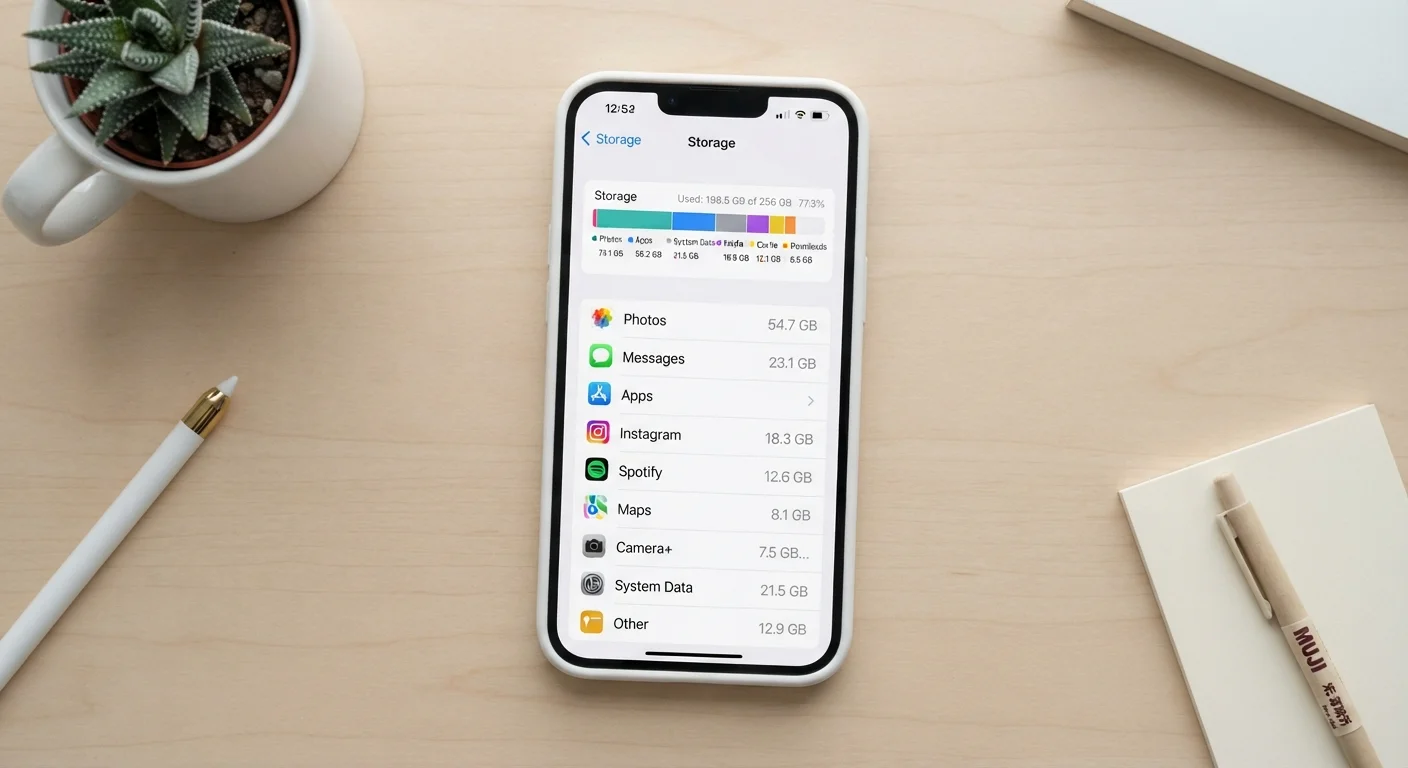
Photo credit: GadgetLite.net | All Things Tech
In this article
Understand what cache, app data, and downloaded files are — and which ones are safe to delete when space runs low.
What Cache, App Data, and Downloads Actually Are
When your phone warns you that storage is running low, it's tempting to start deleting things at random. But app storage breaks down into three distinct categories - and they behave very differently.
Cache
Temporary files an app stores locally to speed up future loading. Cache is automatically rebuilt and is always safe to delete.
App Data
User-specific information stored by an app, including login states, preferences, and saved content. Clearing it often resets the app to its default state.
Offline Downloads
Files you've manually saved for use without an internet connection, such as videos, music, or documents. Deleting them requires re-downloading.
Offload App (iOS)
An iPhone feature that removes an app's executable files to save space while preserving your personal data, so settings are restored when you reinstall.
Local Storage
Data saved directly on your device rather than in the cloud. If the device is lost or reset without a backup, locally stored data may not be recoverable.
Cache is temporary data an app saves so it can load faster the next time. When you scroll through a social feed, for example, those images are often cached locally so the app doesn't need to re-download them every time. Cache is designed to be disposable - apps rebuild it automatically after you clear it.
App data (sometimes labeled "User data") is a different story. This includes your account settings, saved preferences, offline content, login states, and anything the app has stored specifically for you. Clearing app data is closer to resetting the app to factory state - you'll typically need to log back in and reconfigure your settings.
Downloads refer to files you've explicitly saved - offline videos in a streaming app, documents in a file viewer, or songs saved for offline listening. These only exist locally, so deleting them means you'll need to download them again if you want them back.
Understanding the difference matters a lot - especially if you rely on apps that store information only on your device. For a deeper look at where your data lives, see where your app data actually lives.
What's Safe to Clear - and What to Leave Alone
| Cache: safe to delete? | Yes - always |
| App data: safe to delete? | Only if synced to the cloud |
| Downloads: safe to delete? | Yes, but you'll re-download later |
| Does cache rebuild itself? | Yes - automatically |
| Does clearing data log you out? | Usually yes |
| iPhone cache clear method | Per-app settings or Offload App |
Generally safe to clear:
- Cache - Safe to delete at any time. Apps rebuild their cache automatically. You might notice slower load times briefly afterward, but nothing is permanently lost.
- Downloaded files you no longer need - If you've already watched that offline video or finished that document, the downloaded copy is safe to remove.
Requires more caution:
- App data - Before clearing, check whether the app syncs your data to the cloud. Apps like Gmail, Google Photos, and most banking apps store your core information server-side, so clearing local data just logs you out. But apps that store data locally only - certain note-taking apps, offline games, or productivity tools - may permanently lose your saved progress or records. See a checklist before clearing or deleting for a step-by-step approach.
Also worth keeping in mind: some apps store data that overlaps with your privacy settings and permissions. If you want to understand what data apps are collecting more broadly, this beginner's guide to app safety is a good starting point.
How to Clear Storage on Android and iPhone
The exact steps vary by device, but the general path is consistent.
On Android: Go to Settings → Apps (or App Manager) → select the app → Storage. You'll see separate buttons for Clear Cache and Clear Data. Most Android devices show storage sizes for each, so you can judge what's worth clearing.
On iPhone (iOS): Apple doesn't offer a dedicated "clear cache" button for third-party apps. Instead, go to Settings → General → iPhone Storage. Some apps offer an internal option to offload or clear cached data within their own settings. Alternatively, iOS has an Offload App feature that removes the app but keeps your data - useful if you want to free space without losing your settings.
For downloads inside specific apps (streaming services, podcast apps, e-readers), look within the app itself under its own settings or library section - not the system storage menu.
Check Cloud Sync Before Clearing App Data
Before you clear app data for any app, open that app's settings and look for a sync or backup option. If the app backs your data up to a cloud account, clearing local data simply logs you out - nothing is permanently lost. If no sync option exists, treat that data as irreplaceable until you've confirmed otherwise.
Storage management also connects to how you've set up syncing. If you're unsure whether deleting something locally will affect what's saved in the cloud, our syncing and backup hub walks through how those connections work.

Author
Apps & Software Editorial Team
Apps & Software Editorial Team is the collective byline for our editorial team and contributor network. Articles published under this byline or an editorial pen name are researched, written, and reviewed according to our editorial standards for clarity, consistency, and independence before publication.
View all articles →