
Getting the Most Out of Your Smartwatch Notifications
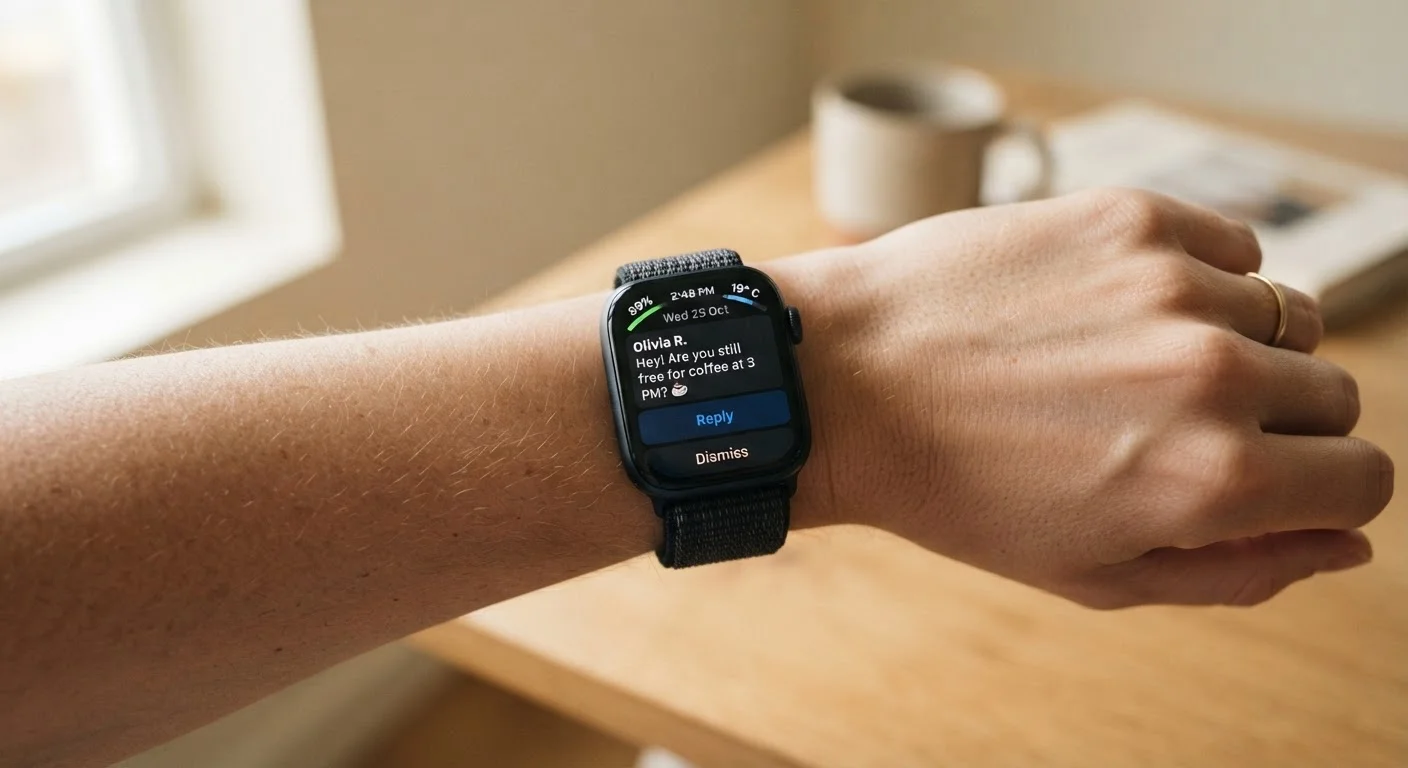
Photo credit: GadgetLite.net | All Things Tech
In this article
Poorly configured notifications turn a smartwatch into a distraction. Here's how to set them up so they genuinely help rather than interrupt.
Key Takeaways
- Most smartwatches pass through every phone notification by default — you need to actively filter them.
- Grouping apps into priority tiers lets you stay informed without constant interruption.
- Do Not Disturb schedules and focus modes are the single most effective tools for reducing wrist buzz.
- Vibration patterns and custom alerts help you read urgency without even glancing at the screen.
- Fewer, more meaningful notifications make a smartwatch genuinely useful rather than a distraction.
Why Default Notification Settings Usually Fail You
Out of the box, most smartwatches mirror every notification from your paired phone — every group chat message, every promotional email, every social media ping. The result is a device that vibrates so frequently it becomes background noise, or worse, a source of anxiety. If you've ever silenced your watch because it just wouldn't stop buzzing, that's a sign the defaults aren't working for you.
Understanding what a smartwatch is actually designed to do helps clarify what notifications belong on your wrist in the first place. The watch's role is to let you leave your phone in your pocket — not to replicate your phone's entire notification stream on a smaller screen.
Android and iOS Handle This Differently
On iOS with Apple Watch, notification settings sync from your iPhone's app-level permissions — you manage them in the iPhone's Watch app. On Android with Wear OS or Samsung devices, controls are more granular and often split between the watch's companion app and the phone's notification settings. Check both places to make sure your choices actually take effect.
Building a Notification Priority System
The most effective approach is sorting your apps into three tiers before touching any settings.
- Tier 1 — Must-see immediately: Direct calls, text messages from close contacts, calendar reminders, navigation turns.
- Tier 2 — Worth a glance later: Email, selected news apps, health alerts from the watch itself.
- Tier 3 — No wrist access needed: Social media feeds, promotional apps, games, shopping apps.
Once you've sorted your apps mentally, apply that logic in your watch's companion app (such as Wear OS, watchOS, or Galaxy Wearable). Enable notifications only for Tier 1 and select Tier 2 apps. The same principles that reduce phone notification overload apply directly to your watch — the wrist just makes the stakes higher because every alert is physical.
Using Do Not Disturb and Focus Modes Strategically
Scheduled silence is one of the most underused tools in any smartwatch's settings menu. Most platforms let you define recurring Do Not Disturb windows — overnight hours being the obvious starting point, but also during meetings, workouts, or any block of time requiring concentration.
Go a step further by enabling DND to allow exceptions: urgent contacts or repeated calls can still break through, which means you're protected from distraction without becoming unreachable in a genuine emergency. Pair this with your phone's focus mode so both devices align — mismatched settings between phone and watch are a common source of unwanted buzzing.
Customizing Alerts So You Know What's Happening Without Looking
Many smartwatches support distinct vibration patterns per app or contact, and this feature is worth the few minutes it takes to configure. A short double-tap for texts versus a long single pulse for phone calls means you can read urgency from the feel alone — no wrist-raise needed.
For health and activity notifications, evaluate each one honestly. Step reminders and stand alerts are useful if you're sedentary; if you're already active, they're clutter. Heart rate and irregular rhythm alerts, on the other hand, are worth keeping on for most users regardless of fitness level.
Keep in mind that every active notification also draws on battery. If you're trimming notifications partly to extend your smartwatch's battery life, that's a genuine secondary benefit — background syncing for dozens of silenced apps still consumes power even when alerts don't reach your wrist.
Keeping Your Setup Current
Notification needs change. A new job might mean a Slack channel deserves Tier 1 status temporarily. A vacation might mean everything except calls should be silenced. Revisit your watch notification settings whenever your routine shifts significantly — treat it the way you'd revisit your phone's home screen layout.
If you're still deciding whether a smartwatch fits your life at all, the practical pre-purchase checklist covers this and other day-to-day considerations worth weighing first. And if you're already wearing one but finding the trade-offs harder than expected, the honest look at living with a smartwatch's real downsides is a grounded reality check.
The goal isn't a perfectly silent watch — it's one that speaks up at the right moments and stays quiet the rest of the time.

Author
Gadgets Editorial Team
Gadgets Editorial Team is the collective byline for our editorial team and contributor network. Articles published under this byline or an editorial pen name are researched, written, and reviewed according to our editorial standards for clarity, consistency, and independence before publication.
View all articles →