
Making Your Smartwatch Battery Last Longer
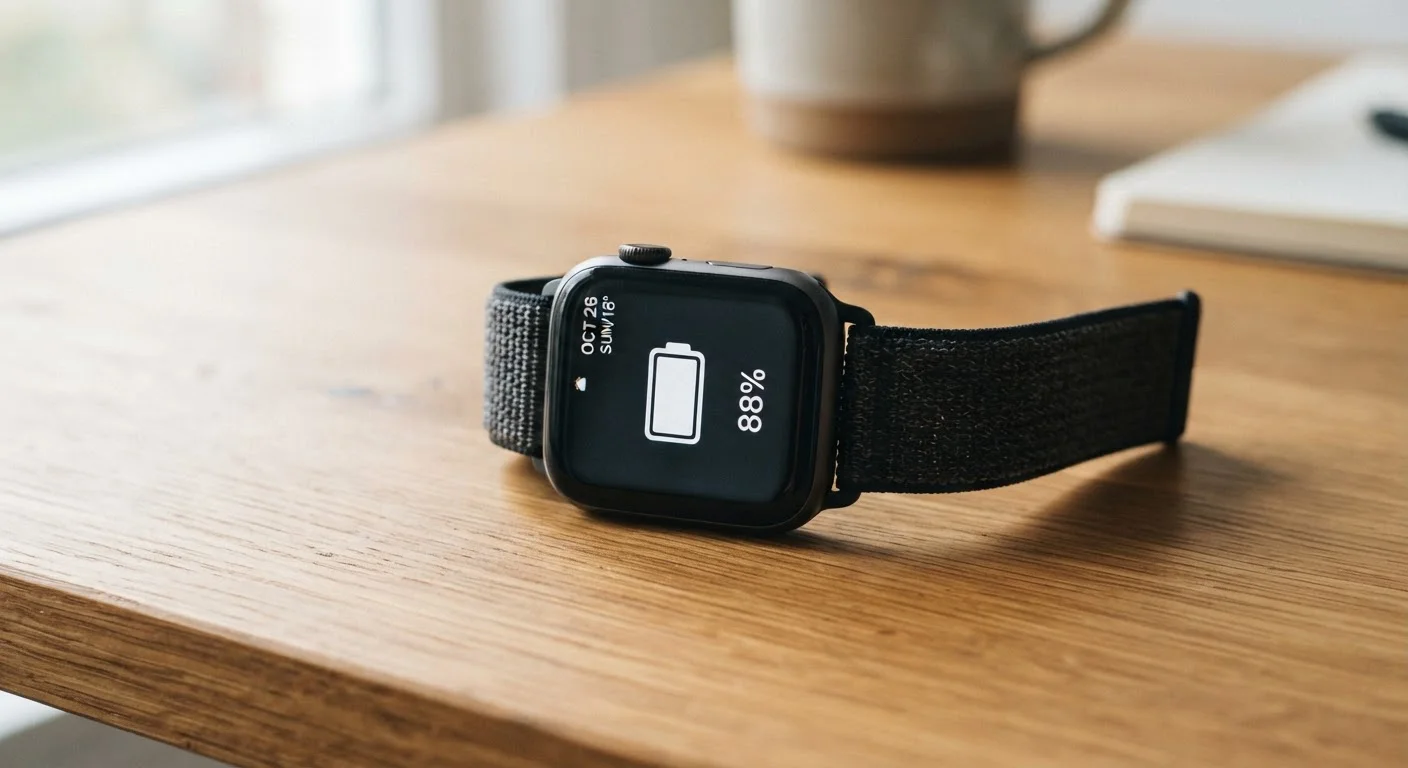
Photo credit: GadgetLite.net | All Things Tech
Simple, practical adjustments to settings and habits that genuinely extend how long your smartwatch runs between charges.
Key Takeaways
- Always-on displays and bright screens are the single biggest drain on smartwatch batteries.
- Turning off unused sensors like continuous GPS and blood oxygen monitoring saves significant power.
- Reducing notification volume cuts how often the watch wakes its screen and vibrates.
- Most smartwatches have a dedicated battery-saver or low-power mode worth enabling overnight.
- Software updates often include efficiency improvements that help battery performance over time.
Why Smartwatch Batteries Drain Faster Than You'd Expect
Smartwatches cram a display, multiple radios (Bluetooth, Wi-Fi, sometimes LTE), and a suite of biometric sensors into a device the size of a large coin. The battery has to be equally compact, which means capacity is inherently limited. Unlike a phone, there's no room for a larger cell.
What actually drains that small battery fastest is usually a combination of a bright, always-on screen and sensors polling your body or location continuously in the background. If your watch feels like it barely makes it through a day, those two categories are almost certainly the cause. Quoted battery life figures rarely reflect this real-world load.
The good news: most of the heaviest drains are optional features that can be dialed back without meaningfully changing how useful the watch is day-to-day. If you're still figuring out which features you actually use, this overview of what smartwatches actually do is a useful starting point.
Manufacturer Battery Claims Are Measured in Ideal Conditions
The battery life figure on your watch's box is typically measured with AOD off, sensors on minimal settings, and minimal notifications — not how most people actually use the device. Real-world battery life is almost always shorter. See what quoted battery figures actually mean for a fuller explanation.
What to Adjust and How
The steps below apply broadly across major smartwatch platforms. Exact menu names vary by device — consult your companion app or manufacturer support page if a specific option is labelled differently on your watch.
What you will need
Smartwatch companion app
Used to adjust settings like display brightness, notification filters, and sensor schedules remotely from your phone.
Watch settings menu
Allows direct on-device control of features like always-on display, heart rate polling frequency, and battery saver mode.
Turn off or limit the always-on display
The always-on display (AOD) keeps the watch face visible at all times — convenient, but it can consume 20–40% more battery than a standard raise-to-wake screen. Go into your watch's display settings and either disable AOD entirely or set a time window (such as 7 AM–10 PM) so it only runs when you're likely to glance at it.
Reduce screen brightness
High brightness is the second-largest battery drain after AOD. Drop brightness to around 50–60% in typical indoor conditions. Most watches also offer an auto-brightness option that adjusts to ambient light — this is a reasonable middle ground that avoids blasting full brightness indoors.
Disable or schedule sensors you don't actively use
Continuous heart rate monitoring, blood oxygen (SpO2) tracking, stress sensors, and always-on GPS each poll your body or location at regular intervals. If you're not using these readings day-to-day, switch them from continuous to on-demand mode, or restrict them to workout sessions only. Check your companion app for per-sensor scheduling options.
Trim your notification list
Every notification causes the watch to light up, vibrate, and potentially run a haptic pattern. Open your companion app's notification settings and remove apps that don't genuinely need your immediate attention on your wrist. See how to configure smartwatch notifications for a practical approach to filtering what reaches your watch.
Enable battery saver or low-power mode
Most major smartwatch platforms include a battery saver mode that disables non-essential features — typically AOD, Wi-Fi, and background sensor polling — while preserving core functions like time display and step counting. Enable this overnight or on days when you know you can't charge. Some watches let you set it to activate automatically at a specific battery percentage.
Keep your watch software up to date
Firmware updates frequently include power management improvements that reduce background resource usage. Check your companion app for pending updates and install them when you're near a charger. This is one of the lowest-effort ways to maintain good battery performance over the life of the device.
Charge Smart, Not Just Often
Lithium-ion batteries — the type in virtually all smartwatches — tend to age better when kept between roughly 20% and 80% charge rather than being repeatedly drained to zero and charged to 100%. If your watch has a battery care or optimized charging mode, enable it. Over months and years, this can help preserve how much charge the battery holds.
Don't Sacrifice Health Features You Actually Use
These steps are about disabling or limiting features you don't rely on — not stripping your watch down to a basic pedometer. If you depend on continuous heart rate data for a medical reason or use GPS tracking for runs, keep those features active. Battery life is a trade-off with functionality, and only you know which features justify the drain.
Battery management is ultimately about matching the watch's feature load to how you actually use it. Living with a smartwatch involves real trade-offs, and battery life is one of the most practical ones. The adjustments above won't make a two-day watch last a week, but they can reliably add several hours — sometimes a full day — to each charge cycle.

Author
Gadgets Editorial Team
Gadgets Editorial Team is the collective byline for our editorial team and contributor network. Articles published under this byline or an editorial pen name are researched, written, and reviewed according to our editorial standards for clarity, consistency, and independence before publication.
View all articles →