
Notification Overload: Reclaiming Control Over Your App Alerts
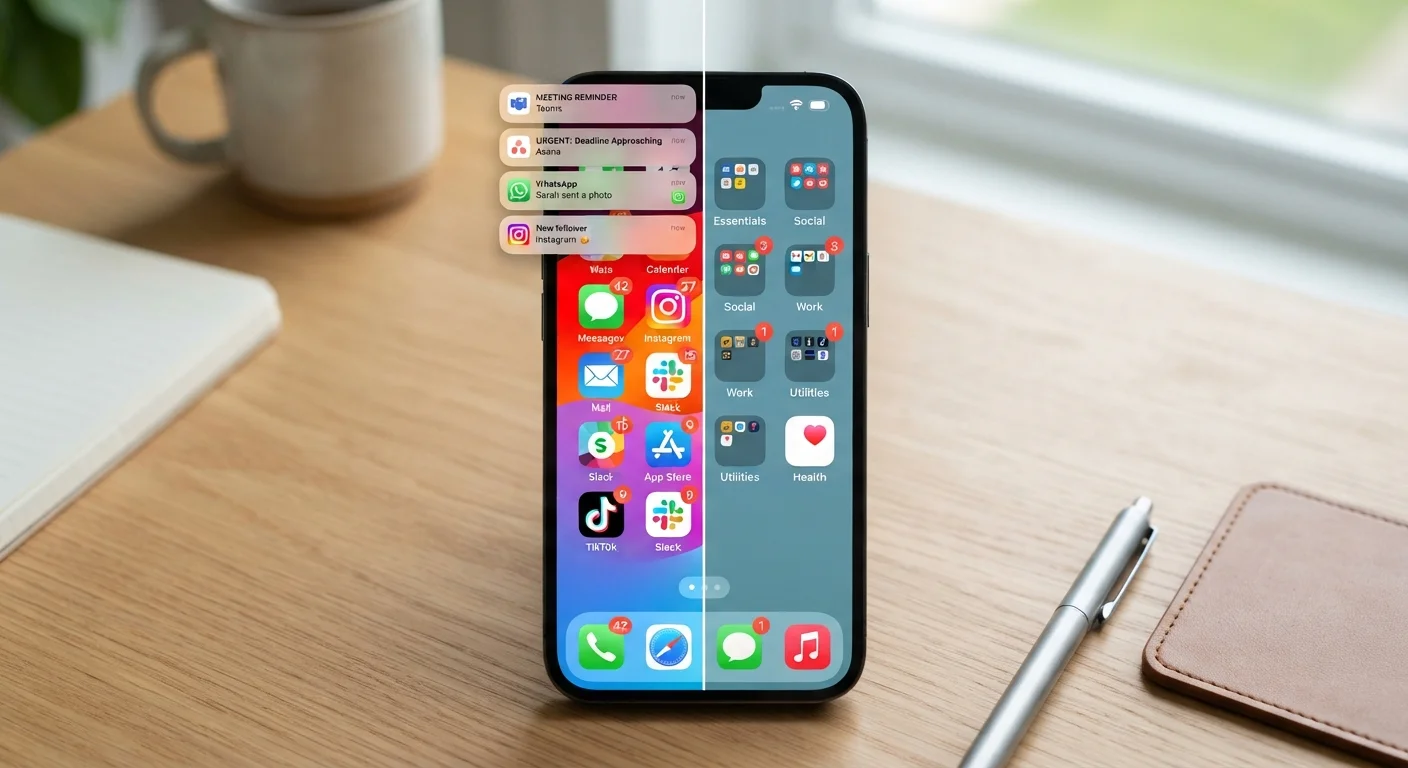
Photo credit: GadgetLite.net | All Things Tech
In this article
Learn how notifications work across different apps and how to tune them so only the ones that matter get through.
Key Takeaways
- Your phone's system settings let you control notifications for every app individually.
- Notification channels on Android let you fine-tune alerts by type within a single app.
- Scheduled summary and Focus modes batch low-priority alerts so they don't interrupt your day.
- Turning off notifications for an app does not delete the app or affect how it functions.
- Reviewing notification permissions once a month keeps alert fatigue from creeping back.
Why Notifications Get Out of Hand
When you install an app, it typically asks permission to send you notifications. Most people tap Allow without thinking twice - and over time, that habit stacks up. A phone with 60 apps, most of them set to notify freely, can generate hundreds of interruptions a day.
The issue isn't that notifications are inherently bad. A text from a family member, a two-factor login code, a calendar reminder five minutes before a meeting - these are genuinely useful. The problem is that apps are designed to compete for your attention, and notification settings ship with everything enabled by default.
Understanding that notifications are a permission you grant, not a default service you receive, is the mindset shift that makes the steps below work. You're not breaking anything by restricting alerts - you're simply deciding what earns access to your attention.
Notifications Can Mask App Overreach
Some apps request notification access primarily to serve you ads or re-engagement prompts rather than genuinely useful alerts. If an app is sending you content that looks more like marketing than information, that's a signal worth paying attention to. See our guide to app overreach red flags for more context on what to watch for.
What You'll Need Before You Start
No special tools are required - just your phone and a few minutes. Here's what to have ready before working through the steps:
What you will need
Once you're set, the process below works for both major platforms. Screenshots and exact menu labels vary slightly by device manufacturer and software version, but the underlying options are consistent.
Phone Settings App
The built-in settings panel is where all notification permissions are reviewed and changed - no third-party app needed.
Focus / Do Not Disturb Mode
Available on both iOS and Android, this built-in feature lets you block or batch notifications during specific hours or activities.
Step-by-Step: Tuning Your Alerts
Work through these steps in order. The first two focus on understanding what's currently active; the later steps layer in smarter delivery options that reduce interruption without losing information.
Open your notification settings
On iPhone: go to Settings → Notifications. You'll see every app that has ever requested permission to send you alerts, listed alphabetically.
On Android: go to Settings → Notifications → App notifications. Some manufacturers label this slightly differently, but the path is consistent.
Audit each app's notification type
Tap any app in the list to see what kinds of alerts it sends. Many apps offer multiple notification channels - for example, a news app might have separate channels for breaking news, newsletters, and promotions. You can disable only the promotional channel and keep breaking news active.
On iPhone, you'll see options for Lock Screen, Notification Center, and Banners - each controls where and how the alert appears, not just whether it arrives.
Turn off sounds and badges for low-priority apps
Not every notification needs to make noise or display a red badge count. For apps like shopping or casual games, consider keeping notifications on but disabling both the sound and the badge. This way the information is available if you choose to check, but it won't pull your attention involuntarily.
Enable Scheduled Summary or Notification Batching
On iPhone (iOS 15+), go to Settings → Notifications → Scheduled Summary. Add apps you want bundled - social media, news apps, deal alerts - and set one or two delivery times per day. Instead of 40 scattered interruptions, you get a single digest.
On Android 12+, some apps support batched delivery natively; check each app's notification settings for a Notification Batching or Deliver Quietly option.
Set up a Focus or Do Not Disturb schedule
Both iOS and Android let you create named Focus modes (iOS) or scheduled Do Not Disturb windows (Android) that automatically silence non-essential notifications during specific time blocks - during work hours, sleep, or exercise.
On iPhone: Settings → Focus → tap a mode → customize which apps and people can break through. On Android: Settings → Digital Wellbeing → Do Not Disturb → Schedules.
Review and maintain monthly
App updates can silently reset or add new notification channels. Set a recurring reminder - monthly works well - to revisit Settings → Notifications and check for any app that has crept back onto your alert list uninvited.
This is also a good time to uninstall apps you're no longer using. Fewer installed apps means fewer notification sources to manage. For more on that, see our piece on why fewer apps often means a better phone experience.
Pair Notification Cleanup With App Organization
Pruning your alerts is most effective when your home screen is already tidy. Our guide to organizing your apps by habit shows how to group apps so the ones you check intentionally stay visible - without relying on interruption-based alerts.
Don't Silence Safety-Critical Alerts
Emergency alerts, phone call notifications, and certain health or banking apps may carry genuinely time-sensitive information. Before bulk-muting an app category, confirm you're not disabling alerts you'd actually want in an urgent situation.
After the Cleanup: What to Expect
Within a day or two of applying these settings, most people notice their phone feels less demanding. The key shift is moving from reactive - responding every time a sound fires - to intentional - checking apps when you choose to.
It's also worth noting that reducing notifications doesn't mean missing important information. Most apps store their alerts in an in-app inbox or feed, so anything you want to review later is still there when you open the app on your own terms.
If you find yourself with apps that still feel cluttered or hard to locate after this cleanup, our app organization guide covers how to structure your home screen so the apps you use intentionally stay front and center.

Author
Apps & Software Editorial Team
Apps & Software Editorial Team is the collective byline for our editorial team and contributor network. Articles published under this byline or an editorial pen name are researched, written, and reviewed according to our editorial standards for clarity, consistency, and independence before publication.
View all articles →