
Setting Up a Smart Speaker for the First Time
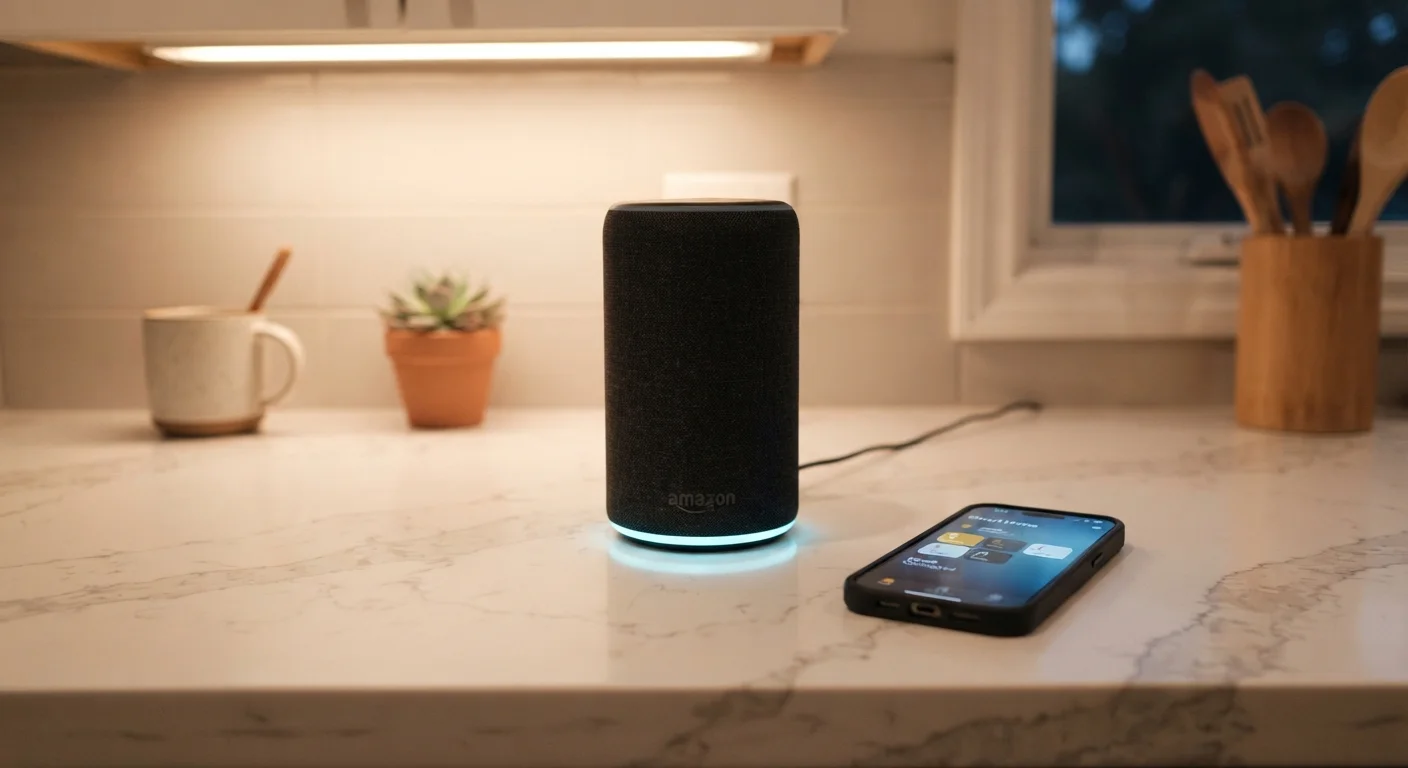
Photo credit: GadgetLite.net | All Things Tech
In this article
A plain-English walkthrough of unboxing, connecting, and getting the most from a smart speaker without the technical headaches.
Key Takeaways
- Most smart speakers are set up entirely through a companion smartphone app — no web browser or computer needed.
- A stable 2.4 GHz or 5 GHz Wi-Fi connection is the single most important factor for reliable performance.
- Placing the speaker in the right location dramatically affects how well it hears your voice commands.
- Reviewing privacy and microphone settings immediately after setup gives you meaningful control over the device.
- Linking streaming or smart home accounts unlocks the most useful features the speaker offers.
What You Need Before You Start
Smart speakers are designed to be beginner-friendly, but a few things need to be in place before you open the box. The most important is a working Wi-Fi connection — without it, the speaker is essentially a very expensive paperweight. If you're brand new to connected home devices, our practical smart home starting guide explains the core concepts clearly before you buy anything.
You'll also want your Wi-Fi password written down or saved somewhere accessible. Many people know their network name but have forgotten the password — find it now, not halfway through setup.
What you will need
Companion smartphone app
Guides you through the entire setup process and manages device settings after installation.
Wi-Fi router
Connects the speaker to the internet so it can respond to commands and stream content.
Streaming service account
Links to the speaker so you can request music, podcasts, or audiobooks by voice.
Smart home hub or app
Allows the speaker to control lights, thermostats, and other compatible connected devices.
Step-by-Step Setup Instructions
Follow each step in order. The process typically takes between 10 and 25 minutes on a first attempt. If you've set up a smart device before, you may move through it faster. For a broader look at how this fits into unboxing and configuring consumer electronics generally, see our first-timer's device setup walkthrough.
Unbox and inspect what's in the box
Remove the speaker and any accessories from the packaging. Most smart speakers ship with the device itself, a power adapter, and a quick-start card. Some include a short cable between the adapter and the speaker rather than a single plug unit — check this before hunting for a missing cable that isn't missing at all.
Download and open the companion app
Search your device's app store for the speaker's official companion app — the name is typically printed on the box or the quick-start card. Sign in with your manufacturer account, or create one if you haven't already. Do not skip account creation; it is required to complete setup on virtually every modern smart speaker.
Plug in the speaker and wait for the ready signal
Place the speaker near a power outlet and plug it in. Within 30–60 seconds, most speakers display a pulsing or spinning light ring that signals they are in setup mode and ready to pair. If nothing happens after two minutes, unplug and replug the device.
Connect the speaker to your Wi-Fi network
Follow the in-app prompts. The app will detect the speaker using Bluetooth or an ultrasonic signal, then ask you to select your Wi-Fi network and enter the password. Choose the network your phone currently uses — mixing networks is a common source of connectivity problems. If your router broadcasts both 2.4 GHz and 5 GHz bands under the same name, the speaker will pick the most compatible one automatically.
Name the speaker and choose its location
The app will ask you to give the speaker a name (such as "Living Room" or "Kitchen") and assign it to a room. This matters most if you plan to add multiple devices later — named rooms let you direct commands to a specific speaker without ambiguity.
Review privacy and microphone settings
Before finishing, navigate to the privacy section of the app. Here you can typically control whether voice recordings are stored, opt out of human review of recordings, and set a mute schedule. These options differ across platforms, but taking five minutes to review them now is far more effective than trying to locate them later.
Link accounts and move the speaker to its final position
Connect any streaming services or smart home platforms you want to use — the app usually prompts this during or immediately after setup. Once linked, move the speaker to its intended location. Position it at least 20 cm from walls and away from TVs or radios that could interfere with voice detection. An open, central spot in the room generally works best.
Voice Training Improves Accuracy
Most companion apps include an optional voice training feature that lets the speaker learn your accent and speech patterns. Running through it once — it usually takes under two minutes — noticeably reduces missed commands and misheard requests, especially in noisy rooms.
Troubleshooting and What Comes Next
If the speaker doesn't appear in the app during step 4, the most common fixes are: force-closing and reopening the app, ensuring Bluetooth is enabled on your phone, and verifying the speaker is still in setup mode (that pulsing light ring). If it has timed out, unplug it for 10 seconds and plug it back in.
Once your speaker is running, it's worth revisiting settings you may have skipped — firmware updates in particular. Our new gadget setup checklist covers firmware, privacy, and account security steps that are easy to overlook in the excitement of getting a new device working.
Avoid Placing Speakers Near Sensitive Conversations
Smart speakers with always-on microphones are listening for a wake word at all times. Placing one in a bedroom, home office, or anywhere private conversations occur regularly is worth thinking through carefully. Use the physical mute button when you want guaranteed silence, rather than relying on software-only privacy modes.
From here, consider expanding your setup. Smart lighting pairs naturally with a smart speaker, and our smart lighting introduction walks through how bulbs, switches, and scenes work together. For everything else in the connected home space, the Home Tech Essentials hub is a useful ongoing resource.

Author
Electronics Editorial Team
Electronics Editorial Team is the collective byline for our editorial team and contributor network. Articles published under this byline or an editorial pen name are researched, written, and reviewed according to our editorial standards for clarity, consistency, and independence before publication.
View all articles →