
A Glossary of Home Networking Terms You'll Actually Encounter
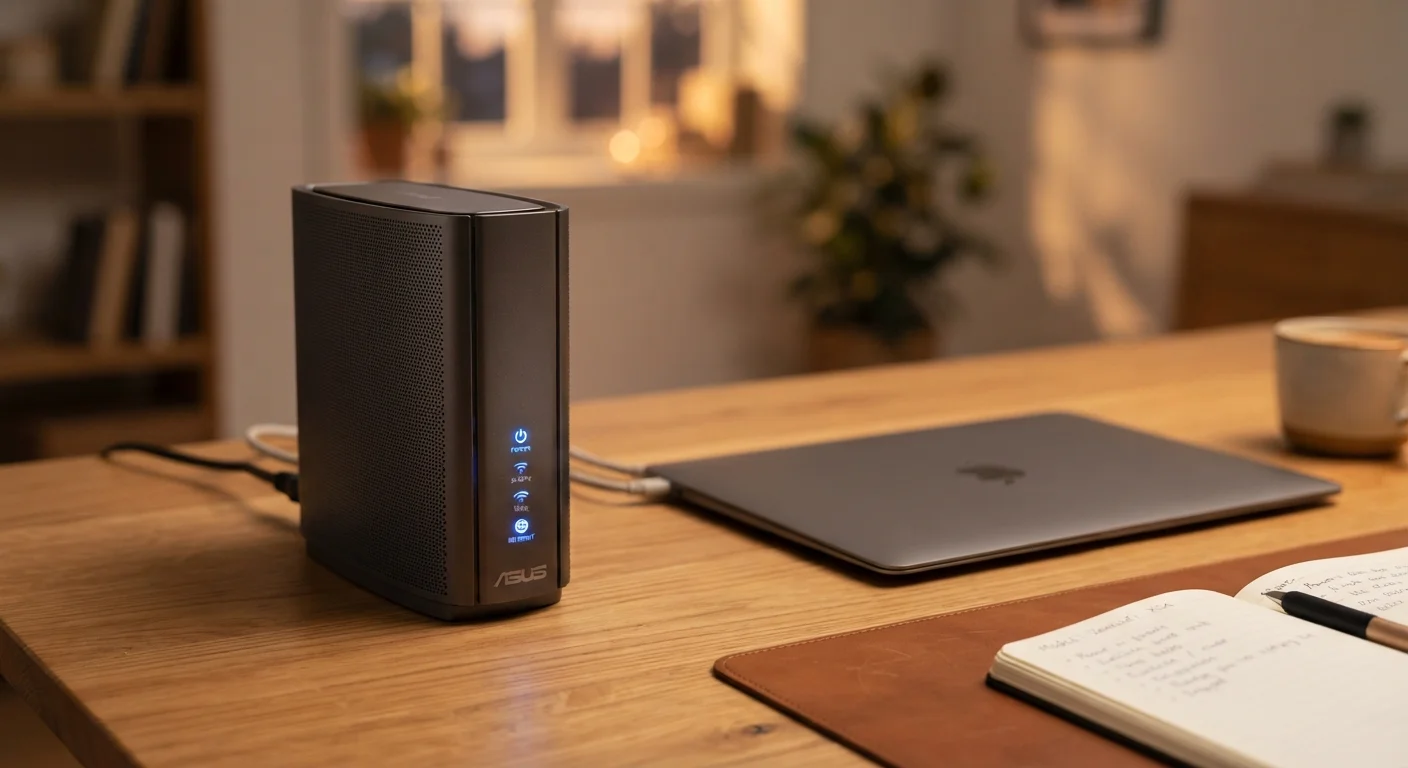
Photo credit: GadgetLite.net | All Things Tech
SSID, DHCP, NAT, QoS — home networking comes with its own vocabulary. This reference explains the terms you're most likely to come across.
Why Home Networking Has Its Own Language
Setting up or troubleshooting a home network means running into a wall of abbreviations: SSID, DHCP, NAT, QoS, DNS. These aren't meant to intimidate you - they're shorthand that engineers use, and most of them describe concepts you already use every day without realizing it.
This glossary is designed as a reference you can return to whenever a term shows up in your router settings, an error message, or a tech article. For a broader picture of how all these pieces fit together, see our guide to routers and modems.
SSID
Short for Service Set Identifier - this is simply the name of your Wi-Fi network. It's what you see when you pull up the list of available networks on your phone or laptop.
DHCP
Dynamic Host Configuration Protocol. Your router uses this to automatically assign a unique IP address to every device that connects to your network, so you don't have to do it manually.
NAT
Network Address Translation. This lets your router share a single public IP address (assigned by your internet provider) across all the devices in your home, acting as a kind of traffic director.
QoS
Quality of Service. A router feature that lets you prioritize certain types of traffic - like video calls or streaming - so they get bandwidth first during busy periods.
DNS
Domain Name System. Think of it as the internet's phone book. It translates website names (like example.com) into the numeric IP addresses computers use to find each other.
Bandwidth
The maximum amount of data that can travel over your connection at once. Higher bandwidth generally means more devices can stream, download, and browse at the same time without slowdowns.
Latency
The delay between sending a request and getting a response, usually measured in milliseconds (ms). Low latency is especially important for online gaming and video calls.
Wi-Fi Band (2.4 GHz / 5 GHz)
Routers often broadcast on two radio frequencies. The 2.4 GHz band covers a wider range but is slower. The 5 GHz band is faster but shorter-range. Some routers also offer a 6 GHz band (Wi-Fi 6E).
Firmware
The built-in software that runs your router. Manufacturers release firmware updates to fix bugs and patch security vulnerabilities, so keeping it current matters.
Ethernet
A wired connection between a device and your router using a physical cable. Wired connections are generally faster and more stable than Wi-Fi for devices that stay in one place.
MAC Address
A unique identifier assigned to every network-capable device at the hardware level. Routers can use MAC addresses to recognize specific devices or restrict access.
WPA2 / WPA3
Wi-Fi Protected Access - security protocols that encrypt your wireless traffic. WPA3 is the newer, stronger standard; WPA2 is still widely used. Both are far safer than the outdated WEP standard.
Key Numbers and Settings Worth Knowing
Beyond terminology, home networking involves a handful of numbers and settings that come up regularly - in setup wizards, support articles, and your router's admin panel. The quick-reference card below captures the ones most likely to be relevant to you.
| What "dual-band" means | A router broadcasting on both 2.4 GHz and 5 GHz simultaneously |
| Typical home network IP range | 192.168.0.x or 192.168.1.x (assigned by DHCP) |
| Recommended Wi-Fi security standard | WPA3 (or WPA2 if WPA3 isn't available) |
| Latency target for video calls | Under 150 ms is generally acceptable |
| Common router firmware update interval | Check every few months; many routers can auto-update |
If you want a deeper look at how your network is structured from the street to your devices, this end-to-end network guide walks through each layer in plain terms.
Your Router's Admin Page Has Answers
Many of these settings - DHCP, QoS, DNS, MAC address filtering - are accessible directly through your router's admin interface, typically reached by typing an IP address like 192.168.1.1 into your browser. Your router's manual or the label on the device itself usually shows the exact address. You don't need to be a networking expert to explore it carefully.
Networking terms aren't the only tech vocabulary worth having handy. If you also find yourself puzzling over smartphone specs, the smartphone terms glossary covers that ground, and the consumer electronics glossary handles the broader category.

Author
Cloud Editorial Team
Cloud Editorial Team is the collective byline for our editorial team and contributor network. Articles published under this byline or an editorial pen name are researched, written, and reviewed according to our editorial standards for clarity, consistency, and independence before publication.
View all articles →