
Your Home Network Explained: Routers, Modems, and What They Actually Do
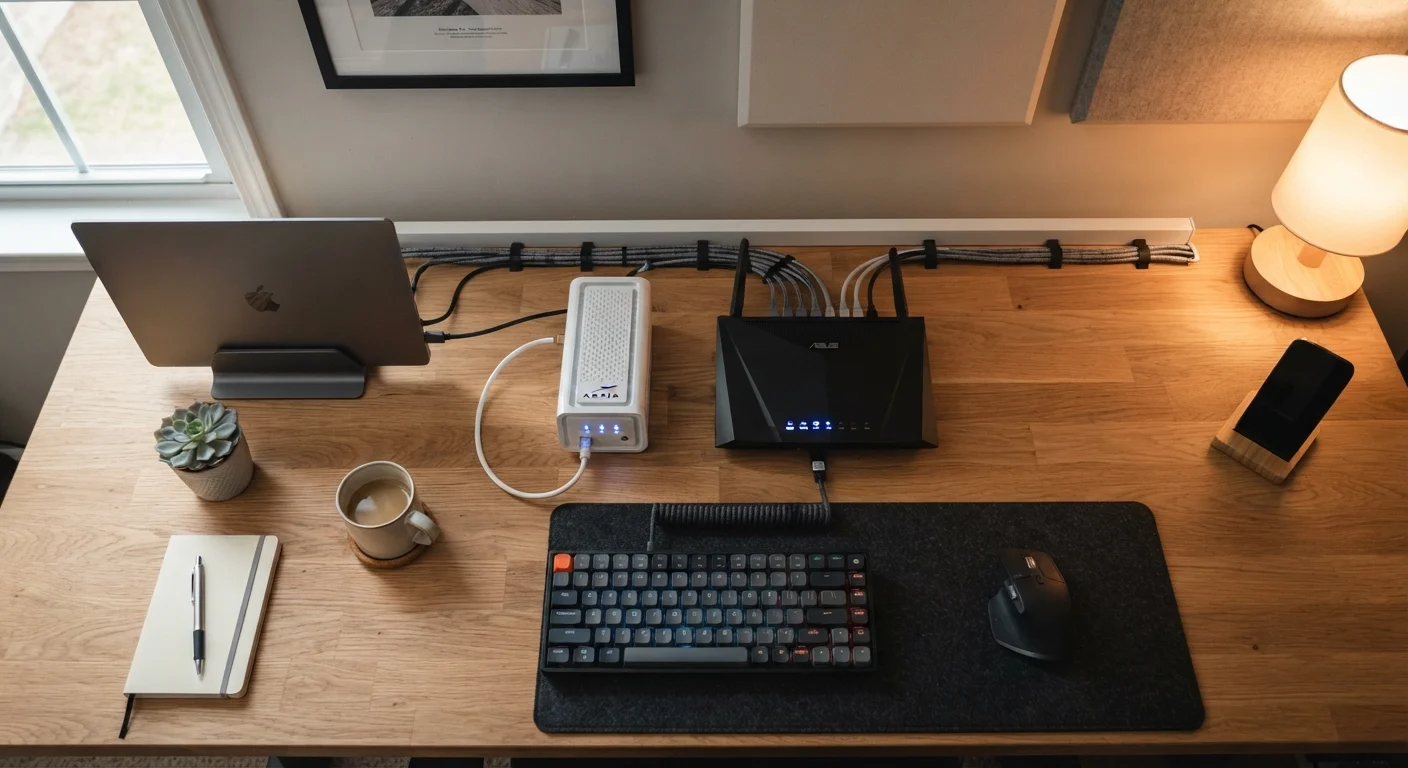
Photo credit: GadgetLite.net | All Things Tech
In this article
Confused by routers, modems, and access points? This plain-language guide breaks down every piece of your home network setup.
Key Takeaways
- Your modem connects your home to your internet service provider; your router shares that connection with your devices.
- Many ISPs supply a single device that combines modem and router functions into one box.
- Wi-Fi range and speed depend heavily on router placement, not just hardware quality.
- Mesh systems use multiple nodes to extend coverage across larger or multi-story homes.
- Knowing what each device does makes troubleshooting much faster and less stressful.
The Modem: Your Home's Front Door to the Internet
Your internet service provider (ISP) - the company you pay for internet access - sends a signal to your home through a physical connection. That connection might be a coaxial cable, a phone line, or a fiber-optic cable depending on your service type. The modem (short for modulator-demodulator) translates that incoming signal into a digital format your home devices can use.
Think of the modem as your front door. The internet is outside, and the modem is the entryway that allows it in. Without a functioning modem, nothing in your home can reach the internet - no matter how good your router is.
Most ISPs either rent you a modem or include one in a combo device. If your modem is separate, it connects to your router via a single ethernet cable. That's the handoff point where the outside world meets your home network.
The Router: Traffic Controller for Your Devices
Once the internet is inside your home, your router takes over. Its job is to distribute that connection to every device in your house - your laptop, your phone, your smart TV, your kids' tablets. It does this by creating a local network and assigning each device its own internal address so data packets reach the right destination.
Routers handle both wired connections (via ethernet ports on the back) and wireless connections (Wi-Fi). When you connect to a network named something like "HomeNetwork_5G" on your phone, you're connecting to your router's Wi-Fi signal.
Restarting Your Router Is Often the Answer
When your internet feels sluggish or a device won't connect, try unplugging your router for 30 seconds before anything else. Routers accumulate temporary data over time that can slow things down. A quick restart clears that and resolves many common issues without any technical knowledge required.
For a deeper look at how your network is structured from the street to your screens, see our end-to-end home network guide.
Combo Devices, Mesh Systems, and Access Points
Many ISPs supply a gateway device - a single box that combines modem and router functions. This simplifies setup but limits your flexibility. If you want more control or better performance, you can replace the router portion with a dedicated third-party router while keeping the ISP's modem active.
For larger homes or spaces with dead zones, a mesh Wi-Fi system uses two or more nodes placed around the home to blanket every room with a consistent signal. Unlike traditional range extenders - which can cut bandwidth in half - mesh systems are designed to hand off your connection seamlessly as you move between rooms.
An access point is another option: a device hardwired to your router that broadcasts Wi-Fi in a specific area. It's particularly useful in outbuildings, garages, or basements where running a cable is feasible.
~25+
Average connected devices per US household
According to research from Deloitte, US households have increasingly crossed the 25-device threshold as smart home adoption grows.
2x
Typical speed loss from range extenders vs. mesh
Traditional single-band range extenders can cut available bandwidth roughly in half because they use the same channel to receive and rebroadcast the signal.
Where you physically place your router shapes your entire experience. Our article on router placement decisions explains the practical principles that reduce dead zones.
Making Sense of It All
Once you understand what each piece does, troubleshooting becomes more straightforward. Slow internet throughout the whole house? The issue likely starts at the modem or with your ISP. Wi-Fi drops in one room but not another? That points to router placement or coverage - not your internet plan.
If your home is filling up with smart speakers, thermostats, and security cameras, knowing how your network is structured also helps you plan for extra devices. Those gadgets all connect through your router, and a congested router can drag down performance for everything. For more on how those devices interact with your network, see our smart home devices explainer.
And if you've encountered terms like SSID, DHCP, or NAT during your setup and had no idea what they meant, the home networking glossary covers the vocabulary you're most likely to run into.
Frequently Asked Questions

Author
Cloud Editorial Team
Cloud Editorial Team is the collective byline for our editorial team and contributor network. Articles published under this byline or an editorial pen name are researched, written, and reviewed according to our editorial standards for clarity, consistency, and independence before publication.
View all articles →