
Understanding Your Home Network End to End: From the Street to Every Screen
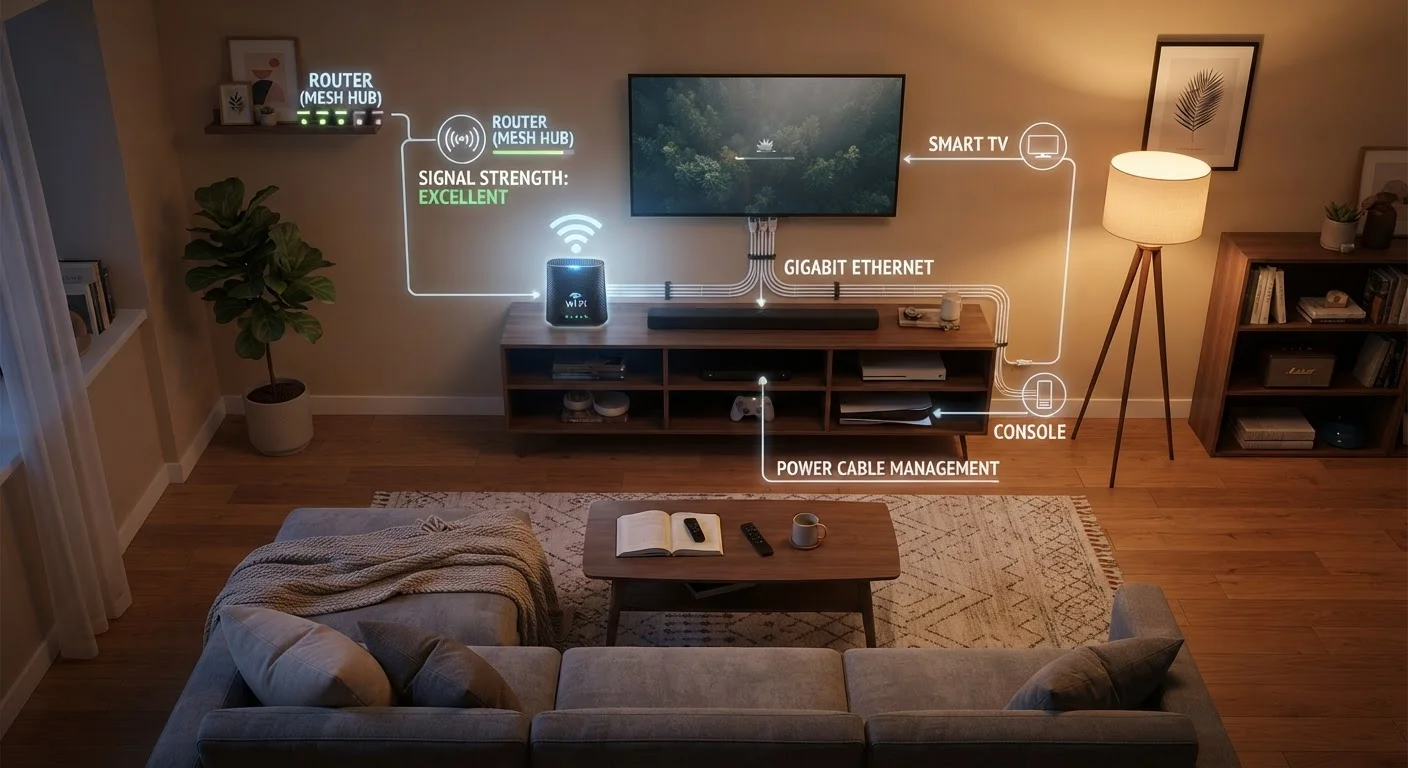
Photo credit: GadgetLite.net | All Things Tech
In this article
A thorough, jargon-light guide covering how internet service reaches your home, how your local network is structured, and how to keep it running well.
Key Takeaways
- Internet service travels from a provider's infrastructure through a modem before reaching your router.
- Your router assigns addresses to every device and manages all traffic on your local network.
- Wired connections are generally faster and more stable than Wi-Fi for stationary devices.
- Mesh systems and Wi-Fi extenders can eliminate dead zones in larger homes.
- Changing default router passwords and keeping firmware updated are the two most impactful security steps.
How the Internet Gets to Your Front Door
Before a single YouTube video loads or a smart doorbell sends an alert, your internet service travels a surprisingly long road. Your Internet Service Provider (ISP) - the company you pay for internet access - maintains a network of cables, fiber lines, or wireless towers that fan out across neighborhoods. A physical connection, usually a coaxial cable, fiber-optic line, or copper phone line, runs from that infrastructure to a connection point on or inside your home.
The type of connection matters for speed and reliability. Fiber-optic lines carry data as pulses of light and deliver the highest speeds. Cable internet uses the same coaxial wiring as cable TV and is widely available. DSL (Digital Subscriber Line) runs over phone lines and tends to be slower. Fixed wireless and satellite options serve areas where physical lines aren't practical.
~90%
US households with fixed broadband access
According to FCC broadband deployment data, roughly 90% of US households have access to fixed broadband service at standard speeds.
25+
Connected devices in a typical US home
Industry estimates suggest the average American household has more than 25 connected devices, up sharply from fewer than 10 a decade ago.
Once that physical line enters your home, it terminates at a piece of equipment that translates the ISP's signal into something your home devices can use - the modem.
The Modem: Your Home's Gateway
A modem (short for modulator-demodulator) converts the signal coming in from your ISP into a standard digital format your home network can use, and vice versa. Think of it as a translator standing at your front door.
Many ISPs supply a modem when you sign up, and some provide a combination device - a modem and router built into one box, often called a gateway. This is convenient, but it gives you less control over your network. Using a separate modem and router is a common choice for people who want more flexibility.
Restart Your Modem First
When your internet stops working, power-cycling the modem - unplugging it for 30 seconds, then plugging it back in - resolves the majority of connectivity issues. Wait for the modem's lights to stabilize before restarting the router. This clears temporary glitches in the connection between your home equipment and your ISP's network.
For a deeper look at how modems, routers, and access points all relate to each other, see our plain-language breakdown of home network hardware.
The Router: Traffic Director for Every Device
The router is the hub of your local network. It connects to the modem and then creates a private network inside your home - every phone, laptop, smart TV, and thermostat joins that network. The router hands each device a unique local address (using a system called DHCP, or Dynamic Host Configuration Protocol) so that data packets know exactly where to go.
When you stream a show, the router receives data from your ISP and sends it only to the device that requested it - not to every gadget in the house simultaneously. This traffic management happens constantly and invisibly.
Log into your router's admin panel at least once and rename your network and admin password before doing anything else - it takes five minutes and removes the two most common entry points for unauthorized access.
Default credentials and default SSIDs are publicly listed for nearly every router model, making them trivial for automated tools to exploit.
When placing a mesh node or extender, aim for the halfway point between your router and the dead zone - not inside the dead zone itself. The device needs a strong incoming signal to rebroadcast effectively.
Placing an extender too far from the router means it's already receiving a weak signal, so the rebroadcast is weak too, defeating the purpose.
Routers also broadcast your Wi-Fi network (identified by an SSID - your network name). Most modern routers broadcast on two frequency bands: 2.4 GHz, which travels farther but carries less data, and 5 GHz, which is faster but shorter in range. Some newer routers add a 6 GHz band for even higher speeds in close range.
If you want a handy reference for terms like SSID, DHCP, and NAT, our networking glossary covers the vocabulary you're most likely to encounter.
Wired vs. Wireless: Choosing the Right Connection
Ethernet cables plug directly from your router into a device, bypassing Wi-Fi entirely. This delivers lower latency (the tiny delay before data starts moving) and more consistent speeds - a real advantage for gaming, video calls, or streaming in 4K. If your TV, desktop PC, or game console sits near your router, a wired connection is almost always the better choice.
Wi-Fi is indispensable for phones, tablets, and anything that moves around the house. The convenience trade-off is that wireless signals are affected by walls, appliances, neighboring networks, and the sheer number of devices competing for bandwidth.
Wired Is Faster - but Placement Matters Too
If your router is tucked in a closet or pushed against an exterior wall, even devices in the same room may get a weaker signal than they should. Router placement and connection type together determine real-world performance - fixing placement is free and often more effective than buying new hardware.
For a complete step-by-step walkthrough - from plugging in your router to connecting every device - our guide on setting up a home network from scratch is the right starting point if you're building or rebuilding your setup.
Dead Zones and How to Fix Them
A dead zone is any spot in your home where Wi-Fi is too weak to be useful - often a back bedroom, garage, or basement. Several options exist to solve this.
- Wi-Fi extenders receive your router's signal and rebroadcast it. They're inexpensive but can cut effective bandwidth roughly in half and sometimes create a separate network name that devices don't hand off to seamlessly.
- Powerline adapters send network data through your home's electrical wiring, with one adapter near the router and another near the dead zone. Speed depends heavily on your wiring quality.
- Mesh Wi-Fi systems use multiple nodes placed around your home that work as a single seamless network. Devices roam between nodes automatically without you noticing. This is generally the cleanest solution for larger homes or those with thick walls.
Router placement also makes a significant difference. Positioning your router in a central, elevated location - rather than in a corner or behind a TV cabinet - improves coverage throughout the home.
Keeping Your Network Secure and Healthy
A home network that's left on its default settings can be surprisingly easy for outsiders to probe. A few practical steps reduce that risk considerably.
- Change the default admin password on your router immediately after setup. Default credentials are publicly documented and are the first thing automated scans try.
- Update router firmware regularly. Manufacturers release updates that fix security vulnerabilities - many routers can be set to update automatically.
- Use WPA3 encryption if your router supports it (WPA2 is acceptable if not). This protects data traveling over your Wi-Fi.
- Set up a guest network for visitors and smart home devices. This keeps them separated from your main computers and phones.
Never Leave Default Router Credentials in Place
Router manufacturers ship devices with the same admin username and password printed on the label - or documented online. Leaving defaults unchanged means anyone within Wi-Fi range could potentially access your router's settings. Change both the admin password and your Wi-Fi password to something unique before connecting any devices.
For a thorough look at closing common vulnerabilities, our article on home network security walks through practical steps without unnecessary alarm.
Understanding your network end to end doesn't require a technical background - it just takes knowing which piece does what, and where to look when something goes wrong. You're now equipped to do exactly that.
Home Network Glossary
A plain-language reference for networking terms like SSID, DHCP, NAT, and QoS - useful when you encounter unfamiliar vocabulary in router settings or ISP documentation.
Home Network Security Guide
Practical, step-by-step advice for securing your home network against common vulnerabilities, written for non-technical readers.
Router Admin Panel
Your router's built-in web interface (usually accessed at 192.168.1.1 or 192.168.0.1) lets you change passwords, update firmware, set up guest networks, and review connected devices.

Author
Cloud Editorial Team
Cloud Editorial Team is the collective byline for our editorial team and contributor network. Articles published under this byline or an editorial pen name are researched, written, and reviewed according to our editorial standards for clarity, consistency, and independence before publication.
View all articles →