
Organising Your Phone's Apps So You Actually Use Them
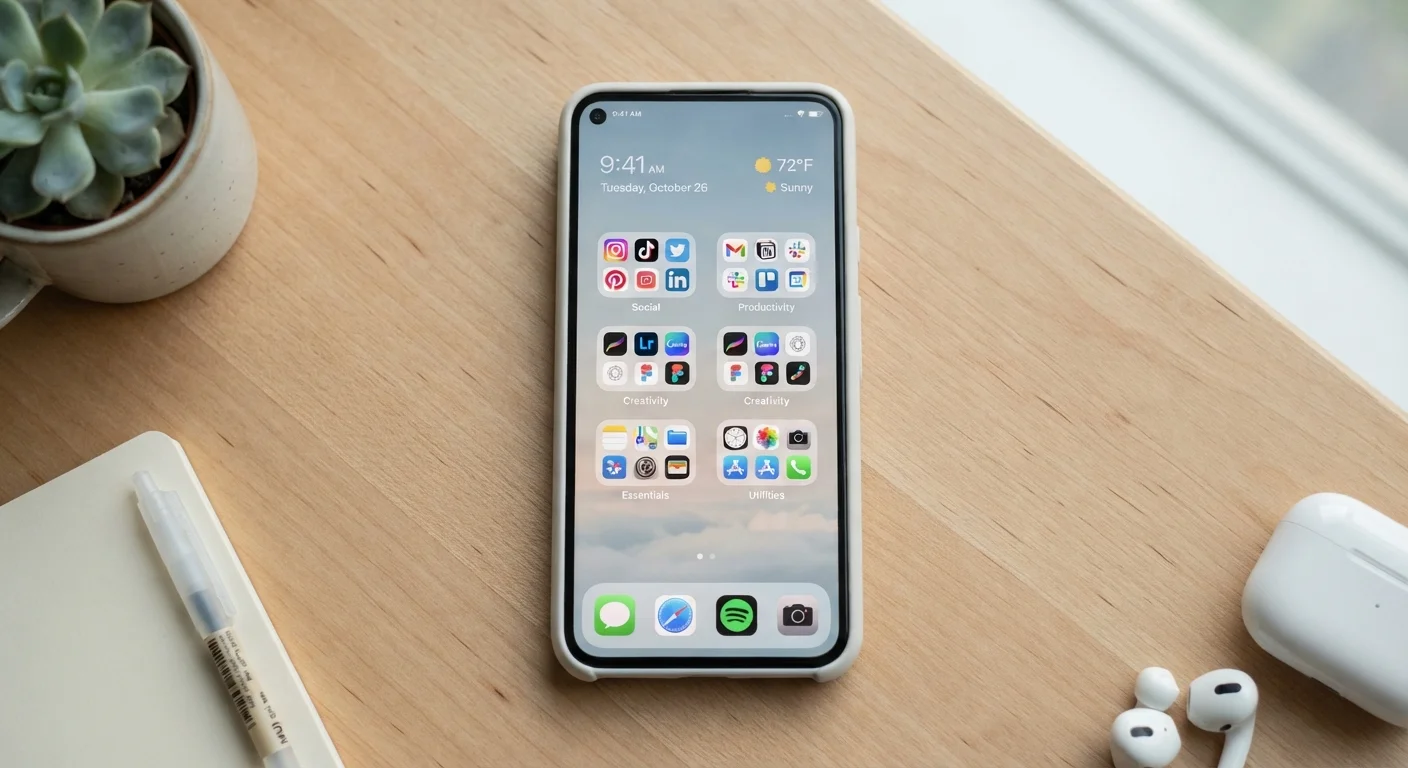
Photo credit: GadgetLite.net | All Things Tech
In this article
Simple strategies for arranging your apps by habit and routine so nothing gets buried or forgotten.
Key Takeaways
- Organizing apps around your daily routines reduces friction and helps you actually use them.
- Folders grouped by activity - not category - match how most people naturally reach for their phones.
- Moving rarely used apps off your home screen frees mental space and reduces distraction.
- A quick monthly review keeps your setup fresh without requiring a full overhaul.
- Your dock deserves your five most-reached-for apps - treat it like prime real estate.
Why App Organization Actually Matters
The average smartphone has dozens of apps installed, but research consistently shows people regularly use only a fraction of them. When apps are buried or randomly scattered, you either forget they exist or waste time hunting - both outcomes defeat the purpose of having the app at all.
Good organization isn't about aesthetics. It's about reducing the tiny moments of friction that add up across your day. When the right app is exactly where you expect it, using your phone feels effortless. When it isn't, you're more likely to give up or get distracted scrolling past other apps along the way.
If you've ever wondered whether there are apps doing jobs you didn't realize your phone could handle, built-in app capabilities are worth exploring before you add more to the mix. And if clutter is already a problem, the case against too many apps makes a compelling argument for trimming first.
Best Practices for Organizing Your Apps
The following approaches are grounded in how people actually use their phones - not how a tech manual says they should.
Organize folders by routine or activity, not by app type.
Grouping apps by what you're doing - morning, commute, work, wind down - mirrors the mental context you're already in when you reach for your phone. Category-based folders like 'Social' or 'Utilities' force you to think abstractly about what kind of app you need rather than what you're trying to do.
Reserve your dock for the five apps you open every single day.
The dock (the persistent row at the bottom of your home screen) is the most valuable real estate on your phone. Apps that live there require zero searching. Treat those slots as premium space - only the most frequently reached-for apps earn a spot.
Move rarely used apps to a second or third screen - or off your phone entirely.
Keeping infrequent apps on your main home screen creates visual noise that makes it harder to find what you actually need. Apps you use a few times a year are better found via search than kept front and center.
Use your phone's built-in search instead of infinite folders.
Both iOS and Android have fast, reliable app search - usually triggered by swiping down on the home screen. For apps you use less than weekly, searching is often faster than navigating folders. This frees you from over-organizing.
Put notification-heavy apps somewhere deliberate, not on your home screen.
Apps that constantly badge or ping create a pull every time you glance at your phone. Placing social or news apps inside a folder on a secondary screen puts a small barrier between you and the distraction - enough to make opening them a conscious choice.
Quick Wins You Can Do Right Now
You don't need to reorganize everything at once. Start here:
Once your home screen reflects your actual habits, maintaining it takes far less effort than building it. The same logic applies to your digital files - if you want a consistent approach, see how cloud file organization works on the same principles of routine and structure.
Keeping Your Setup Working Over Time
Even a well-organized home screen drifts over time. New apps get downloaded, old ones go stale, and folders that once made sense no longer fit your routine. A brief monthly check-in - just five minutes - is enough to prune what you're not using and move anything that's ended up in the wrong place.
Your Routine Changes - Your Setup Should Too
A folder structure that worked during one life phase may not fit the next. Starting a new job, changing your commute, or picking up a new hobby all shift which apps you reach for most. Treat your home screen as a living document, not a one-time project. There's no single 'correct' layout - the right setup is whatever reduces friction for your current habits.
If an app update has scrambled your workflow or shifted where features live, that's a common frustration. Understanding why apps keep changing can help you adapt without losing your rhythm. And while you're reviewing your setup, it's also a good moment to check in on app privacy habits - which apps have permissions they no longer need is a useful question to ask at the same time.

Author
Apps & Software Editorial Team
Apps & Software Editorial Team is the collective byline for our editorial team and contributor network. Articles published under this byline or an editorial pen name are researched, written, and reviewed according to our editorial standards for clarity, consistency, and independence before publication.
View all articles →