
PC Ports and Connectivity: What's Actually Useful on a Modern Laptop
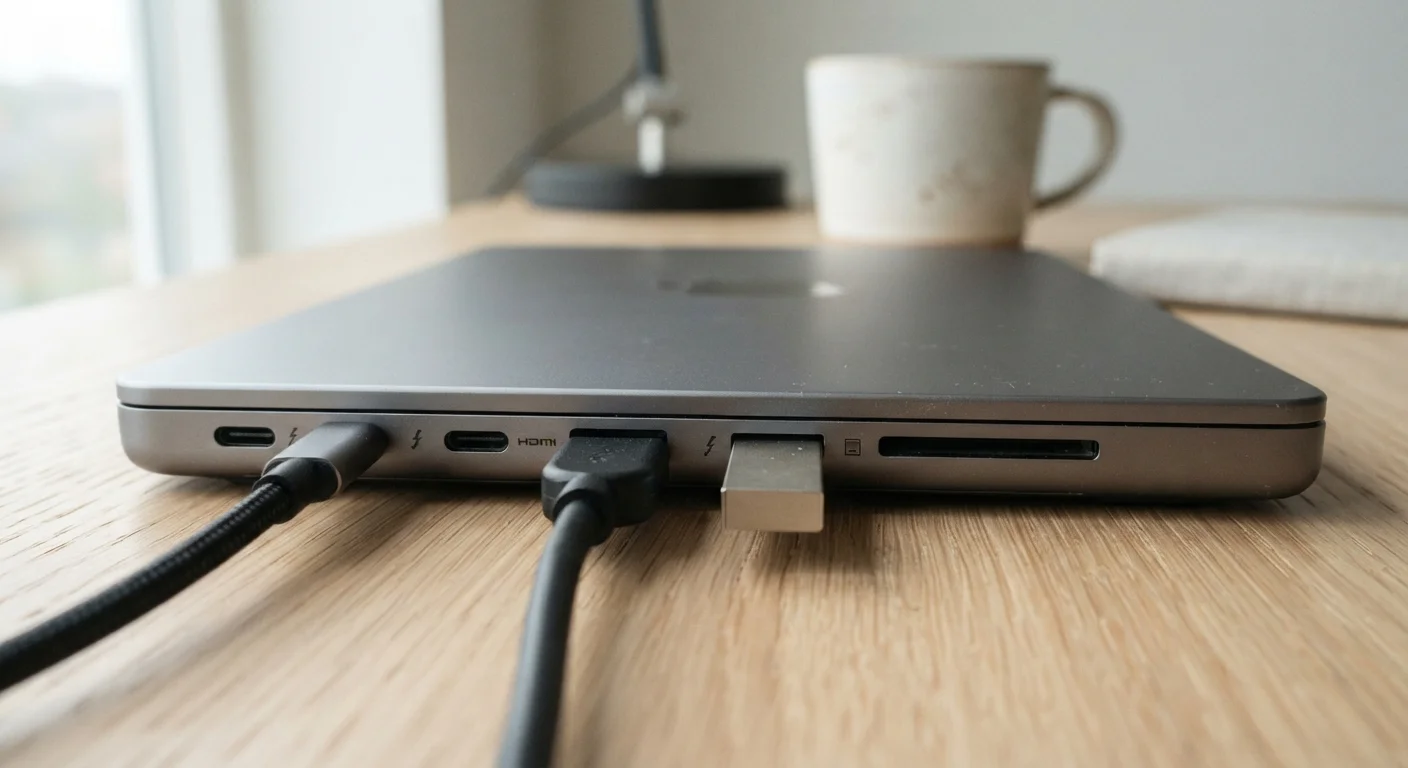
Photo credit: GadgetLite.net | All Things Tech
In this article
HDMI, USB-C, Thunderbolt, SD card slots — which ports are genuinely practical for everyday users and which rarely get used?
Key Takeaways
- USB-C and Thunderbolt ports handle charging, data, and video output through a single cable.
- HDMI remains the most practical port for connecting a laptop to an external monitor or TV.
- USB-A ports are still valuable for legacy accessories that haven't made the switch to USB-C.
- An SD card slot matters most for photographers and content creators who work with camera footage.
- Thin laptops often sacrifice ports — a quality hub or dock can restore missing connectivity.
- Knowing your actual workflow before buying prevents adapter frustration down the road.
Why Ports Are Worth Paying Attention To
Laptop spec sheets list ports in a single line, buried below processor benchmarks and display resolution. But for most users, what's on the side of the machine shapes daily experience far more than a chip generation difference. Plug in the wrong monitor cable at a meeting and none of the benchmark numbers matter.
The challenge is that manufacturers have been quietly removing ports for years in pursuit of slimmer designs. That trade-off is real — as covered in our look at thin-and-light laptops vs. traditional clamshells. What follows is a plain-language breakdown of the most common ports you'll encounter, what they genuinely do, and who actually needs them.
USB-C: The Port Doing the Most Work
USB-C is the small, oval-shaped connector that has become the near-universal standard across phones, tablets, and laptops. What makes it valuable is versatility: a single USB-C port can carry power (charging), data (file transfers), and video output (to an external display), depending on what the port supports and what cable or adapter you're using.
The catch is that not all USB-C ports are equal. Some only handle charging and basic data. Others support DisplayPort video. Checking the spec sheet for what each USB-C port actually supports is worth doing before assuming it can run a monitor.
One USB-C port can charge, transfer data, and drive a monitor — if the laptop supports it.
Thunderbolt: USB-C's High-Performance Sibling
Thunderbolt is a protocol developed by Intel that runs on a USB-C connector but delivers significantly more bandwidth — the technical term for how much data can move through the connection at once. Thunderbolt 4, the current common standard, supports data transfer speeds up to 40 Gbps (gigabits per second), can drive two 4K monitors simultaneously, and works with external graphics cards if your work demands them.
For everyday users, the practical difference between Thunderbolt and a standard USB-C port is subtle unless you're moving large video files or connecting a high-resolution display. The Thunderbolt port is identifiable by a lightning bolt icon next to the port. If you see it, that port is doing everything USB-C can, and then some.
Thunderbolt uses the USB-C shape but moves data up to four times faster than standard USB-C.
HDMI: Still the Most Universal Display Connection
Despite the industry's push toward USB-C, HDMI (High-Definition Multimedia Interface) remains the most common way to connect a laptop to an external monitor, TV, or projector. Most display screens still use HDMI as their primary input, which means having an HDMI port on your laptop avoids the need for an adapter in most real-world situations.
Full-size HDMI is the standard connector. Some thinner laptops include a micro-HDMI port instead, which requires a cable adapter. HDMI 2.1, the current generation, supports 4K and 8K resolution at high refresh rates — relevant if you're pairing with a high-quality monitor. For the majority of users connecting to a standard office monitor or living-room TV, HDMI 2.0 is more than sufficient.
HDMI remains the most friction-free way to connect a laptop to nearly any display.
USB-A: Legacy Standard, Still Genuinely Needed
The rectangular USB-A port is what most people picture when they think of USB — the connector used by flash drives, wired mice, keyboards, and countless other accessories. Despite being decades old, a significant portion of peripherals still ship with USB-A connectors, which means having at least one or two on a laptop remains practical for most users.
Thin laptops are the most likely to drop USB-A ports entirely in favor of USB-C. If you regularly use a USB-A device — a wireless mouse dongle, a webcam, a scanner — and you're considering a machine without the port, factor in the cost and inconvenience of a hub or adapter. The broader consumer electronics landscape is gradually shifting toward USB-C, but that transition isn't complete yet.
USB-A still connects most everyday accessories — its absence on slim laptops is a real inconvenience.
SD Card Slot: Niche but Genuinely Useful
An SD (Secure Digital) card slot lets you insert memory cards directly from a camera or drone without a separate reader. For photographers, videographers, or anyone who regularly pulls footage from a camera, this is a meaningful convenience. Without it, you need a USB card reader, which is a small adapter but one more thing to carry and lose.
Most general-purpose laptops have dropped the SD slot over the past few years. Some higher-end machines and devices aimed at creative professionals have retained it, occasionally in a reduced microSD format. If you shoot with a camera regularly, checking for this port — or budgeting for a reliable card reader — should be part of your decision process.
An SD card slot eliminates a step for anyone who regularly transfers photos or video from a camera.
Ethernet: Wired Internet When Wi-Fi Isn't Enough
A physical ethernet port connects a laptop directly to a router or modem with a cable, bypassing Wi-Fi entirely. This results in a more stable, lower-latency connection — meaning fewer delays and dropouts — which is useful for video calls, large file uploads, or online gaming where wireless interference causes problems.
Ethernet ports are bulky by design, and most thin laptops have removed them. If you work from home and deal with an unreliable Wi-Fi connection, a USB-C to ethernet adapter is one of the most useful inexpensive accessories available. It's worth noting that the AI features now built into many PCs that depend on cloud processing can also benefit from a steady wired connection.
Ethernet delivers a more stable, faster connection than Wi-Fi — especially useful for video calls.
What to Do When Your Laptop Doesn't Have Enough Ports
If a laptop you're considering is short on ports, a USB-C hub or Thunderbolt dock can compensate — adding HDMI, USB-A, SD card slots, and ethernet in a single unit. These accessories have matured considerably and, for most users, offer a practical workaround. Our guide to tech accessories that genuinely earn their place covers what to look for in a hub without overspending.
That said, a dock adds cost and a cable to manage. If you know you'll need a specific port every day — an SD slot, say, or a full-size USB-A for a scanner — it's worth prioritizing that in the hardware itself rather than patching around it. Your choice between a desktop and laptop may also affect how much port variety you actually need at your main workspace.
Check Port Placement, Not Just Count
Where ports are positioned on a laptop matters as much as how many there are. Ports clustered on the left side can conflict with a mouse if you're right-handed, and rear-facing ports can make plugging in cables awkward on a desk against a wall. Before buying, check reviews that mention real-world port ergonomics — spec sheets never do.

Author
Releases Editorial Team
Releases Editorial Team is the collective byline for our editorial team and contributor network. Articles published under this byline or an editorial pen name are researched, written, and reviewed according to our editorial standards for clarity, consistency, and independence before publication.
View all articles →