
Setting Up Your Gaming Chair and Desk for Long Sessions Without Discomfort
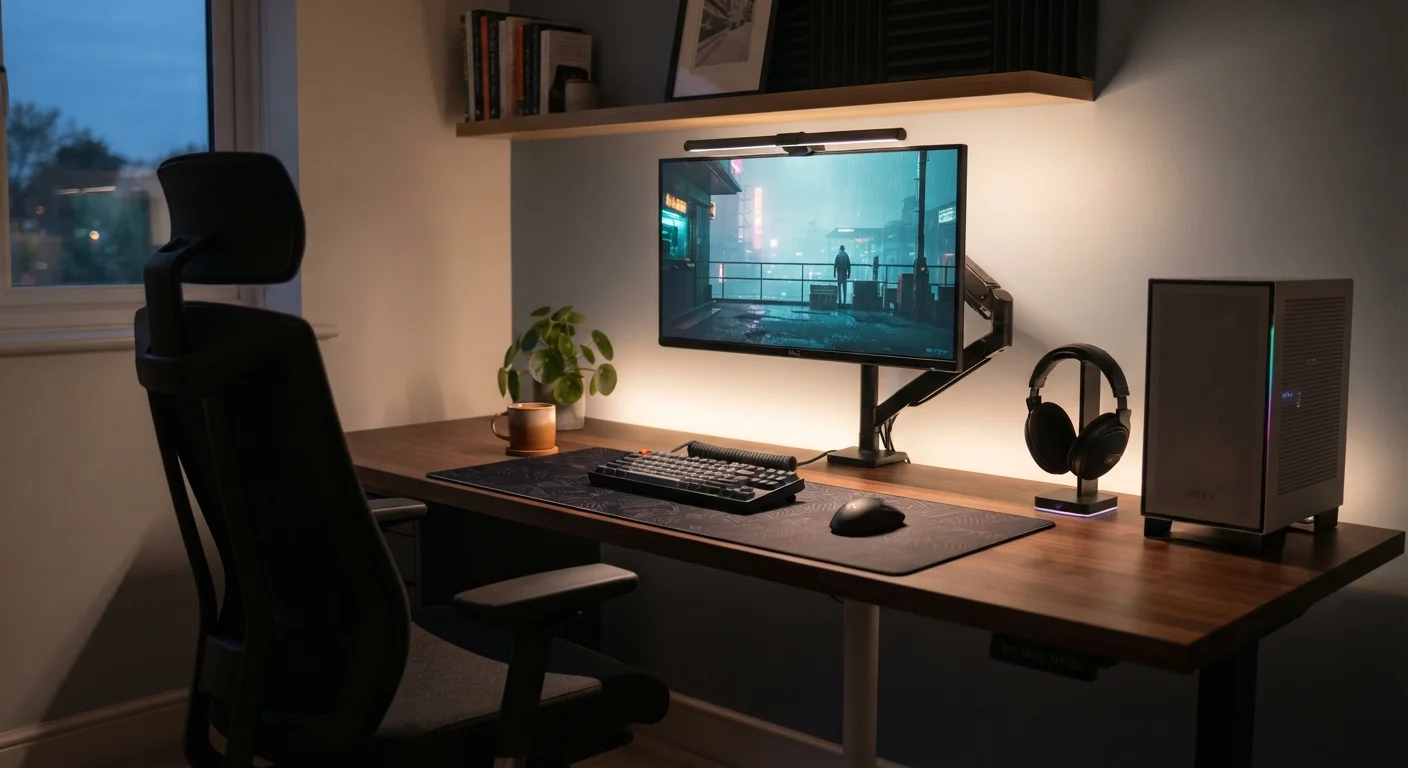
Photo credit: GadgetLite.net | All Things Tech
In this article
Chair height, monitor distance, armrest position — practical steps to arrange your gaming space so your body holds up over time.
Key Takeaways
- Chair height should let your feet rest flat on the floor with knees at roughly 90 degrees.
- Your monitor's top edge should sit at or just below eye level to reduce neck strain.
- Armrests positioned to support your forearms reduce shoulder and wrist tension significantly.
- A consistent setup routine helps you notice and correct drift before discomfort sets in.
- Small adjustments compound — even minor changes to posture can protect you over hundreds of hours.
Why Your Setup Geometry Matters More Than the Gear Brand
It's tempting to assume that a premium gaming chair automatically means comfort — but a chair set at the wrong height is just as hard on your body as a cheap one. The relationship between your chair, desk, and monitor is what actually determines whether a three-hour session leaves you feeling fine or leaves you rubbing your neck. No single piece of furniture solves the problem; the arrangement does.
If you're still figuring out the broader picture of what gear you actually need, our casual player gear guide breaks down what's worth prioritizing early on. And if you're curious about accessories like monitor arms that can help with positioning, our gaming accessories overview explains what each category actually does.
What you will need
Measuring tape or ruler
Verify seat height, monitor distance, and desk clearance with precise measurements.
Monitor arm or stand riser
Raises or repositions your screen to achieve the correct eye-level height.
Footrest
Supports your feet flat when desk height prevents your chair from going low enough.
Lumbar support cushion
Fills the gap between your lower back and the chair if built-in lumbar support is insufficient.
Step-by-Step: Dialing In Your Position
Work through these steps in order — each one builds on the last. Rushing to adjust your monitor before your chair is set means you'll likely have to readjust everything anyway.
Set your chair height first
Sit all the way back in the chair so your back touches the backrest. Adjust seat height until your feet rest flat on the floor and your knees form roughly a 90-degree angle. Your thighs should be roughly parallel to the ground — not angled sharply downward or upward.
If your desk is too tall relative to your body even at the chair's maximum height, a footrest can fill the gap rather than forcing you to sit unnaturally high.
Adjust lumbar support and backrest angle
Locate the lumbar support adjustment on your chair — most gaming chairs have a knob, dial, or sliding pad. Position it so it meets the natural inward curve of your lower back, not the middle of your back. The backrest angle can sit anywhere from fully upright (90°) to a slight recline (around 100–110°). A mild recline actually reduces spinal compression compared to sitting bolt upright.
Position your armrests to support your forearms
Raise or lower the armrests so your forearms rest on them with your shoulders relaxed — not hunched up toward your ears. Your elbows should be close to a 90-degree bend. If armrests are too high, they push your shoulders up; too low, and you lean sideways to reach them. Ideally, armrest height matches your desk surface so your forearms transition smoothly from armrest to keyboard.
Position your monitor at the right height and distance
The top edge of your monitor should sit at or very slightly below your eye level when you're seated in your adjusted chair. If the screen is too low, you'll tilt your head down for hours; too high, and your neck tilts back. Most monitors need to be raised — a monitor arm, a riser, or even a sturdy stack of books all accomplish this.
For distance, a commonly used guideline is to sit roughly an arm's length away (about 20–28 inches for most monitors). Larger screens typically need a little more distance. If you have to squint or lean in to read text, either the screen is too far or your font size is too small — adjust both before assuming distance is the culprit.
Align your keyboard and mouse with your elbows
Place your keyboard so your upper arms hang naturally at your sides and your elbows form that same 90-degree angle from step 3. Your mouse should sit right beside the keyboard at the same height — not pushed far to the side. A mouse pad that gives your arm room to move without reaching reduces shoulder tension noticeably over a long session.
Do a full-position check and make micro-adjustments
Sit normally for a few minutes, then pause and scan your body from feet to neck. Are your feet flat? Knees at 90°? Lower back supported? Shoulders relaxed, not raised? Eyes level with the top of the screen? Adjust anything that feels off — then repeat the scan. It usually takes two or three passes before everything clicks into place.
Once your setup is dialed in, it's worth checking it occasionally since chairs and monitor arms can drift. If you're also thinking about the broader gear picture, our setup readiness checklist is a handy way to identify any remaining gaps before spending more.
The 20-20-20 Rule for Eye Fatigue
Every 20 minutes, look at something roughly 20 feet away for about 20 seconds. This gives your eye muscles a brief reset and can noticeably reduce the heavy, strained feeling that builds up over long sessions. It's easy to build into any natural pause in gameplay.
Habits That Keep Discomfort From Creeping Back
Even a perfectly configured setup can lead to stiffness if you sit in it without moving for hours. A simple rule: stand up, stretch, or walk briefly every 45–60 minutes. This isn't about willpower — set a timer so it becomes automatic rather than optional.
Beyond breaks, lighting matters more than people realize. Gaming in a pitch-dark room with a bright screen creates a high-contrast environment that tires your eyes faster. Aim for ambient room lighting that's roughly comparable in brightness to your screen — a desk lamp or bias lighting strip behind the monitor both work.
Finally, good gear lasts longer when it's maintained. Our gear maintenance guide covers simple upkeep habits that keep chairs, keyboards, and peripherals in shape over time. And if you're just getting started with gaming more broadly, choosing the right platform is a great next read.
Persistent Pain Needs Professional Attention
Setup adjustments can reduce everyday discomfort caused by poor positioning, but they are not a substitute for medical care. If you're experiencing consistent pain in your neck, back, wrists, or shoulders, speak with a healthcare professional. This guide is for comfort optimization, not treatment.

Author
Gaming Editorial Team
Gaming Editorial Team is the collective byline for our editorial team and contributor network. Articles published under this byline or an editorial pen name are researched, written, and reviewed according to our editorial standards for clarity, consistency, and independence before publication.
View all articles →