
Keeping a Phone Secure Without Making It Annoying to Use Every Day
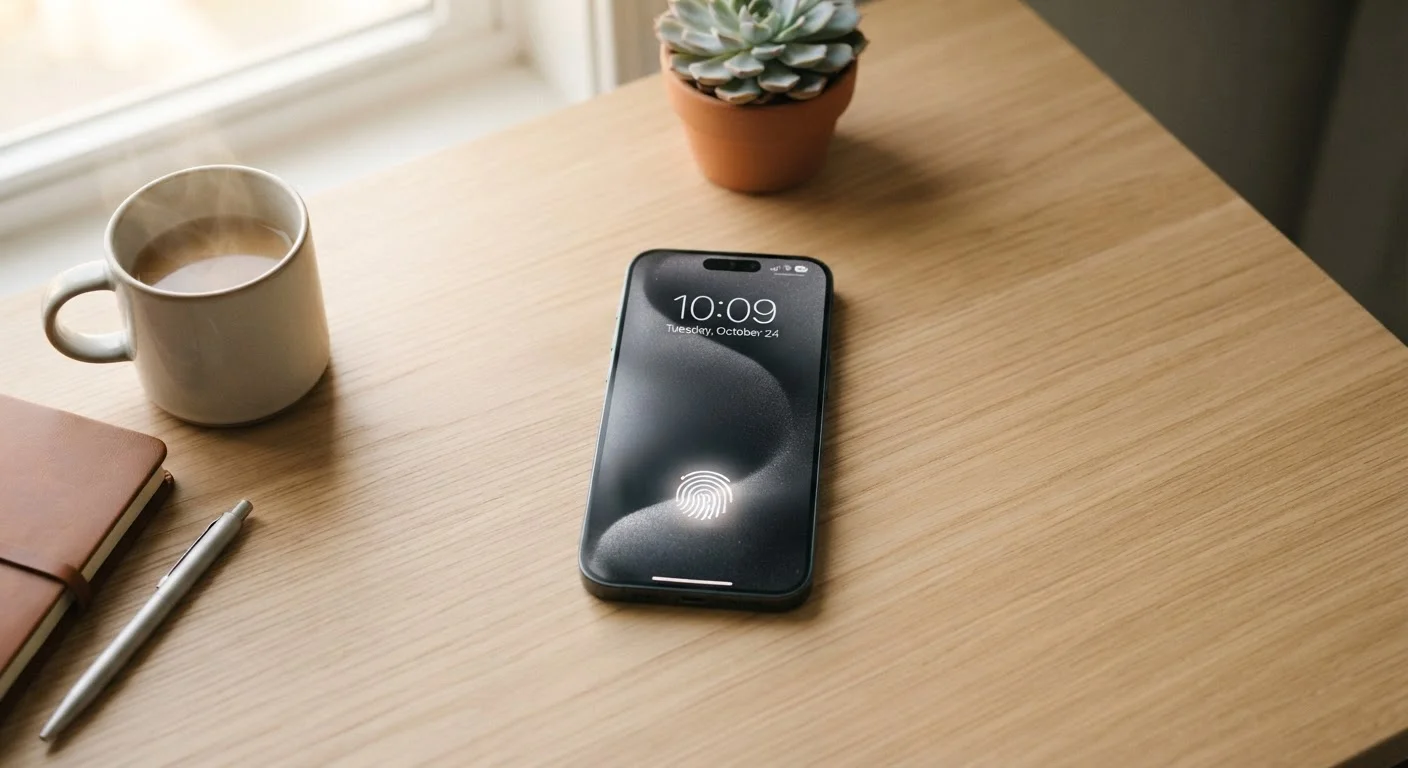
Photo credit: GadgetLite.net | All Things Tech
In this article
Practical mobile security that doesn't get in your way — from lock screen choices to app permissions and what to actually worry about.
Key Takeaways
- Biometric lock screens offer the best balance of speed and protection for daily use.
- App permissions should be reviewed periodically — many apps request far more access than they need.
- Software updates are your first line of defense against known security vulnerabilities.
- A password manager eliminates the trade-off between strong passwords and convenience.
- Two-factor authentication adds meaningful protection without much daily friction.
Why Mobile Security Feels Like a Chore (and How to Fix That)
Most people understand that their phone holds sensitive information — banking apps, personal photos, health data, private messages. But security advice often feels like it was written for IT professionals, not someone who just wants to check their email without jumping through hoops.
The good news: meaningful mobile security doesn't require constant vigilance or technical expertise. Most of the heavy lifting happens through a handful of settings you configure once and rarely revisit. The practices below are chosen specifically because they protect you without grinding your daily routine to a halt.
Use biometric authentication as your primary lock screen method.
Face unlock and fingerprint readers are faster than typing a PIN and harder for someone else to defeat than a simple swipe. They also encourage you to actually lock your phone, since unlocking it is effortless.
Enable automatic software updates for both your operating system and apps.
The majority of serious mobile vulnerabilities are patched quickly — but only for devices running current software. Delaying updates is one of the easiest ways to stay exposed to known, fixable problems.
Use a password manager instead of reusing passwords across accounts.
Reusing the same password across multiple accounts means a breach at one service exposes all the others. A password manager generates and stores unique strong passwords so you only need to remember one master credential.
Turn on two-factor authentication (2FA) for your most important accounts.
Two-factor authentication — where logging in also requires a code sent to your phone or generated by an app — stops most unauthorized access even when a password is compromised. Email, banking, and cloud storage accounts are the highest priority.
Review and trim app permissions every few months.
Apps sometimes request permissions that aren't essential to their core function. Auditing permissions periodically ensures you're not sharing location, microphone, or contact data with apps that don't genuinely need it.
Permissions and Privacy: What Apps Actually Have Access To
Every app you install can request access to parts of your phone — your location, microphone, contacts, camera, and more. The problem is that many people tap "Allow" reflexively during setup and never look back. That adds up quickly.
Both Android and iOS now let you grant limited or one-time access instead of permanent permission. A navigation app genuinely needs your location while you're using it — it doesn't need it running in the background all day. For a deeper look at how these trade-offs work across specific app types, see our guide on app features vs. data exposure.
Managing permissions is an ongoing habit, not a one-time fix. Building repeatable privacy habits makes it easier to stay on top of this over time.
What's Actually Worth Worrying About
Security anxiety is real, and a lot of it is misdirected. The average phone user is far more likely to be affected by a weak password or an outdated app than by sophisticated hacking. Prioritizing real risks over hypothetical ones keeps security practical.
80%+
Of breaches involve stolen or weak credentials
According to Verizon's annual Data Breach Investigations Report, compromised passwords consistently account for the vast majority of account takeovers.
~50%
Of users never update apps manually
Industry surveys have repeatedly found that a large share of users rely on automatic updates or don't update at all, leaving known vulnerabilities unpatched.
Phishing — fake messages or links designed to steal your login credentials — remains one of the most common mobile threats. The defense is straightforward: be skeptical of unexpected texts or emails asking you to tap a link, especially ones that create urgency. If a message claims to be from your bank, go directly to the bank's app or website instead of tapping through.
Public Wi-Fi Is Riskier Than It Looks
Coffee shop and airport Wi-Fi networks are convenient but unencrypted, meaning data sent over them can potentially be intercepted. For anything sensitive — banking, logging into accounts — use your mobile data connection or a reputable VPN (virtual private network) instead. A VPN encrypts your traffic so it can't easily be read on a shared network.
For users who also use smart home devices, it's worth knowing that phone security and network security are connected. Locking down your home network reduces exposure across all your connected devices.

Author
Gadgets Editorial Team
Gadgets Editorial Team is the collective byline for our editorial team and contributor network. Articles published under this byline or an editorial pen name are researched, written, and reviewed according to our editorial standards for clarity, consistency, and independence before publication.
View all articles →