
Cloud Storage and Local Storage on Mobile Devices: Understanding the Trade-offs
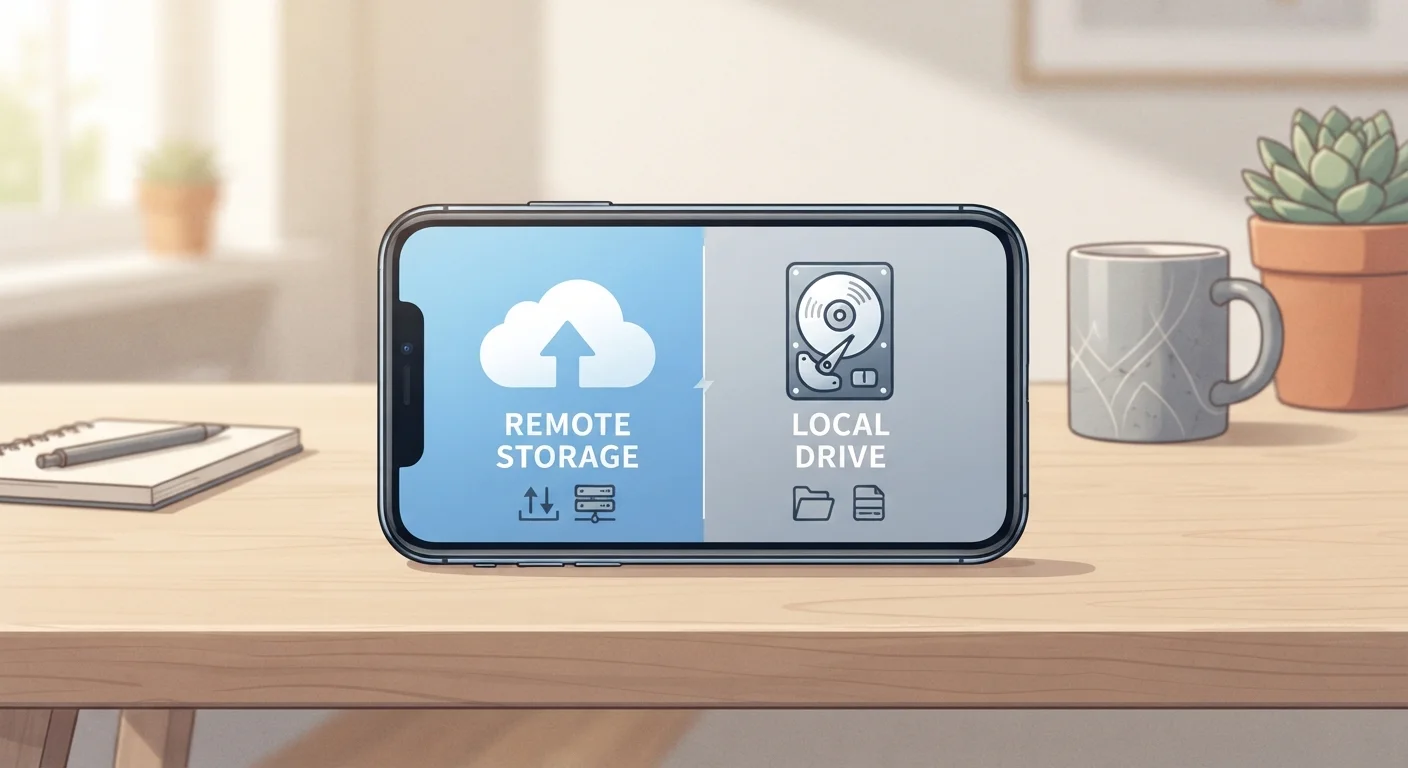
Photo credit: GadgetLite.net | All Things Tech
In this article
Storing photos and files on your phone versus in the cloud involves real compromises around privacy, cost, and access. Here's what to weigh.
Key Takeaways
- Local storage keeps files accessible without internet but is limited by your device's physical capacity.
- Cloud storage expands your available space but requires a reliable connection and ongoing subscription costs.
- Privacy trade-offs differ significantly: local files stay on your device, cloud files pass through third-party servers.
- A hybrid approach — storing some files locally and some in the cloud — often makes the most practical sense.
- Free cloud tiers fill up quickly; understanding their limits prevents unexpected gaps in your backup coverage.
No internet required for file access
Local files are available the moment you need them, regardless of network conditions — essential for travel or areas with poor connectivity.
No ongoing subscription cost
Local storage is paid for once at purchase. There are no monthly fees tied to keeping files on your own device.
Greater privacy control over sensitive files
Files stored only on your device don't pass through third-party servers, reducing exposure to data policies, breaches, or account access issues.
Fast read and write speeds
Modern phone storage chips offer quick file access, which matters for apps, high-resolution photos, and video playback without buffering.
Capacity is fixed and often fills quickly
You can't expand internal storage on most current smartphones, and high-resolution photos and videos consume space faster than many users expect.
No redundancy if the device is lost or damaged
Files stored only locally disappear if your phone is stolen, broken, or irreparably damaged — with no recovery path.
Requires internet access for remote retrieval
Cloud files aren't available offline unless you've explicitly downloaded them to your device in advance, which reintroduces local storage consumption.
Subscription costs accumulate over time
Free tiers are typically modest (5–15GB) and fill up quickly. Upgrading to meaningful storage capacity adds a recurring cost that compounds yearly.
Privacy depends on provider policies
Once a file is uploaded, it's subject to the cloud provider's terms, security infrastructure, and — in some jurisdictions — potential legal data requests.
What Local Storage Actually Means on a Phone
When you save a photo or download a document directly to your phone, it lives in local storage — the built-in memory chip inside your device. That file is yours, on your hardware, accessible whether or not you have a cell signal or Wi-Fi.
Modern smartphones ship with anywhere from 64GB to 1TB of internal storage, but that space is shared across your operating system, apps, cached data, and media files. In practice, many users find themselves running low well before they expect to. See our guide to clearing cache and app data for ways to recover space without deleting files you actually want.
One key limitation worth understanding: most modern iPhones and many Android flagships no longer support expandable storage via microSD card, so what you buy is what you get.
No internet required for file access
Local files are available the moment you need them, regardless of network conditions — essential for travel or areas with poor connectivity.
No ongoing subscription cost
Local storage is paid for once at purchase. There are no monthly fees tied to keeping files on your own device.
Greater privacy control over sensitive files
Files stored only on your device don't pass through third-party servers, reducing exposure to data policies, breaches, or account access issues.
Fast read and write speeds
Modern phone storage chips offer quick file access, which matters for apps, high-resolution photos, and video playback without buffering.
What Cloud Storage Actually Means in Practice
Cloud storage means your files are uploaded to remote servers managed by a third-party provider and accessed via the internet. Services sync files across your devices automatically, so a photo taken on your phone appears on your laptop without manual effort.
The convenience is real, but it comes with conditions. Access depends on an internet connection, and upload and download speeds are only as fast as your network allows. Storage beyond a free tier — typically 5GB to 15GB depending on the provider — requires a paid subscription. For a clear breakdown of how those costs are structured, see how cloud storage services decide what to charge you.
It's also worth understanding that files stored in the cloud are subject to the provider's terms of service, data access policies, and security practices. What those policies actually mean for your data is worth reading before uploading anything sensitive.
Capacity is fixed and often fills quickly
You can't expand internal storage on most current smartphones, and high-resolution photos and videos consume space faster than many users expect.
No redundancy if the device is lost or damaged
Files stored only locally disappear if your phone is stolen, broken, or irreparably damaged — with no recovery path.
Requires internet access for remote retrieval
Cloud files aren't available offline unless you've explicitly downloaded them to your device in advance, which reintroduces local storage consumption.
Subscription costs accumulate over time
Free tiers are typically modest (5–15GB) and fill up quickly. Upgrading to meaningful storage capacity adds a recurring cost that compounds yearly.
Privacy depends on provider policies
Once a file is uploaded, it's subject to the cloud provider's terms, security infrastructure, and — in some jurisdictions — potential legal data requests.
The Reliability Question: Connectivity and Data Loss
Local storage has one strong reliability argument: it works regardless of internet availability. If you're on a plane, in a rural area, or facing an outage, your files are still right there. The risk, however, is physical — a lost, stolen, or damaged phone means those files may be gone permanently unless you've backed them up somewhere else.
Cloud storage flips that equation. Your data survives a broken phone because it exists independently of the hardware. But if a service experiences an outage or, in rarer cases, an account is compromised or mistakenly suspended, access to your files can be interrupted. Understanding the trade-offs between local and cloud backup can help you build a more resilient approach.
64GB–1TB
Typical range of internal phone storage
Most mid-range to flagship smartphones ship within this range, though usable space after the OS and pre-installed apps is always lower.
5–15GB
Common free cloud storage tier size
Major providers typically offer between 5GB and 15GB at no cost, which can fill up with just a few months of high-resolution photo capture.
Finding the Right Balance for Your Situation
Most people don't need to choose one approach exclusively. A practical hybrid setup keeps frequently used or sensitive files locally while offloading older photos, documents, and backups to the cloud. The key is being intentional about what goes where rather than letting defaults decide for you.
Start by auditing how much space you're actually using and what type of files are consuming most of it. Then decide what you genuinely need offline access to, and what you're comfortable having on a remote server. Our practical framework for estimating cloud storage needs takes the guesswork out of sizing a plan correctly.
For a broader look at how these two storage models compare across more scenarios, this comparison of local and cloud storage lays out the key differences clearly. And if you're evaluating which cloud service to use, these angles to consider when choosing a cloud storage service are worth thinking through before committing.
Automatic Backup Isn't the Same as Cloud Storage
Many phones enable automatic photo or settings backup by default, which quietly uploads files to a cloud account without active management. This is useful for recovery purposes but can consume your free storage tier faster than expected. Check your backup settings periodically to understand what's being uploaded, how much space it's using, and whether your free tier is close to its limit. Our guide to syncing and backup explains how these settings work across different devices.

Author
Gadgets Editorial Team
Gadgets Editorial Team is the collective byline for our editorial team and contributor network. Articles published under this byline or an editorial pen name are researched, written, and reviewed according to our editorial standards for clarity, consistency, and independence before publication.
View all articles →