
Setting Up a Smart Speaker for the First Time
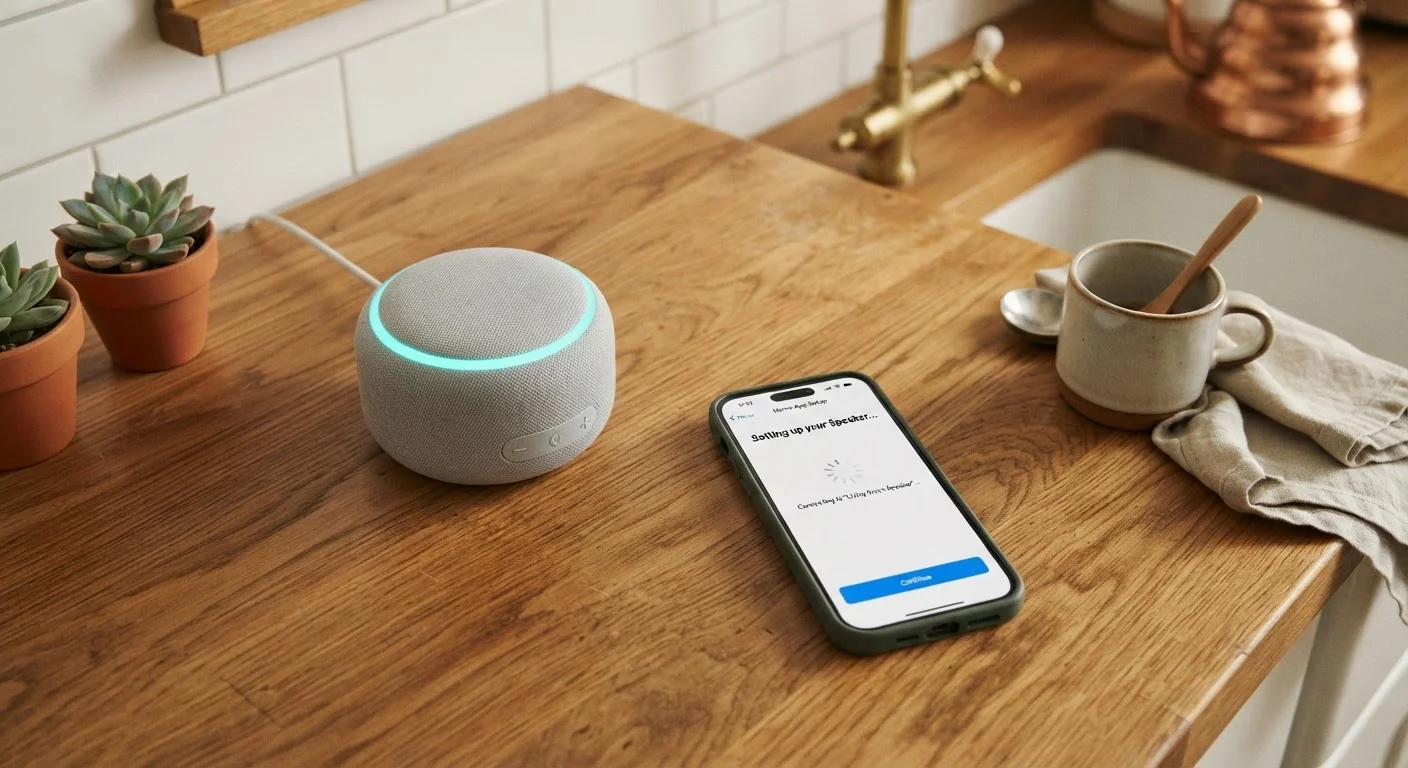
Photo credit: GadgetLite.net | All Things Tech
In this article
A clear, step-by-step walkthrough for getting your smart speaker connected, configured, and ready to use — no technical background required.
Key Takeaways
- You need a stable Wi-Fi connection and the speaker's companion app before starting setup.
- Most smart speakers walk you through configuration entirely within their smartphone app.
- Choosing the right room placement affects both audio quality and microphone responsiveness.
- Linking streaming accounts and smart home devices happens after the initial connection.
- A reboot of your router often resolves connection problems during first-time setup.
What You Need Before You Start
Smart speaker setup is genuinely straightforward, but a few things need to be in place first. If your home network isn't already running smoothly, our home network setup guide is a good place to resolve that before continuing here.
What you will need
Once these are ready, the setup process typically takes under 20 minutes — even for first-timers.
Companion smartphone app
Guides you through Wi-Fi pairing, account linking, and device configuration.
Wi-Fi router credentials
Required to connect the speaker to your home network during setup.
Streaming service account
Links music or podcast services so you can play audio by voice command.
Step-by-Step Setup Instructions
Follow these steps in order. Each one builds on the last, so skipping ahead can cause the app to lose track of where you are in the process.
Download the companion app before unboxing
Every major smart speaker — regardless of ecosystem — requires a companion app to complete setup. Search your device's app store for the official app associated with your speaker's brand and install it before you even open the box. Sign in with your existing platform account, or create one if you don't have one yet.
Unbox and place the speaker thoughtfully
Remove all packaging and peel any protective film from the speaker body. Place it at least 8 inches from walls and away from TVs or microwaves, which can interfere with both audio output and wireless signal. A central, open position in the room improves how well the microphone picks up your voice from a distance.
Plug in and wait for the setup prompt
Connect the power cable and plug into a wall outlet. Most speakers will play a startup chime or display a pulsing light ring within 30 seconds, signaling they're ready to be configured. Open the companion app — it should detect the speaker automatically and prompt you to begin setup.
Connect to your Wi-Fi network
The app will ask you to select your home Wi-Fi network and enter the password. Choose the network your other devices use daily. If your router broadcasts both 2.4 GHz and 5 GHz bands under different names, either typically works — though 2.4 GHz offers broader range in larger homes.
Assign a room and finish voice setup
The app will ask which room the speaker lives in — this matters if you plan to group multiple speakers later. You'll also be prompted to complete a short voice training exercise so the assistant can recognize your speech patterns. Follow the on-screen instructions and speak naturally at a normal volume.
Link music and smart home services
After the core setup, the app offers optional integrations: streaming music accounts, smart lighting, thermostats, and more. Link only what you actively use — you can always add services later from the app's settings. Test a voice command like asking for a song or the weather to confirm everything is working.
Public or Shared Wi-Fi Won't Work
Smart speakers require a private home network to function. Hotel Wi-Fi, apartment building guest networks, and any network with a browser-based login screen will block the connection. If you're renting and share a network, ask your provider whether device-to-device communication (sometimes called AP isolation) is disabled — it must be off for setup to complete.
If you hit a snag during Wi-Fi connection, restart both your router and the speaker before trying again — this resolves the majority of first-time pairing failures.
Review Your Privacy Settings Early
Smart speakers with always-on microphones record short audio clips when they detect the wake word — and sometimes when they don't. After setup, open the app's privacy section to review your data storage preferences and enable automatic voice history deletion if available. This is worth doing before the speaker becomes part of your daily routine.
After Setup: Getting More From Your Speaker
A connected smart speaker is just the starting point. Most ecosystems let you expand into smart lighting, plugs, and thermostats — all controllable by voice through the same device. If that interests you, our smart lighting introduction walks through adding bulbs and switches without any technical experience.
Group Speakers for Whole-Home Audio
Once your first speaker is running, adding a second in another room lets you create a multi-room audio group through the same companion app. You can then play music throughout the house with a single voice command — no extra hardware or subscriptions required.
For a broader look at how smart speakers fit into a larger home setup, see Your First Smart Home — it covers the logical order for adding devices so your setup stays manageable rather than chaotic.

Author
Gadgets Editorial Team
Gadgets Editorial Team is the collective byline for our editorial team and contributor network. Articles published under this byline or an editorial pen name are researched, written, and reviewed according to our editorial standards for clarity, consistency, and independence before publication.
View all articles →