
App Permissions Audit: What to Allow and What to Deny
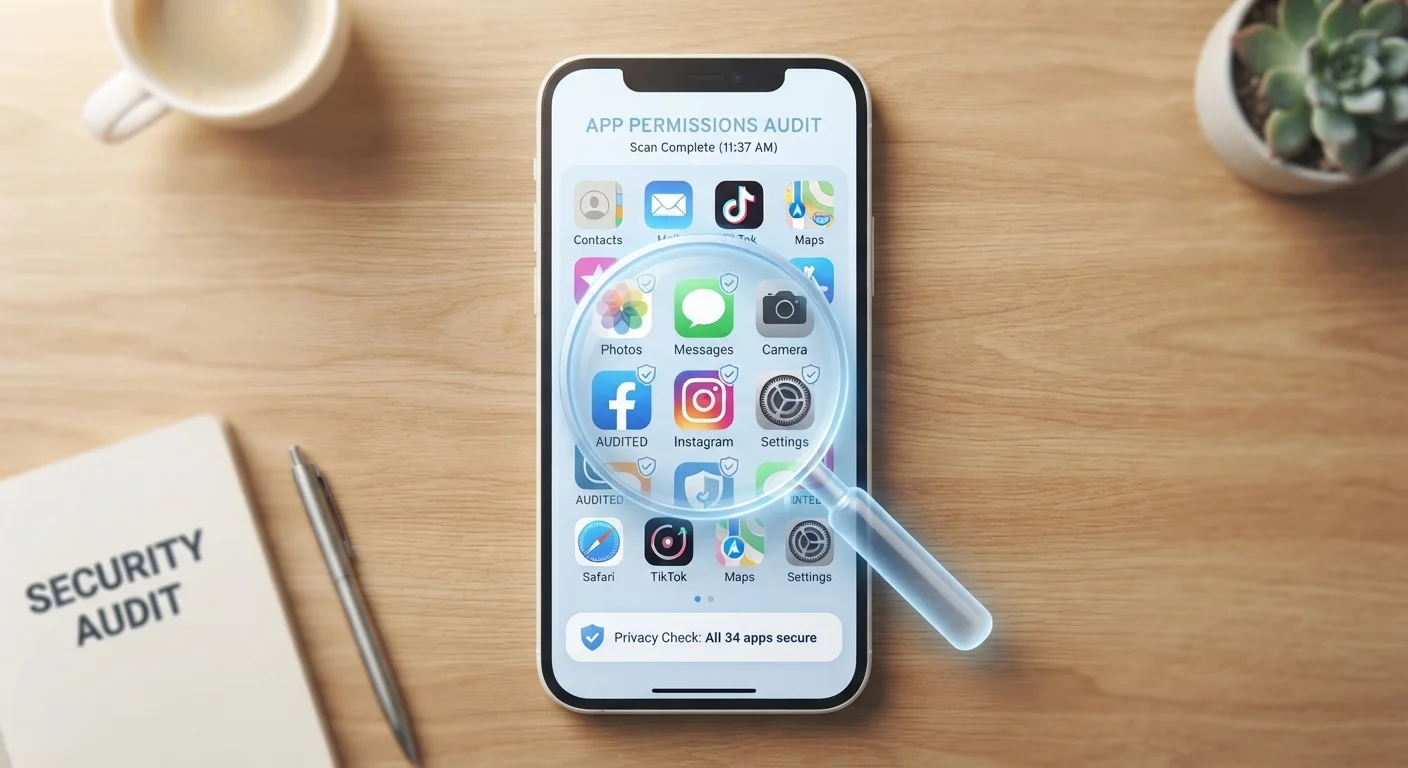
Photo credit: GadgetLite.net | All Things Tech
Use this checklist to review which apps can access your camera, microphone, location, and contacts — and decide what's actually necessary.
Key Takeaways
- Most apps request more permissions than they actually need to function.
- Camera, microphone, location, and contacts are the highest-risk permissions to review first.
- Both Android and iOS let you revoke permissions at any time without deleting the app.
- "Allow only while using" is safer than "always allow" for location-sensitive apps.
- Unused apps with active permissions are a silent privacy risk worth removing.
Why Permissions Matter More Than You Think
Every time you install an app, it may request access to parts of your phone that go far beyond what it needs to do its job. A flashlight app asking for your contacts, or a game requesting your microphone - these are red flags that deserve scrutiny. Before you start this checklist, it helps to understand what each permission actually means so your decisions are informed, not guesswork.
Permissions fall into two broad categories: sensitive (camera, microphone, location, contacts, health data) and general (internet access, vibration, notifications). Sensitive permissions are where most privacy risk lives. This checklist focuses there.
Revoking a Permission Won't Delete Your Data
Removing an app's access to your camera or contacts stops future collection - it does not erase data the app may have already gathered. If you're concerned about data a specific app has collected, check its privacy policy for deletion request instructions or contact the developer directly. For apps you no longer use, uninstalling and submitting a data deletion request is the most thorough option.
Use this checklist on both your smartphone and tablet. The permissions systems on phones and tablets work similarly, but apps installed on tablets are often overlooked during audits.
How to Run Your Audit
On iPhone/iPad: Go to Settings → Privacy & Security. Each permission type (Location Services, Microphone, Camera, etc.) shows every app that has ever requested it.
On Android: Go to Settings → Privacy → Permission Manager. You can browse by permission type and see which apps have access.
Work through the checklist below category by category. For each app listed under a sensitive permission, ask yourself: Does this app genuinely need this to work? If the answer is no or uncertain, deny or restrict it. You can always re-enable a permission if an app stops working as expected.
iOS Privacy & Security Settings
Built-in iPhone and iPad tool for reviewing and revoking all sensitive app permissions by category.
Android Permission Manager
System tool on Android devices for auditing which apps hold which permissions and revoking them individually.
Android Privacy Dashboard
Shows a timeline of recent microphone, camera, and location access to help identify unexpected app activity.
For a deeper look at what over-permissioning can cost you, see the hidden risks of granting too much access. And if you want to extend this review beyond permissions to connected accounts and data-sharing settings, the full app privacy audit checklist is a natural next step.
Permissions Checklist
Work through each group below. For any permission you decide to revoke, do so from your system settings - not from inside the app itself - to ensure the change takes effect immediately.
Location Access
Camera & Microphone
Contacts & Calendar
Storage & Files
Notifications & Background Activity
Unused & Abandoned Apps
Children's Devices Need Extra Scrutiny
Apps marketed to children - games in particular - have been documented requesting permissions that go well beyond gameplay. If you're auditing a phone or tablet used by a child, pay close attention to contacts, microphone, and location permissions. Many jurisdictions impose stricter data rules for apps used by minors, but enforcement is inconsistent. Manual review remains your most reliable safeguard.
After completing your audit, revisit app privacy settings most people overlook to catch anything this checklist doesn't cover, such as ad tracking identifiers and background data refresh.

Author
Cyber Security Editorial Team
Cyber Security Editorial Team is the collective byline for our editorial team and contributor network. Articles published under this byline or an editorial pen name are researched, written, and reviewed according to our editorial standards for clarity, consistency, and independence before publication.
View all articles →