
Software Permissions: What Apps Are Actually Asking For
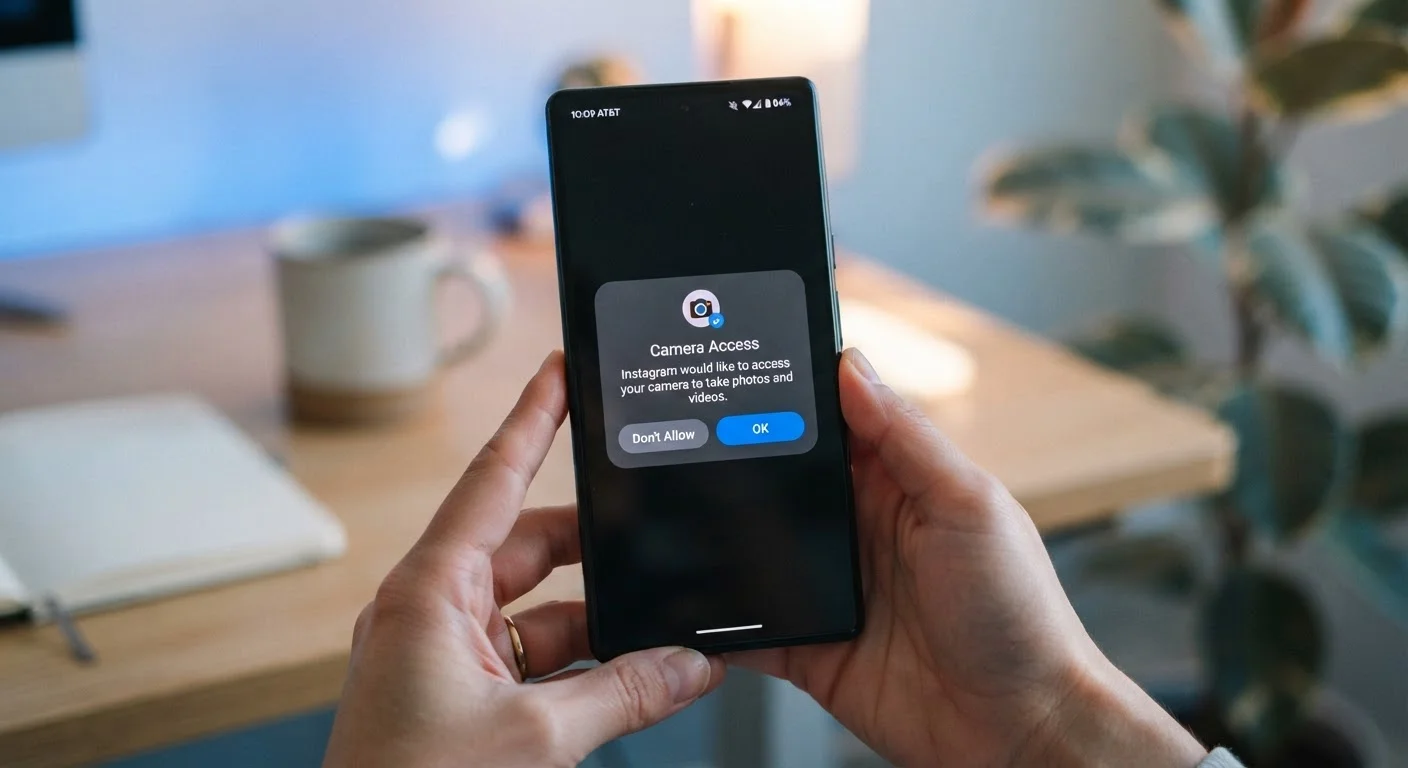
Photo credit: GadgetLite.net | All Things Tech
In this article
Every permission prompt is a request for access. Learn what microphone, location, and storage permissions really mean before you tap Allow.
Key Takeaways
- Each permission prompt is a specific access request - not a general trust question.
- Some permissions carry higher privacy risk than others, particularly location, microphone, and contacts.
- You can grant, deny, or revoke permissions at any time in your device settings.
- An app asking for a permission unrelated to its core function is worth questioning.
- Modern iOS and Android let you grant limited versions of some permissions, like approximate location.
Why Apps Ask for Access at All
When you install an app, it often needs more than just space on your device to do its job. A navigation app needs your location. A video calling app needs your camera and microphone. A note-taking app that lets you attach photos needs your storage or media library. These are legitimate, functional needs - and the permission system exists to make those requests visible to you rather than invisible.
What the permission dialog does is create a moment of consent. Rather than an app quietly reaching into your device's resources the instant it launches, the operating system steps in between and asks you first. That brief moment - the "Allow" or "Don't Allow" screen - is where your control actually lives.
For a deeper look at how these access decisions affect your privacy, see our guide on app privacy and safety.
Permissions Aren't Permanent Decisions
Tapping 'Allow' or 'Deny' isn't a one-time, irreversible choice. Both Android and iOS let you revisit and change any permission at any time through your device's settings. Think of each prompt as a starting point, not a contract.
Breaking Down the Most Common Permission Types
Not all permissions carry the same weight. Here's what the most frequently requested ones actually mean:
- Location: Lets the app know where you are, either precisely (GPS-level accuracy) or approximately (general neighborhood). Always-on location access - running in the background - is a higher-risk choice than "only while using the app."
- Microphone: Gives the app the ability to record audio through your device's mic. Legitimate for voice assistants, calling apps, and audio recorders. More concerning if requested by a game or a simple utility.
- Camera: Allows the app to access your device's camera hardware. Expected for photo, video, and scanning apps. If a calculator app asks for this, something's off.
- Contacts: Provides the app with names, phone numbers, and email addresses from your address book - not just yours, but everyone saved there. Social and messaging apps commonly request this; many others don't need it.
- Storage / Media Library: Lets the app read or write files, photos, or documents on your device. iOS now lets you grant access to only selected photos rather than your full library, which is a meaningful safeguard.
- Notifications: Allows the app to send you alerts, banners, and sounds. While not a privacy risk in the traditional sense, unrestricted notification access can be intrusive.
45%
Apps requesting location access
According to research published by the International Computer Science Institute, roughly 45% of Android apps studied requested location data.
3 types
Location permission levels on iOS
iOS offers three location permission settings: Never, While Using the App, and Always - giving users graduated control over background tracking.
1 in 3
Users who review app permissions
Surveys on mobile privacy behavior consistently find that fewer than a third of smartphone users proactively check or adjust app permissions after initial setup.
The Question Worth Asking Before You Tap Allow
There's one practical filter that helps with nearly every permission prompt: Does this permission make sense for what this app actually does?
A ride-sharing app asking for location? Necessary. A language-learning app asking for your contacts? That warrants pause. When a permission seems disconnected from an app's core function, it's reasonable to deny it and see if the feature you care about still works. Often, it will.
Try Denying First, Then Reassess
When a permission request feels unnecessary, deny it and try using the app normally. If a core feature breaks, you'll know the access was genuinely needed and can grant it then. If nothing changes, you've protected some of your data at no real cost.
It's also worth knowing that both Android and iOS have introduced more nuanced permission options over time. You can now grant location access only while actively using an app, share just a handful of photos instead of your full library, or give microphone access on a one-time basis. These aren't all-or-nothing choices anymore.
For a practical walkthrough of individual permission types and how to evaluate them, the article App Permissions Explained covers each category in detail. You can also find broader context in our piece on what app permissions actually mean.
How to Review and Adjust Permissions You've Already Granted
Permissions you granted months ago don't have to stay in place. Both major mobile operating systems make it straightforward to audit and change what each app can access:
- On iPhone (iOS): Go to Settings → Privacy & Security. Each category - Location Services, Microphone, Camera, and so on - shows every app that has requested that permission. Tap any app to change its access level.
- On Android: Go to Settings → Apps, select an app, then tap Permissions. Alternatively, go to Settings → Privacy → Permission Manager to view by permission type.
A good habit is to do a quick permissions audit a few times a year - particularly after installing a batch of new apps. You may find older apps holding onto access they no longer need. For more guidance on keeping your data safer across all the apps on your phone, explore our Smartphones & Tablets hub.
Frequently Asked Questions

Author
Apps & Software Editorial Team
Apps & Software Editorial Team is the collective byline for our editorial team and contributor network. Articles published under this byline or an editorial pen name are researched, written, and reviewed according to our editorial standards for clarity, consistency, and independence before publication.
View all articles →