
App Privacy Settings You Should Review Right Now
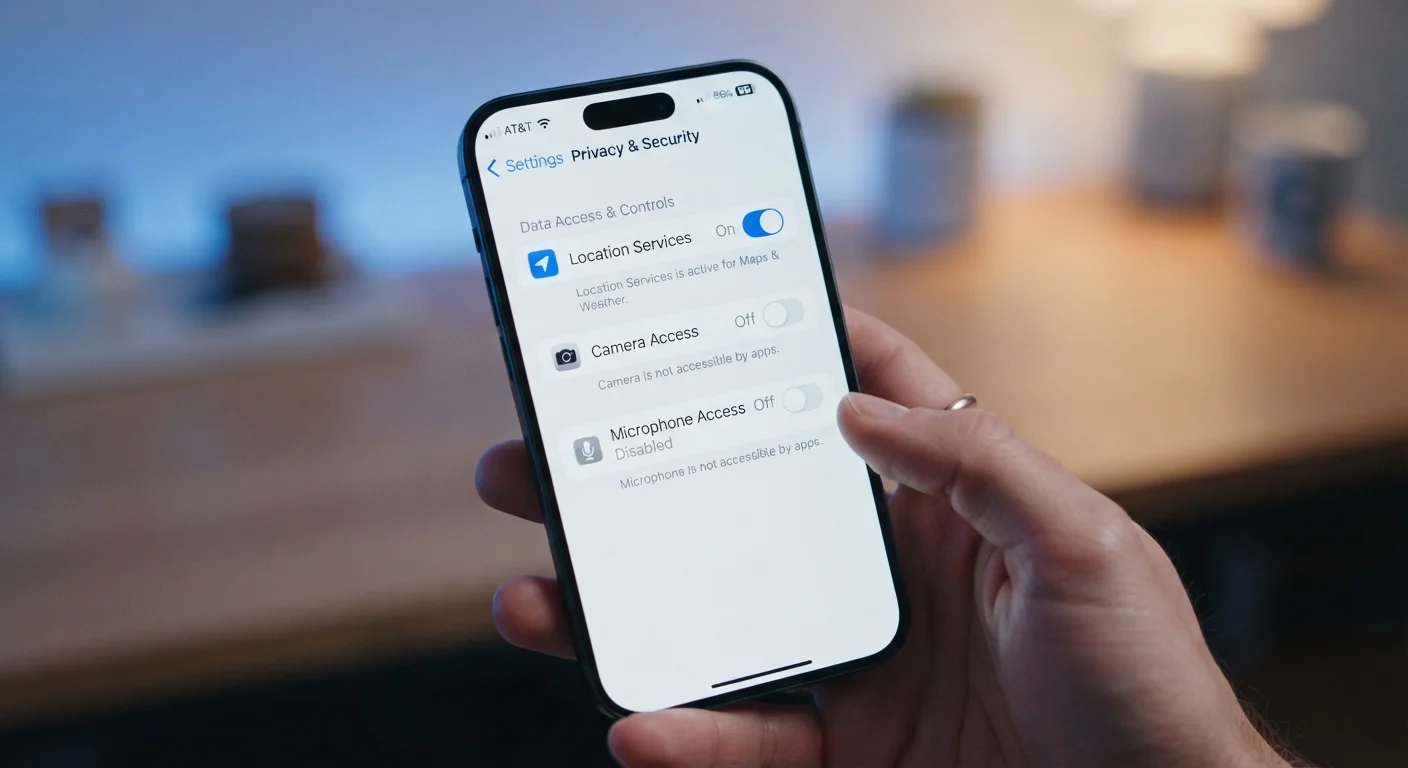
Photo credit: GadgetLite.net | All Things Tech
In this article
A practical walkthrough of the privacy settings most people overlook — from location access to ad tracking — and how to adjust them.
Key Takeaways
- Most apps request far more permissions than they actually need to function.
- Both iOS and Android let you revoke or limit app permissions at any time without uninstalling.
- Location, microphone, and ad-tracking settings are the highest-impact areas to review first.
- Limiting ad tracking reduces targeted advertising but does not eliminate all data collection.
- Regularly revisiting these settings is more effective than a one-time review.
Why App Permissions Deserve a Second Look
Most people grant app permissions quickly - often during setup, when getting the app running feels more urgent than reading each prompt carefully. The result is that many installed apps hold access to your location, microphone, contacts, or camera long after you've stopped using the features that justified it.
These permissions aren't just about what an app does while you're looking at it. Background access - particularly for location - means data can be collected continuously. That data may be used internally, shared with advertising partners, or, in some cases, sold. Understanding what you've agreed to is the first step toward changing it.
Both iOS and Android have improved their permission controls significantly in recent years, giving users more granular choices than a simple allow-or-deny binary. You can now grant location access only while an app is open, share specific photos instead of your whole library, and block apps from even asking to track you across other services.
This walkthrough focuses on the settings with the biggest real-world impact. If you want to go further, our App Permissions Audit guide covers every major permission category in detail. You might also find it useful to understand common privacy mistakes people make without realizing it.
What you will need
How to Adjust Your Privacy Settings
Work through these steps in order - each one takes only a few minutes, and together they cover the permissions most likely to affect your privacy day-to-day.
iOS Settings App
Used to review and adjust per-app permissions for location, camera, microphone, contacts, and tracking on iPhone and iPad.
Android Settings App (Permissions Manager)
Used to review which apps have access to sensitive device features and revoke or restrict permissions on Android devices.
"Always On" Location Access Is High Risk
Granting any app "Always" location access means it can track your movements even when you're not actively using it. Unless an app has a clear, ongoing need - such as a navigation or fitness tracking app - set location access to "While Using the App" or "Never." Review this setting periodically, as app updates can sometimes reset your preferences.
Open your phone's Privacy or Permissions settings
On iPhone or iPad: go to Settings → Privacy & Security. Each category (Location Services, Microphone, Camera, etc.) shows every app that has requested that permission.
On Android: go to Settings → Privacy → Permission Manager. You'll see the same category-by-category view. Some Android manufacturers place this under Apps → App Permissions instead.
Audit location access first
Tap Location Services (iOS) or Location (Android) and scroll through every listed app. For each one, ask: does this app genuinely need my location to do what I use it for?
- Set navigation and maps apps to While Using the App.
- Set social media, shopping, and games to Never or Ask Next Time unless you've chosen to share your city for local features.
- Remove Always access from any app where constant background tracking isn't essential.
Review microphone and camera access
Tap Microphone, then Camera in the Privacy menu. Any app listed here has previously been granted access.
Ask yourself: when did I last use voice or video features in this app? If you can't recall - or if the app has no obvious reason to need your mic or camera - tap the app name and set it to Never or Don't Allow.
Common candidates to revoke: flashlight apps, casual games, retail apps, and utility apps that rarely need audio or video input.
Limit ad tracking on iOS and Android
On iPhone/iPad: Go to Settings → Privacy & Security → Tracking. Turn off Allow Apps to Request to Track to prevent apps from asking permission to track you across other apps and websites for advertising. You can also revoke tracking permission for any apps already listed here.
On Android: Go to Settings → Privacy → Ads. Tap Delete advertising ID (available on Android 12+) or Opt out of Ads Personalization on older versions. This limits how advertisers link your activity across apps.
Note: limiting ad tracking reduces targeted advertising but does not eliminate ads or all data collection entirely.
Check contacts, calendar, and photo access
Apps that can read your entire contacts list or photo library have access to a significant amount of personal data - including information about people who never agreed to share it.
- Contacts: Limit to apps where syncing or messaging contacts is a core feature you actively use.
- Photos: On iOS, you can grant access to selected photos only rather than your full library - use this option whenever possible.
- Calendar: Only productivity and scheduling apps typically need this; revoke it from apps where the connection isn't clear.
Review connected third-party accounts
Many apps let you sign in using a Google, Apple, or Facebook account. These connections can persist long after you stop using the app and may allow ongoing data sharing.
On iPhone: Go to Settings → tap your Apple ID → Password & Security → Apps Using Apple ID to see and remove app connections.
Google account: Visit your Google Account's Security section and review Third-party apps with account access - revoke any apps you no longer use or don't recognize.
For a more thorough review of connected accounts and data-sharing settings, see our App Privacy Audit checklist.
Check Recently Added Apps First
New app installs often request permissions during setup, when you're eager to get started and less likely to scrutinize each prompt. After installing any new app, revisit its permissions in your phone's Settings within a day or two once you know how you actually use it. This habit catches over-broad permissions before they linger unnoticed for months.
Revoking Permissions May Limit App Features
When you deny an app access to your camera, microphone, or location, certain features may stop working - for example, a delivery app needs location to show nearby restaurants. Before revoking a permission, consider whether it's genuinely necessary for how you use the app. If a feature stops working and you want it back, you can always re-grant access from your phone's Settings.
What to Do After Your Review
Completing this review is meaningful - but privacy settings aren't a one-time fix. App updates can introduce new permission requests, and newly installed apps start with whatever access you grant during setup.
A practical habit is to repeat this review every few months, or any time you notice an app behaving unexpectedly - such as battery drain that suggests background activity, or an ad that seems to reflect a private conversation. Our guide to ongoing habits for better app privacy covers how to make these checks a sustainable routine rather than a stressful annual task.
If you want to go deeper on understanding what apps are actually doing with your data, it's worth learning how to read privacy policies more efficiently. Our piece on reading a privacy policy without losing your mind shows you which sections to focus on and what language to watch for.
Small changes to your permissions add up. You don't need to lock down every setting - you just need each permission to reflect a choice you've actually made, not one you clicked through in a hurry.

Author
Apps & Software Editorial Team
Apps & Software Editorial Team is the collective byline for our editorial team and contributor network. Articles published under this byline or an editorial pen name are researched, written, and reviewed according to our editorial standards for clarity, consistency, and independence before publication.
View all articles →