
The Pros and Cons of Saving Passwords in Your Browser
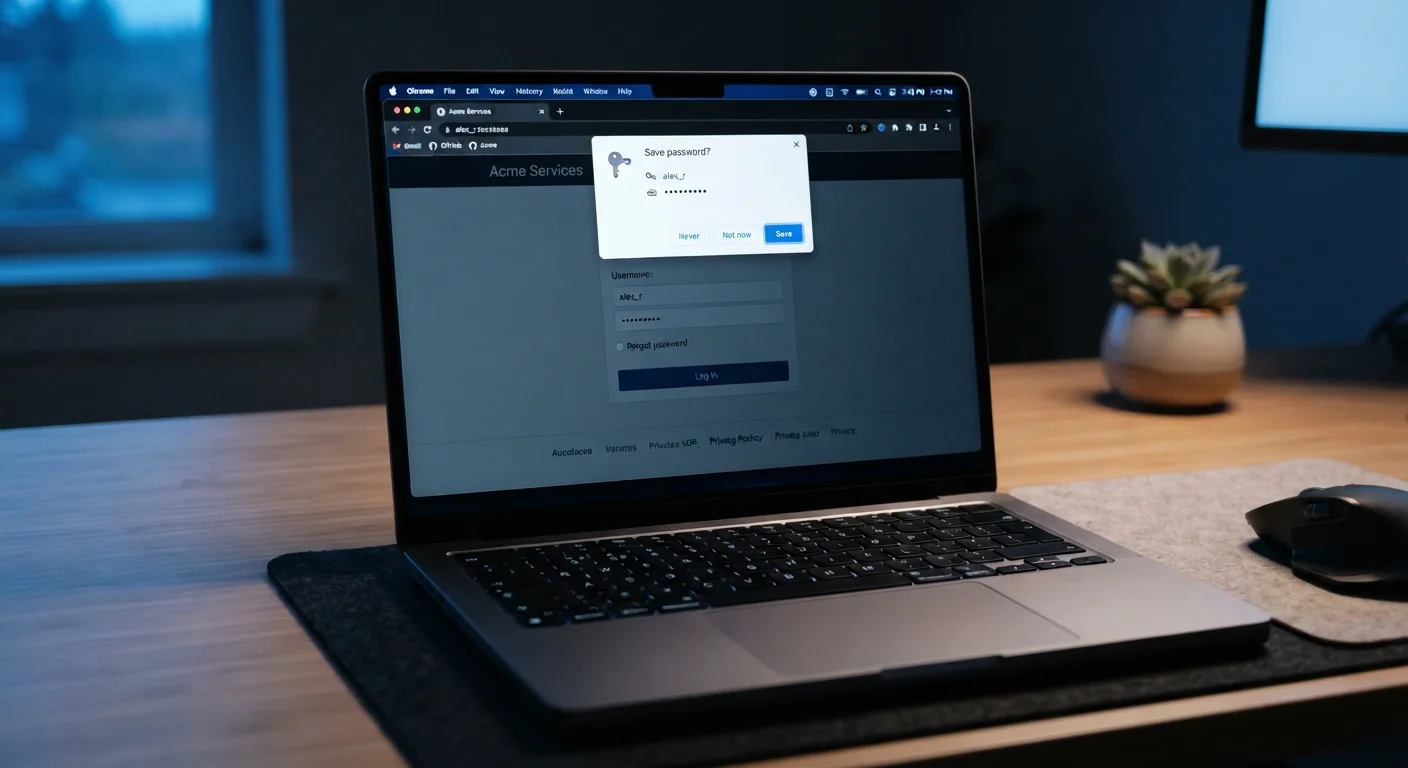
Photo credit: GadgetLite.net | All Things Tech
In this article
Built-in browser password storage is convenient, but convenience comes with trade-offs. Here's what you gain and what you give up.
Key Takeaways
- Browser password managers are convenient but were not designed with security as their primary purpose.
- Saved passwords are only as safe as the device and account protecting them.
- Dedicated password managers offer stronger encryption and cross-platform flexibility.
- Enabling your browser's screen lock and a strong master account password significantly reduces risk.
- Understanding the trade-offs helps you make an informed choice for your login habits.
Zero setup - works immediately out of the box
No account creation or subscription is needed. Your browser saves and fills passwords automatically from the first use, making adoption nearly effortless.
Encourages unique passwords per site
When remembering passwords isn't required, users are more likely to let the browser generate or accept complex, site-specific passwords rather than reusing one password everywhere.
Syncs seamlessly across your devices
Passwords saved in Chrome, Safari, or Edge sync to your signed-in devices through your Google, Apple, or Microsoft account, so you're covered on phone, tablet, and laptop.
Reduces phishing risk through autofill
Browser autofill only triggers on the exact domain where a password was saved. If you land on a convincing lookalike site, the browser won't fill in your credentials - giving you a quiet warning.
Security depends on your device being secure
If someone gains access to your unlocked computer, they can often view saved passwords directly in the browser's settings - no hacking required. Physical access equals access to credentials.
Encryption is tied to your browser account
Your saved passwords are only as secure as the account protecting them. A weak or reused Google, Apple, or Microsoft account password puts every stored credential at risk.
No cross-browser portability
Passwords saved in Chrome don't automatically move to Firefox or Safari. Switching browsers - or using multiple - means your credentials are fragmented and not always available.
Lacks advanced security features
Browser managers generally don't offer breach monitoring, secure password sharing, or granular access controls that dedicated password managers provide as standard features.
Malware can target browser credential storage
A category of malicious software known as "info-stealers" specifically targets browser-stored passwords. A compromised device can expose every saved credential at once.
How Browser Password Saving Works
When you log into a website, your browser - Chrome, Firefox, Safari, Edge, and others - typically asks whether you'd like to save that password. If you agree, it stores your username and password locally and fills them in automatically the next time you visit that site.
Most modern browsers sync these saved credentials to a cloud account (your Google account, Apple ID, or Microsoft account), meaning your passwords follow you across devices that are signed into the same account. It sounds seamless - and it often is. But before you let your browser become your de facto password vault, it's worth understanding what you're gaining and what you're giving up.
What 'Synced to the Cloud' Actually Means
When a browser syncs your passwords, it uploads them to the provider's servers - encrypted, but accessible when you sign in. This is convenient but also means your password security is linked to your account security. If your Google or Apple account is compromised, your saved passwords could be exposed. Enabling two-factor authentication on that account is strongly advisable.
The Advantages of Saving Passwords in Your Browser
There are genuine, practical reasons millions of people rely on browser password saving every day.
Zero setup - works immediately out of the box
No account creation or subscription is needed. Your browser saves and fills passwords automatically from the first use, making adoption nearly effortless.
Encourages unique passwords per site
When remembering passwords isn't required, users are more likely to let the browser generate or accept complex, site-specific passwords rather than reusing one password everywhere.
Syncs seamlessly across your devices
Passwords saved in Chrome, Safari, or Edge sync to your signed-in devices through your Google, Apple, or Microsoft account, so you're covered on phone, tablet, and laptop.
Reduces phishing risk through autofill
Browser autofill only triggers on the exact domain where a password was saved. If you land on a convincing lookalike site, the browser won't fill in your credentials - giving you a quiet warning.
The single biggest benefit is friction removal. When logging in takes two seconds instead of fumbling for a notebook or resetting a forgotten password, people are more likely to use unique passwords per site - which is the behavior security professionals most want to encourage. As our related piece on habits that leave accounts exposed explains, password reuse is one of the most common and damaging security mistakes people make.
The Disadvantages of Saving Passwords in Your Browser
Convenience has a cost, and browser password managers come with trade-offs that are worth taking seriously.
Security depends on your device being secure
If someone gains access to your unlocked computer, they can often view saved passwords directly in the browser's settings - no hacking required. Physical access equals access to credentials.
Encryption is tied to your browser account
Your saved passwords are only as secure as the account protecting them. A weak or reused Google, Apple, or Microsoft account password puts every stored credential at risk.
No cross-browser portability
Passwords saved in Chrome don't automatically move to Firefox or Safari. Switching browsers - or using multiple - means your credentials are fragmented and not always available.
Lacks advanced security features
Browser managers generally don't offer breach monitoring, secure password sharing, or granular access controls that dedicated password managers provide as standard features.
Malware can target browser credential storage
A category of malicious software known as "info-stealers" specifically targets browser-stored passwords. A compromised device can expose every saved credential at once.
These risks don't mean browser password saving is reckless - they mean it works best as a starting point, not a complete security strategy. For a fuller picture of what you exchange when you hand data to an app or platform, see our article on privacy trade-offs when sharing personal data.
Browser Saving vs. a Dedicated Password Manager
The most common alternative to browser-based saving is a standalone password manager - a dedicated app built specifically to store, generate, and protect passwords. These tools typically use stronger encryption standards, work across any browser or device regardless of operating system, and often include features like breach alerts and secure sharing.
80%+
Of breaches involving stolen credentials
According to Verizon's Data Breach Investigations Report, the majority of hacking-related breaches involve compromised or weak passwords - highlighting why storage method matters.
1 in 3
Adults reuse the same password across sites
Security surveys consistently find that a large share of users rely on repeated passwords, a risk that browser or dedicated password managers can help address.
If you want to understand how dedicated managers handle your data under the hood, our guide on how password managers work walks through the mechanics in plain language. And if you're curious about where password technology is headed altogether, passkeys vs. passwords explores the emerging alternative that may eventually replace both.
How to Reduce Risk If You Use Browser Saving
If you prefer to stick with your browser's built-in option, a few practical steps can make it meaningfully safer:
- Use a strong, unique password for your browser account (Google, Apple, or Microsoft). This is the master key to everything stored there.
- Enable two-factor authentication (also called 2FA - a second verification step beyond your password) on that account.
- Set a screen lock on your device so that physical access doesn't immediately expose your saved passwords.
- Avoid saving passwords on shared or public computers. Always choose "Never" on devices you don't control.
- Periodically audit your saved passwords through your browser's password settings, and remove any for sites you no longer use.
These steps won't transform browser saving into an enterprise-grade vault, but they address the most common vectors of exposure. For a broader look at how convenience features trade off against data exposure, see our piece on weighing app features against data exposure.

Author
Cyber Security Editorial Team
Cyber Security Editorial Team is the collective byline for our editorial team and contributor network. Articles published under this byline or an editorial pen name are researched, written, and reviewed according to our editorial standards for clarity, consistency, and independence before publication.
View all articles →