
Transferring Everything to a New Phone Without Losing a Thing
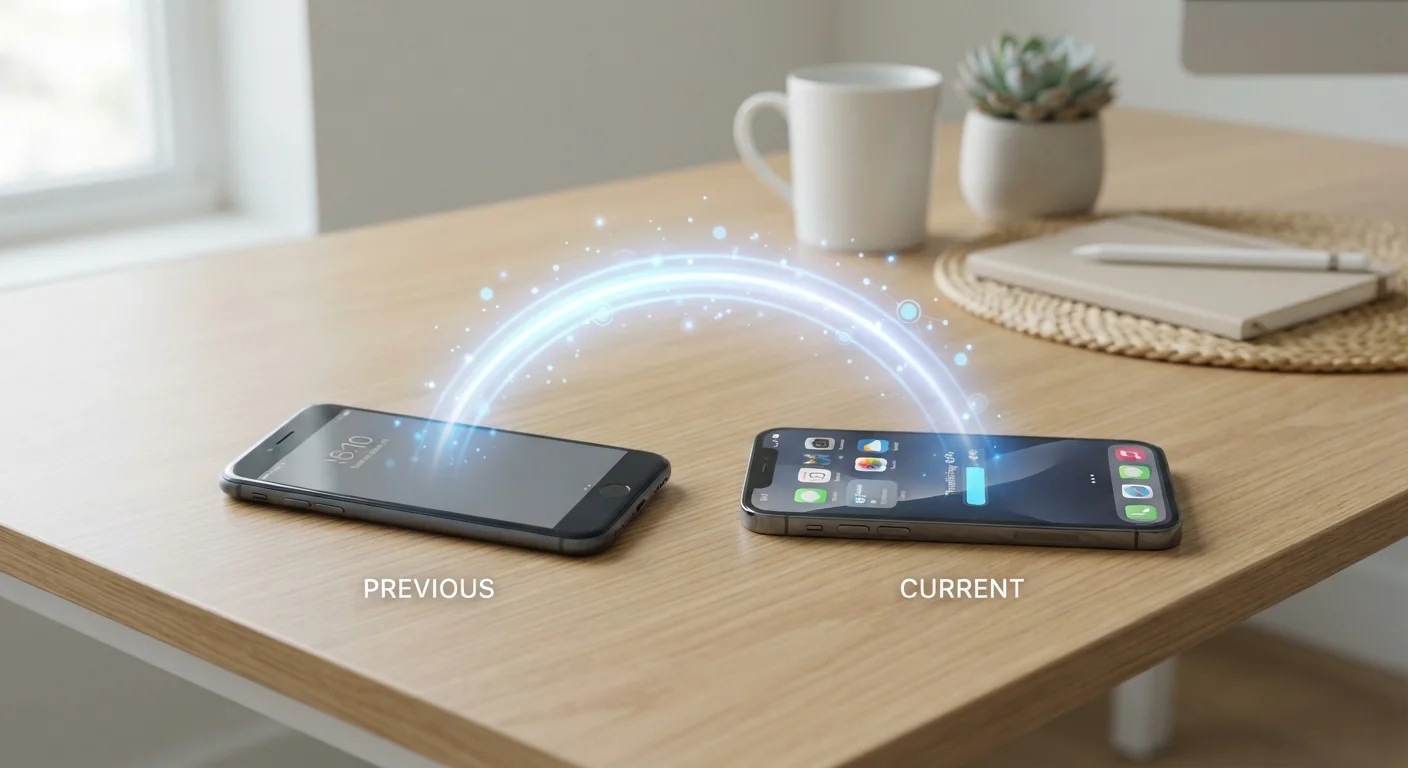
Photo credit: GadgetLite.net | All Things Tech
In this article
A practical walkthrough for moving contacts, photos, apps, and settings from an old phone to a new one using backup and sync tools.
Key Takeaways
- Back up your old phone before doing anything else - this is the single most important step.
- Both Android and iPhone have built-in tools that handle most of the transfer automatically.
- Some data - like authenticator app codes - won't transfer on their own and needs manual attention.
- Cloud accounts for email, contacts, and photos make the move much smoother.
- A good transfer takes 20-60 minutes depending on how much data you have.
Before You Do Anything: Back Up First
Switching phones is exciting - but it's also the moment when people accidentally lose years of photos, saved passwords, or app data. The fix is simple: back up your old phone before you touch the new one.
If you've never set up a backup before, start with our plain-language backup guide - it covers everything you need before this walkthrough makes sense.
On iPhone, go to Settings → → iCloud → iCloud Backup → Back Up Now. Make sure you're on Wi-Fi and give it a few minutes to finish. On Android, head to Settings → System → Backup and confirm your Google account is connected and backup is turned on. Tap Back Up Now to force an immediate save.
What you will need
Once backup shows a current timestamp, you're ready to move forward.
Using Your Phone's Built-In Transfer Tool
Both major platforms include a migration tool designed to handle the heavy lifting for you.
iPhone to iPhone: When you power on your new iPhone near the old one, Quick Start appears automatically. Follow the on-screen prompts, then choose Transfer from iPhone. This copies apps, settings, home screen layout, messages, and more over a direct wireless connection. Keep both phones plugged in - it can take 20-45 minutes for a full device.
Android to Android: Google's setup wizard includes a Copy your data step during first-time setup. You can use a USB cable with an adapter (often included in the box) to copy data directly, or restore from your Google backup. The cable method is faster and captures more app data.
Switching platforms (iPhone to Android or vice versa)? Apple's Move to iOS app handles the iPhone-to-Android direction, while Google offers a similar tool for going the other way. These tools move contacts, photos, and some app data - but not everything.
Cross-Platform Transfers Have Limits
Moving between iPhone and Android (or vice versa) won't bring over paid apps - those are tied to separate app store accounts. App settings, game progress not saved to the cloud, and certain media files may also be left behind. Check each app individually and back up locally where possible before switching platforms.
For a deeper look at what these tools do and don't cover, see our comprehensive syncing and backup resource.
The Things That Won't Move Automatically
Built-in transfer tools are good - but not perfect. A few things require manual attention:
- Authenticator apps (like Google Authenticator or Authy): These hold two-factor login codes and usually don't transfer through standard backups. Check the app's own export or account-transfer feature before you wipe your old phone.
- Banking and financial apps: Many require you to re-verify your identity on the new device. Have your account credentials ready.
- Loyalty and payment apps: Some store data locally. Log back in after the transfer and verify your history is still there.
- WhatsApp and similar messengers: Chat history may need a separate backup and restore step within the app itself.
Don't Rush the Final Verification Step
It's tempting to start customizing your new phone right away, but spend 10 minutes checking that your key data actually made it over. Scroll through photos, open a few contacts, and test two-factor login on one account. Catching a gap now is far easier than discovering it a week later.
Once you've confirmed everything transferred correctly, our first-week setup guide walks you through fine-tuning notifications, widgets, and other settings so your new phone feels like yours.

Author
Cloud Editorial Team
Cloud Editorial Team is the collective byline for our editorial team and contributor network. Articles published under this byline or an editorial pen name are researched, written, and reviewed according to our editorial standards for clarity, consistency, and independence before publication.
View all articles →