
Device Syncing and Backup from the Ground Up
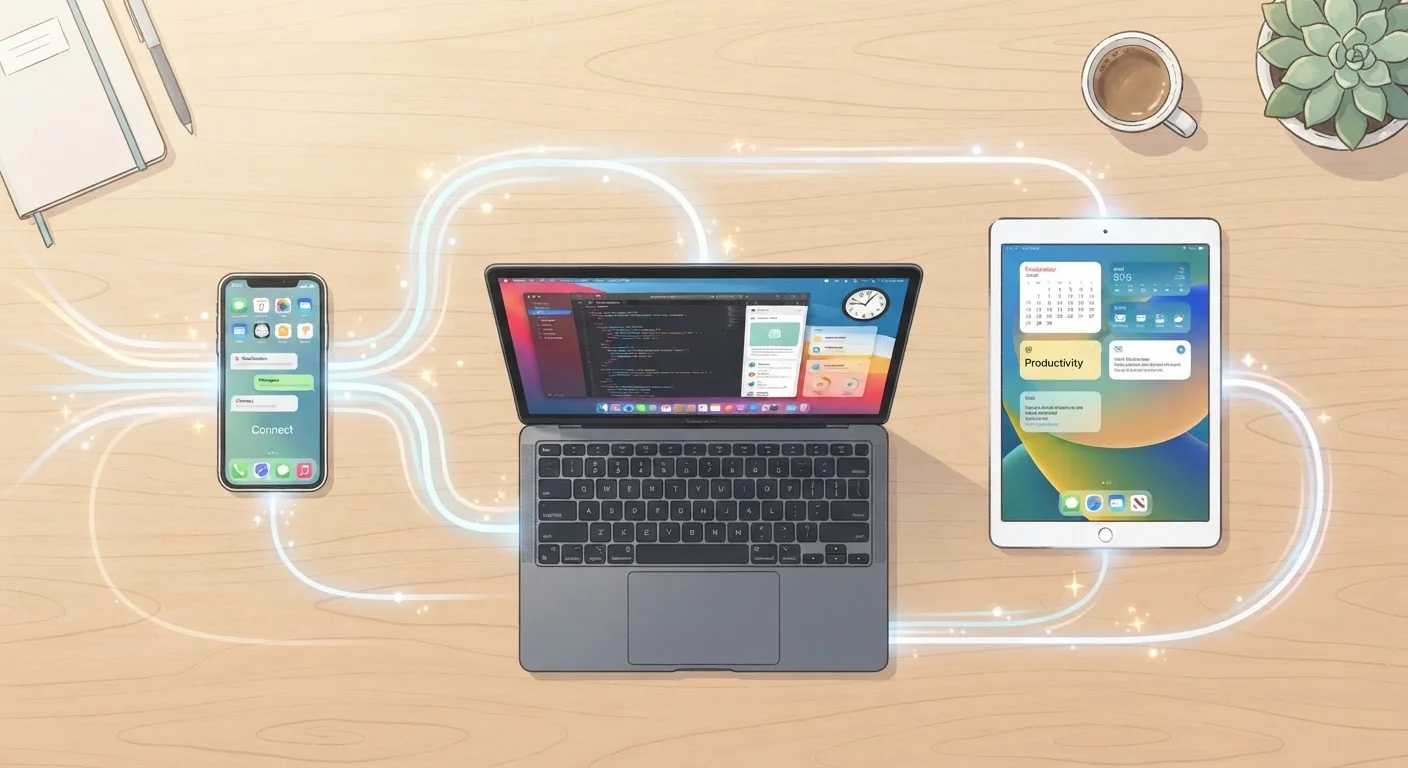
Photo credit: GadgetLite.net | All Things Tech
In this article
Never set up a backup before? Start here. A plain-language introduction to keeping your files, photos, and settings safe across every device.
Key Takeaways
- Backup and sync are related but solve different problems - both are worth understanding.
- Cloud backup automatically protects files off-site without requiring extra hardware.
- A simple rule: keep at least two copies of anything you can't afford to lose.
- Most phones and computers have built-in backup tools you can turn on in minutes.
- Sync keeps your files consistent across devices but is not a substitute for backup.
What Backup and Sync Actually Mean
Two words get thrown around constantly in conversations about protecting your data: backup and sync. They sound similar but serve different purposes, and confusing them is one of the most common reasons people end up losing files they thought were safe.
Backup
A separate copy of your data stored somewhere other than your main device, used to restore files if something goes wrong.
Sync
A process that keeps the same file or data updated and identical across multiple devices automatically.
Cloud backup
An automatic backup that sends your data over the internet to remote servers, protecting it even if your device is lost or damaged.
Local backup
A backup stored on a physical device in your home, such as an external hard drive, rather than on a remote server.
Restore
The process of retrieving your data from a backup and putting it back on a device after a loss or failure.
Versioning
A backup feature that saves multiple older copies of a file, so you can recover a version from before it was changed or deleted.
A backup is a separate copy of your data stored somewhere other than your main device. Its whole job is to sit quietly in reserve until something goes wrong - a lost phone, a crashed laptop, an accidental deletion - so you can restore what you had.
Syncing is different. It keeps a file updated and consistent across multiple devices. Edit a document on your laptop and it appears on your tablet moments later. That's sync at work. It's about access and consistency, not preservation.
Why Bothering With Backup Matters
Devices fail. Phones get dropped. Laptops are stolen. Even cloud services can have outages or account issues. Without a backup, any of these events means permanent loss of photos, documents, and contacts you may have spent years accumulating.
The good news is that the effort required to set up a basic backup is genuinely small - often just a few taps or clicks - and once it's running automatically, you rarely need to think about it again.
Don't Assume Your Files Are Safe
Many people believe their files are backed up simply because they're stored in a sync folder or on their phone. Sync is not the same as backup. If your sync service mirrors a deletion or your account is locked, those files may be gone without a true backup in place.
Whether you're managing a smartphone or tablet or a home laptop, the same core principle applies: important data should always exist in more than one place.
The Three Main Ways to Back Up
There are three broad approaches to backing up your devices, and many people use a combination:
- Cloud backup - Your device automatically sends copies of your files to secure remote servers over the internet. This happens in the background and protects you even if your home is damaged or your device is stolen. Most operating systems include a built-in cloud backup option.
- Local backup to an external drive - You connect a USB or external hard drive and copy your data onto it. This is fast and doesn't require internet access, but the drive needs to be physically safe and accessible to be useful.
- Network-attached storage (NAS) - A small device connected to your home Wi-Fi that acts as a personal backup server. It's a more advanced option suited to households with lots of devices and large amounts of data.
For most beginners, cloud backup is the easiest place to start. It requires no extra hardware and runs automatically once enabled.
How Syncing Fits Into the Picture
Once you have backup handled, sync becomes a powerful everyday tool. Services that sync your photos, documents, and contacts mean you're never stuck looking for a file on the wrong device.
Set It Once, Let It Run
The biggest barrier to backup is forgetting to do it manually. Turn on automatic backup in your device settings so it runs on its own - ideally overnight while your device charges. Once it's set up, you don't need to manage it day to day.
It's worth understanding that sync is not a replacement for backup. If you accidentally delete a photo and your sync service immediately removes it from all connected devices, you need a backup to get it back. The two work best as a team, not as substitutes for each other.
For a practical look at managing multiple devices together, our guide on keeping your phone, tablet, and laptop in sync walks through everyday strategies.
Getting Your First Backup Set Up
Starting is simpler than most people expect. Here's a basic checklist to get going:
- On a phone: Go to your device's main settings and look for a "Backup" option. Enable automatic backup and make sure it's connected to Wi-Fi so it runs without using your mobile data.
- On a computer: Most operating systems include a built-in backup utility. Enable it and point it at an external drive or a cloud destination.
- Check it actually ran: After a day, revisit your backup settings and confirm a backup completed successfully. Don't assume - verify.
From here, the complete guide to syncing and backing up your digital life covers deeper strategies, storage choices, and recovery steps whenever you're ready to go further.
Your Device's Built-In Backup Settings
Both iOS and Android include built-in backup tools accessible through the main Settings app. Enabling automatic backup here is the fastest way for most users to get protected without any extra software.
Cloud Storage Service Help Centers
Major cloud services publish step-by-step documentation explaining how to enable, verify, and restore from backup. Searching your service's official support site is the most reliable source for accurate setup instructions.
Frequently Asked Questions

Author
Cloud Editorial Team
Cloud Editorial Team is the collective byline for our editorial team and contributor network. Articles published under this byline or an editorial pen name are researched, written, and reviewed according to our editorial standards for clarity, consistency, and independence before publication.
View all articles →