
Situations Where Sync Can Actually Work Against You
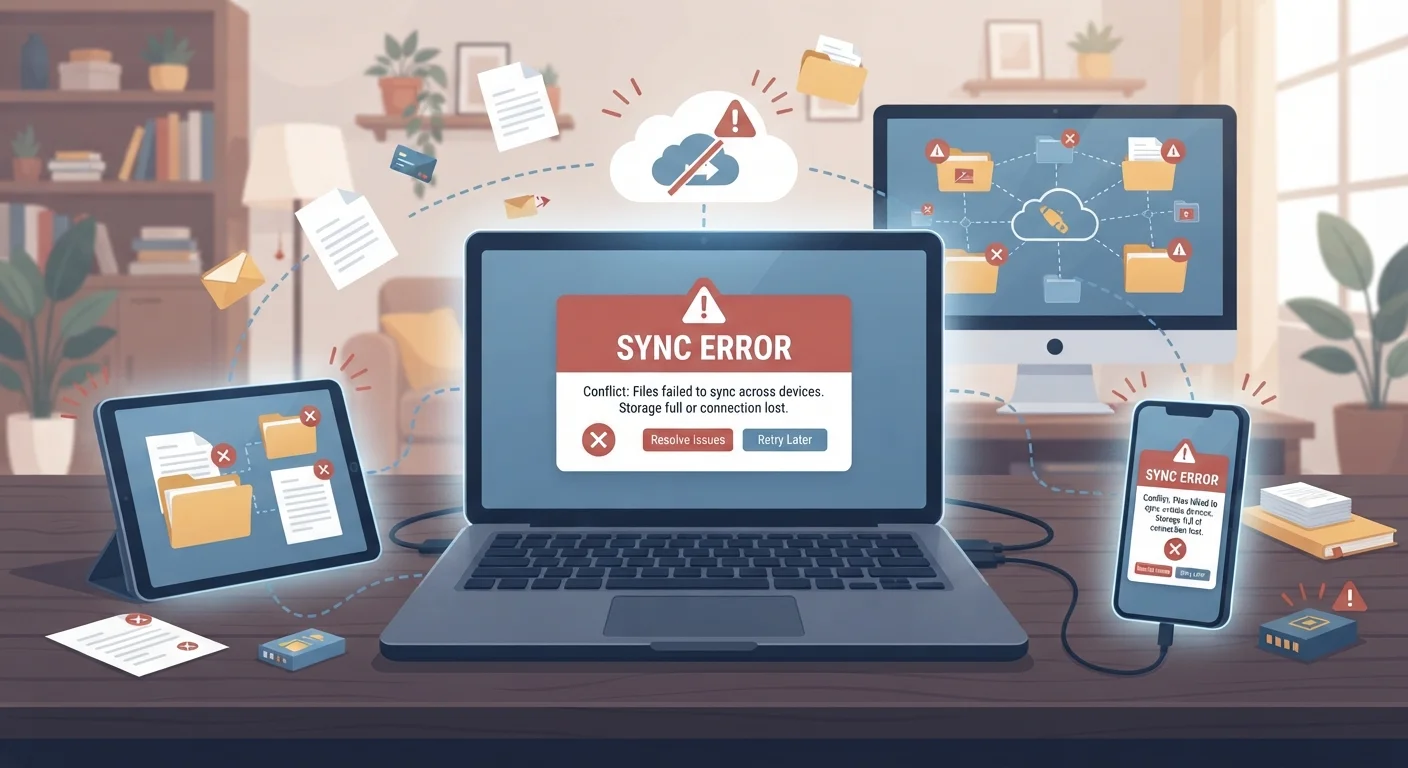
Photo credit: GadgetLite.net | All Things Tech
In this article
Sync is usually helpful, but accidental deletions, corrupted files, and conflicts can spread damage fast. Here's when to tread carefully.
Key Takeaways
- Sync moves changes instantly across devices, which means mistakes spread just as fast as updates.
- Deleted or corrupted files can disappear from every synced device before you even notice.
- Sync is not a substitute for a true backup - they serve very different purposes.
- Certain file types and workflows are especially vulnerable to sync-related data loss.
- Knowing when to pause or limit sync can protect your most important files.
Sync is powerful - until it isn't
Device sync is one of the genuinely useful things cloud technology does for everyday users. Start a document on your laptop, pick it up on your phone, finish it on a tablet - all without emailing yourself files or plugging in a cable. But that seamlessness comes with a hidden trade-off: sync works by making every device reflect the current state of your files, instantly and automatically. That's great when everything is going right. When something goes wrong, that same speed works against you.
The situations below aren't edge cases. They're common scenarios that catch people off guard, often because sync feels so invisible and reliable that it's easy to assume it's also safe. Understanding where sync can go sideways helps you use it more confidently - and know when to add a layer of protection. For a broader picture of how sync fits into your overall data strategy, see our comprehensive syncing and backup guide.
Accidentally deleting a file you needed
When you delete a file from a synced folder, that deletion is treated as an intentional update. Within seconds, the sync service removes the file from every connected device. You might assume you still have a copy somewhere - but if all your devices are synced to the same account, you don't. Some services keep deleted files in a trash folder for 30 days, others for far less. If you don't catch the mistake quickly, recovery may not be possible at all.
A deleted file can vanish from every device before you even close the tab.
A corrupted file overwriting the good version
File corruption can happen for several reasons: a storage error, an interrupted save, or a program crash mid-write. When the corrupted version of a file saves to a synced folder, the sync service dutifully pushes it to every other device. The intact original gets replaced. Some sync tools keep version history, but not all do - and not forever. If you're working on something important and the file silently corrupts, you may only discover the damage days later, after the recovery window has closed.
Sync doesn't know the difference between a good save and a corrupted one.
Editing the same document on two devices at once
Open a synced document on your laptop, then open the same file on your phone before the laptop version has finished syncing. Now you have two diverging versions. When both devices push their changes, a sync conflict occurs. The service has to decide which version wins - sometimes it keeps both with confusing names like "(conflicted copy)," and sometimes one version simply overwrites the other without warning. Either way, you can lose edits or end up with duplicate files that are hard to reconcile.
Two open versions of the same file is a recipe for lost edits.
Syncing folders that contain active project files
Design files, video projects, and database files are often actively written to by software in the background. Syncing these while they're in use can produce partial or broken uploads. The sync service may grab the file mid-save, capturing an incomplete snapshot. Worse, some applications lock files during editing, which can cause sync errors that silently stall your entire sync queue without alerting you. For active project folders, it's safer to keep them outside your sync directory and move files there only when work is complete.
Syncing an open project file can upload a broken, incomplete version.
Relying on sync as your only copy of important data
This is where the distinction between sync and backup really matters. Sync mirrors your current state everywhere - which is useful for access, but offers no protection against your own actions or file errors. As covered in why cloud storage isn't the same as a backup, a sync service is not a safety net. If a file changes or disappears in one place, it changes or disappears everywhere. A true backup stores a separate, independent copy that sync events cannot touch.
Sync gives you access everywhere - not protection from everything.
Syncing across devices with very different storage capacities
When a phone with limited storage is part of your sync ecosystem, the sync service may selectively skip files or only keep placeholders rather than actual downloaded copies. If you expect a file to be available offline on that device and it isn't, you could end up without access at a critical moment. Some services handle this gracefully with clear indicators; others don't. Always verify which devices have full local copies versus cloud-only placeholders - especially before travel or situations where you won't have reliable internet.
A placeholder icon looks like a file, but it disappears without an internet connection.
How to reduce your exposure
The goal isn't to avoid sync - it's to use it with your eyes open. A few habits go a long way toward preventing the scenarios above from costing you something important.
Sync history and version recovery vary widely
Different sync services handle deleted files and version history in very different ways - some keep 30 days of history on free plans, others offer 180 days or more on paid tiers, and a few offer almost none. Before you rely on version recovery as a safety net, check your specific service's documentation to understand exactly what's covered and for how long.
First, treat sync and backup as two separate tools with two separate jobs. Sync keeps your files accessible across devices; backup keeps a protected copy safe from accidental changes. The difference between cloud sync and cloud backup is worth understanding clearly before an incident forces you to learn it the hard way.
Second, be deliberate about what lives inside your synced folders. Active project files, large databases, and anything your software writes to continuously are better kept outside the sync directory until you're ready to share or archive them. And if you're managing files across several devices, strategies for keeping multiple devices in sync without chaos can help you build a workflow that reduces conflict risk. Sync is a convenience tool - pair it with a real backup, and it stays that way.

Author
Cloud Editorial Team
Cloud Editorial Team is the collective byline for our editorial team and contributor network. Articles published under this byline or an editorial pen name are researched, written, and reviewed according to our editorial standards for clarity, consistency, and independence before publication.
View all articles →