
Your Complete Starting Point for Cloud Storage
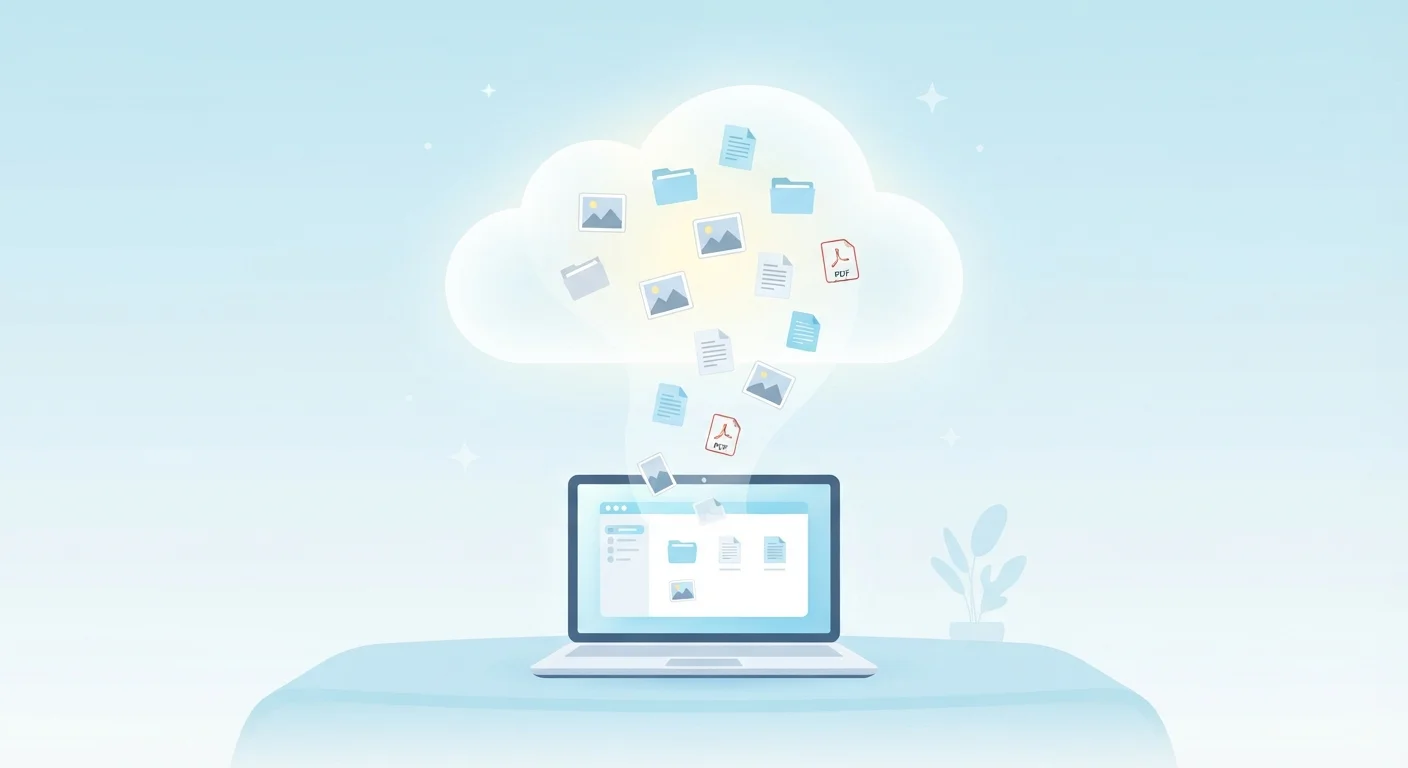
Photo credit: GadgetLite.net | All Things Tech
In this article
New to cloud storage? This guide covers everything from how it works to setting up your first account — no tech background needed.
Key Takeaways
- Cloud storage saves your files on remote servers you access through the internet - not on your device.
- You can reach your files from any device with an internet connection and your account login.
- Most services offer free storage up to a certain limit, with paid plans for more space.
- Cloud storage works alongside your device's storage - you don't have to choose one or the other.
- Privacy and security vary by service, so it pays to read the basics before uploading sensitive files.
What Cloud Storage Actually Is
Think of cloud storage as a storage unit that lives on the internet. Instead of your photos, documents, and videos sitting only on your phone or laptop, copies are saved on powerful servers run by a technology company - servers you can reach from any device as long as you're connected to the internet.
The word "cloud" is just a friendly way of saying "someone else's computers connected to the internet." You don't need to know where those computers are or how they're managed. From your end, it looks and feels like any other folder on your device.
If you've ever emailed yourself a document to open on another computer, you've already done something similar. Cloud storage just makes that process automatic and organized. For a deeper look at the terms you'll keep running into, see our plain-language cloud storage glossary.
Cloud storage
A service that saves your files on remote internet-connected servers, so you can access them from any device rather than just the one you saved them on.
Sync
The automatic process of keeping your files up to date across all your devices - a change made on one device appears on all the others.
Encryption
A way of scrambling your data so only authorized people can read it. Think of it like a combination lock on your files.
Data center
A large, secure facility full of servers where cloud services store your files. You never visit one - your files just live there remotely.
Free tier
The no-cost version of a cloud storage plan, which comes with a limited amount of storage space before a paid upgrade is needed.
How It Works Behind the Scenes
When you save a file to a cloud storage folder, your device sends that file over the internet to a data center - a large facility full of servers built to store and protect data reliably. The service keeps your file there and makes it available whenever you sign in from any device.
Most services also sync your files, meaning changes you make on one device automatically appear on all your other connected devices. Edit a document on your laptop, and it updates on your phone within seconds.
Your files are typically protected using encryption - a process that scrambles the data so it's unreadable to anyone who doesn't have the right key to unscramble it. This happens both while your file is traveling to the server and while it sits there. Curious how cloud storage compares to keeping files directly on your device? Our article on local storage vs. cloud storage breaks it down clearly.
What You Can Do With Cloud Storage
Cloud storage is more versatile than most people realize when they first sign up. Here's a quick overview of what it actually lets you do:
- Access files anywhere: Open a document on your work laptop, your home desktop, or your phone - all showing the same, up-to-date version.
- Free up device space: Move photos and large files to the cloud to stop your phone from running out of storage.
- Share files easily: Send a link to a file or folder instead of attaching large files to emails.
- Recover deleted files: Most services keep deleted files in a trash folder for a set period, giving you a window to restore them.
- Back up important data: Store copies of your most critical files so they're safe even if your device is lost, stolen, or damaged.
For a broader look at syncing your files across devices, the Syncing & Backup hub has practical guidance to get you started.
Start Small to Build Confidence
You don't have to move everything to the cloud on day one. Try uploading a single folder - like your most recent photos - and use it for a week before expanding. Getting comfortable with a small set of files first makes the whole experience less overwhelming.
Setting Up Your First Cloud Storage Account
Getting started is straightforward. Here's what the process looks like with virtually any cloud storage service:
- Create an account: Visit the service's website or download its app, then sign up with an email address and password.
- Install the app: Most services offer apps for phones, tablets, and computers. Installing the app creates a special folder on your device that automatically syncs with the cloud.
- Add your files: Drag files into that folder, or use the app's upload button. They'll appear in the cloud within moments.
- Sign in on other devices: Install the app on your other devices and sign in with the same account. Your files will appear automatically.
If you're new to setting up devices and accounts in general, our first-timer's device setup walkthrough covers the basics of getting connected from scratch.
Your Device Storage Stays Intact
Uploading files to the cloud doesn't automatically delete them from your device. By default, cloud storage creates an additional copy - not a replacement. If you want to free up device space, you'll need to manually delete the local copies after confirming they're safely stored in the cloud.
Things Worth Knowing Before You Start
Cloud storage is genuinely useful, but a few things are worth understanding upfront so there are no surprises.
Storage limits are real. Free plans come with a cap - once you hit it, you'll need to either pay for more space or delete some files. Keep an eye on your usage.
Your files live on someone else's servers. That means the company running the service has policies about what they can and can't do with your data. Before uploading sensitive files, it's worth spending a few minutes understanding the privacy basics. Our article on cloud storage and privacy walks through what you should know.
Not all services are equal. They differ in storage limits, device support, sharing features, and security practices. When you're ready to think through those differences, see our guide on what to consider when choosing a cloud storage service.
Starting with a free plan and a small batch of files is a perfectly reasonable way to try cloud storage without any commitment. You can always expand from there once you get comfortable.
Frequently Asked Questions

Author
Cloud Editorial Team
Cloud Editorial Team is the collective byline for our editorial team and contributor network. Articles published under this byline or an editorial pen name are researched, written, and reviewed according to our editorial standards for clarity, consistency, and independence before publication.
View all articles →