
Why Cloud Storage Is Not the Same Thing as a Backup
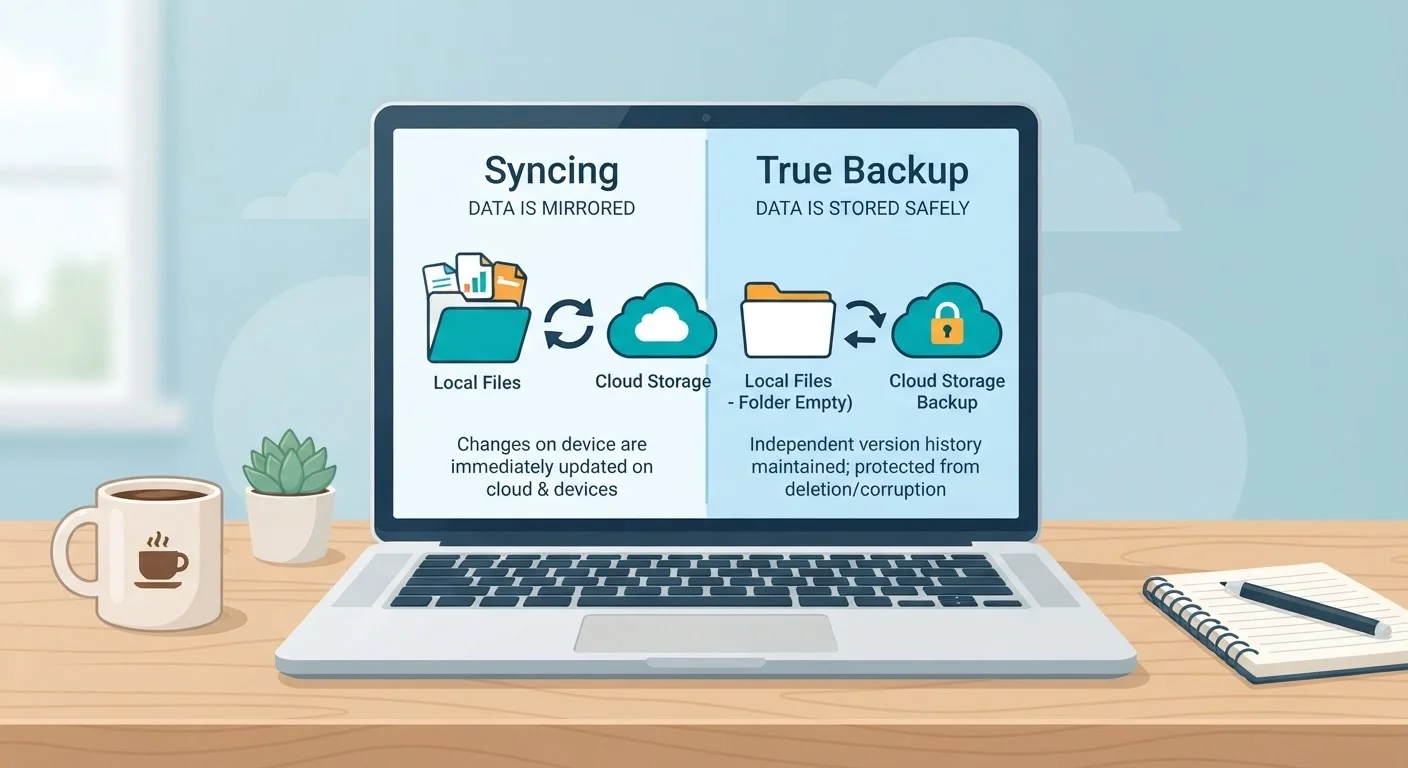
Photo credit: GadgetLite.net | All Things Tech
Syncing files to the cloud feels like a backup — but a deleted or corrupted file can vanish from both places. Here's what to know.
Key Takeaways
- Cloud storage syncs your files to the cloud but mirrors deletions and corruption in real time.
- A true backup preserves a separate, independent copy that can't be overwritten by accidents.
- Most popular cloud storage services are not backup tools by default.
- Protecting your data usually requires using both sync and dedicated backup together.
The Confusion That Puts Your Files at Risk
It's an easy assumption to make: you save something to your cloud storage folder, and it feels safe. It's off your device. It's "in the cloud." Surely that counts as a backup?
Not quite. Cloud storage and cloud backup are two different things that solve two different problems - and mixing them up is one of the most common ways people lose files they thought were protected. For a broader look at how these concepts differ, see how sync and backup compare.
Think of cloud storage like a filing cabinet that lives online instead of in your office. It's convenient, accessible from any device, and keeps everything organized. But if you shred a document from that cabinet, it's gone. Cloud storage follows the same logic - it reflects what you do, for better or worse.
Treating a sync folder as a backup location.
Why it happens: Cloud storage folders look and feel like a safe place to store files, so users assume they're protected. The word "cloud" implies safety and permanence.
Assuming a deleted file is still recoverable through cloud storage.
Why it happens: Most people don't read the fine print on deletion windows. Many cloud storage services only keep deleted files for 30 days - or less on free plans.
Believing ransomware or file corruption can't reach cloud-synced files.
Why it happens: Cloud storage feels remote and separate from a local device, so threats that hit the device seem unlikely to cross over. In reality, sync works both ways.
Using only one copy of important data, even if it's in the cloud.
Why it happens: Once files are in cloud storage, it feels redundant to store them anywhere else. The effort of maintaining multiple copies seems unnecessary.
Confusing storage space with data protection.
Why it happens: Paying for a large cloud storage plan feels like paying for security. More space sounds like more safety.
What These Mistakes Actually Cost You
None of these errors are obvious until something goes wrong. A ransomware attack encrypts your local files, and the corrupted versions sync up instantly. A family member deletes a folder by mistake. A software bug quietly mangles a document over several saves. In each case, cloud storage faithfully records the damage.
30 days
Typical deleted file retention on free cloud storage plans
Many major cloud storage providers only retain deleted files for 30 days by default, after which recovery is no longer possible.
1 in 3
PC users who have experienced data loss
Industry surveys have consistently found that roughly one in three computer users has experienced unexpected data loss at some point.
A dedicated backup, by contrast, keeps independent snapshots of your data at specific points in time. Even if your current files are destroyed, you can reach back to a version from yesterday or last week. That's what "recovery" actually means. For a closer look at how sync can spread damage rather than prevent it, it's worth understanding the limits before relying on it alone.
Sync Copies Damage, Not Just Files
When cloud storage syncs your devices, it copies everything - including corrupted files, accidental deletions, and ransomware-encrypted data. If something goes wrong on one device, it can propagate across all synced devices within minutes. This is why sync alone cannot serve as a recovery strategy. A real backup keeps a separate, untouched copy that sync activity cannot overwrite.
The practical fix is straightforward: treat cloud storage and backup as separate layers. Use cloud storage for convenience and access. Use a backup service - one that stores versioned, independent copies - for protection. Many people need both, running at the same time. Learn more about how continuous sync and scheduled backup serve different needs.
If you're unsure where to start, the Syncing & Backup hub covers the core concepts without the technical overload. And if you want to go deeper on what versioning actually means and why it matters when recovering files, this plain-language guide to file versioning is a good next step.

Author
Cloud Editorial Team
Cloud Editorial Team is the collective byline for our editorial team and contributor network. Articles published under this byline or an editorial pen name are researched, written, and reviewed according to our editorial standards for clarity, consistency, and independence before publication.
View all articles →