
Understanding Display Specs: Resolution, Refresh Rate, and Panel Type in Plain English
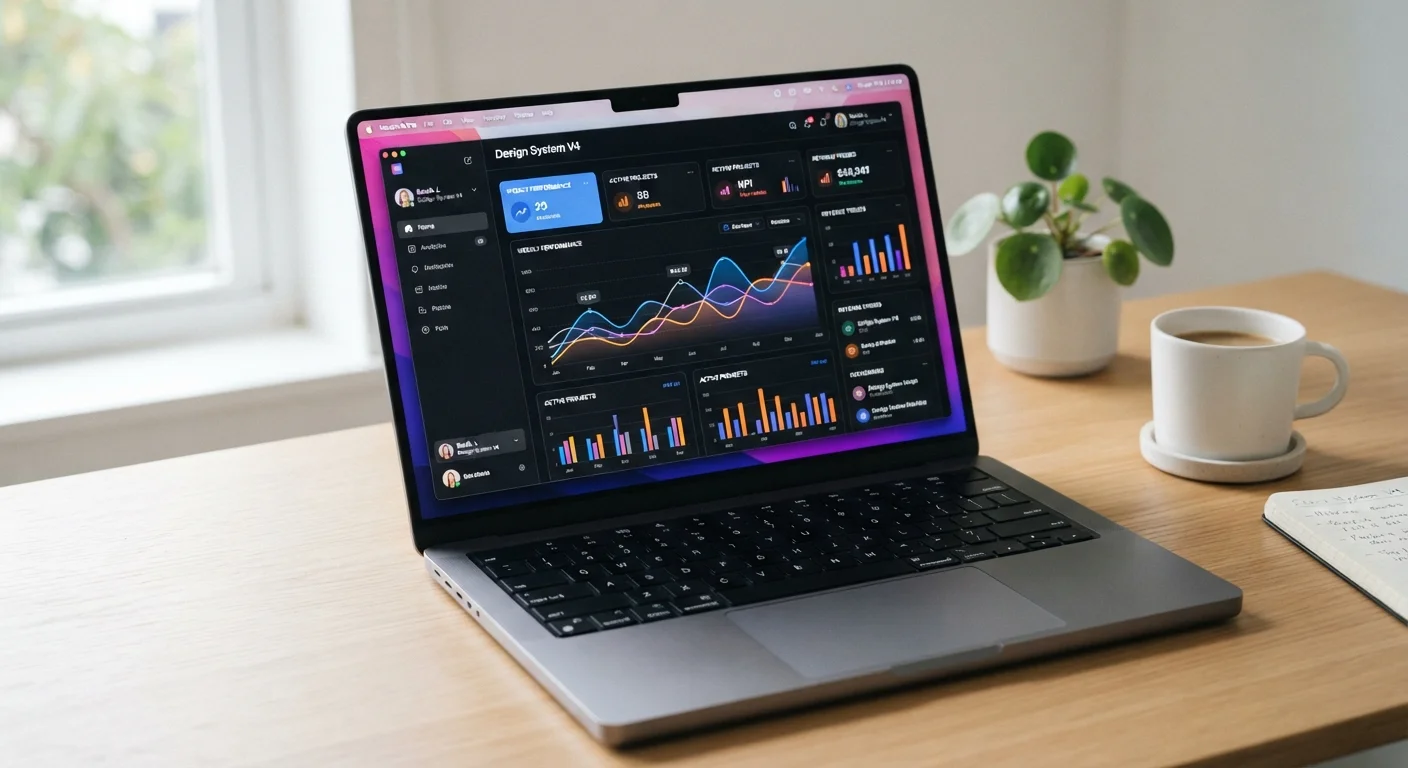
Photo credit: GadgetLite.net | All Things Tech
In this article
What do 1080p, 120Hz, and IPS actually mean for what you see on screen? A jargon-free breakdown for everyday laptop buyers.
Key Takeaways
- Resolution determines sharpness — higher pixel counts produce clearer, crisper images.
- Refresh rate controls motion smoothness; 120Hz feels visibly smoother than 60Hz for scrolling and gaming.
- IPS panels offer wide viewing angles and accurate color; OLED adds deeper blacks but at higher cost.
- For everyday productivity, 1080p at 60Hz on an IPS panel is a solid, proven baseline.
- Chasing specs beyond your actual use case rarely improves day-to-day experience.
Resolution: What 1080p and 4K Actually Mean
Resolution describes how many pixels — tiny colored dots — make up the image on your screen. A 1080p display has 1,920 pixels across and 1,080 pixels tall, for roughly 2 million total. A 4K display quadruples that to about 8 million pixels, producing a noticeably sharper image.
Here's the catch: screen size matters as much as resolution. A 1080p image on a 13-inch laptop looks crisp because those pixels are packed tightly together. The same resolution on a 17-inch screen spreads those pixels out, and text or images can look slightly softer. Manufacturers use PPI (pixels per inch) to describe this density — a higher PPI generally means a sharper image.
For most laptop buyers doing everyday work, 1080p on a screen up to 15 inches is plenty sharp. Step up to 1440p or higher if you edit photos, work with detailed visual content, or simply prefer the extra clarity. Just know that higher resolution draws more power and can shorten battery life. See our spec sheet walkthrough for how resolution sits alongside other numbers in a product listing.
~2M
Total pixels on a 1080p display
A 1920×1080 screen has approximately 2.07 million pixels; 4K (3840×2160) has roughly 8.3 million.
120Hz
Refresh rate threshold where motion smoothness becomes clearly noticeable
Display researchers generally note that most users can perceive a meaningful smoothness improvement moving from 60Hz to 120Hz, with diminishing returns above that threshold.
Refresh Rate: Why 120Hz Feels Different from 60Hz
Refresh rate — measured in Hz (hertz) — tells you how many times per second the screen redraws its image. A 60Hz display updates 60 times per second; a 120Hz display doubles that. The practical result: motion looks smoother, scrolling feels more fluid, and fast-moving content is easier to track.
You'll notice the difference most when scrolling through a long web page or playing a game. Text that blurs slightly during fast scrolling on a 60Hz screen snaps into focus on a 120Hz panel. For gaming, higher refresh rates reduce motion blur and make the experience feel more responsive.
For productivity-focused buyers — spreadsheets, writing, video calls — 60Hz is entirely functional. The premium for 120Hz is worth paying if you game, frequently multitask with lots of on-screen motion, or simply value the polished feel. Many premium laptops now ship with adaptive refresh rate (sometimes labeled as VRR or dynamic refresh), which dials down to 60Hz or lower during static tasks to conserve battery.
Test Refresh Rate In-Store When Possible
If you can, open a long web page on a 60Hz and 120Hz laptop side by side and scroll quickly. The difference is immediately obvious in person in a way that spec sheets can't convey. If in-store testing isn't an option, look for hands-on video reviews that demonstrate scrolling on both panels.
Panel Type: IPS, OLED, and TN Explained
Panel type describes the underlying technology that creates the image. Three types dominate the laptop market:
- TN (Twisted Nematic): The oldest and cheapest technology. Fast response times, but narrow viewing angles — colors shift noticeably when you look at the screen from the side. Mostly found in budget laptops.
- IPS (In-Plane Switching): The most common mid-to-premium choice. Wide viewing angles, accurate color reproduction, and consistent brightness across the panel. A reliable all-rounder for work, streaming, and light creative tasks.
- OLED (Organic Light-Emitting Diode): Each pixel produces its own light, which means true blacks (pixels that need to be dark simply turn off). Colors are vivid and contrast is exceptional. The tradeoff is higher cost and a theoretical risk of image retention with static content displayed for extended periods.
For a deeper look at how these panel technologies translate to TV screens too, the OLED, QLED, and LCD breakdown is worth reading alongside this. And for the full picture of how these specs interact with everything else on a laptop's sheet, the laptop buyer's glossary covers 30 terms in one place.
Putting It Together: Which Specs Matter for Your Use Case
The goal isn't to chase the highest numbers — it's to match specs to how you actually use a laptop.
| Use Case | Resolution | Refresh Rate | Panel Type |
|---|---|---|---|
| Everyday productivity | 1080p | 60Hz | IPS |
| Gaming | 1080p–1440p | 120Hz+ | IPS or OLED |
| Photo/video editing | 1440p–4K | 60Hz+ | IPS or OLED |
| Budget/student | 1080p | 60Hz | IPS or TN |
Understanding these three specs removes a significant layer of confusion from any laptop announcement. For a broader look at how display specs fit into the wider consumer electronics landscape, the consumer electronics spec decoder is a practical next step.
Brightness Matters Too
Resolution, refresh rate, and panel type get most of the attention, but screen brightness — measured in nits — also shapes real-world usability. A display with 250 nits can look washed out in a bright office or outdoors, while 400+ nits holds up much better. It's worth checking this number alongside the three main specs, especially if you work near windows.
Frequently Asked Questions

Author
Releases Editorial Team
Releases Editorial Team is the collective byline for our editorial team and contributor network. Articles published under this byline or an editorial pen name are researched, written, and reviewed according to our editorial standards for clarity, consistency, and independence before publication.
View all articles →