
Mobile Accessibility Features That Change How People Interact With Their Phones
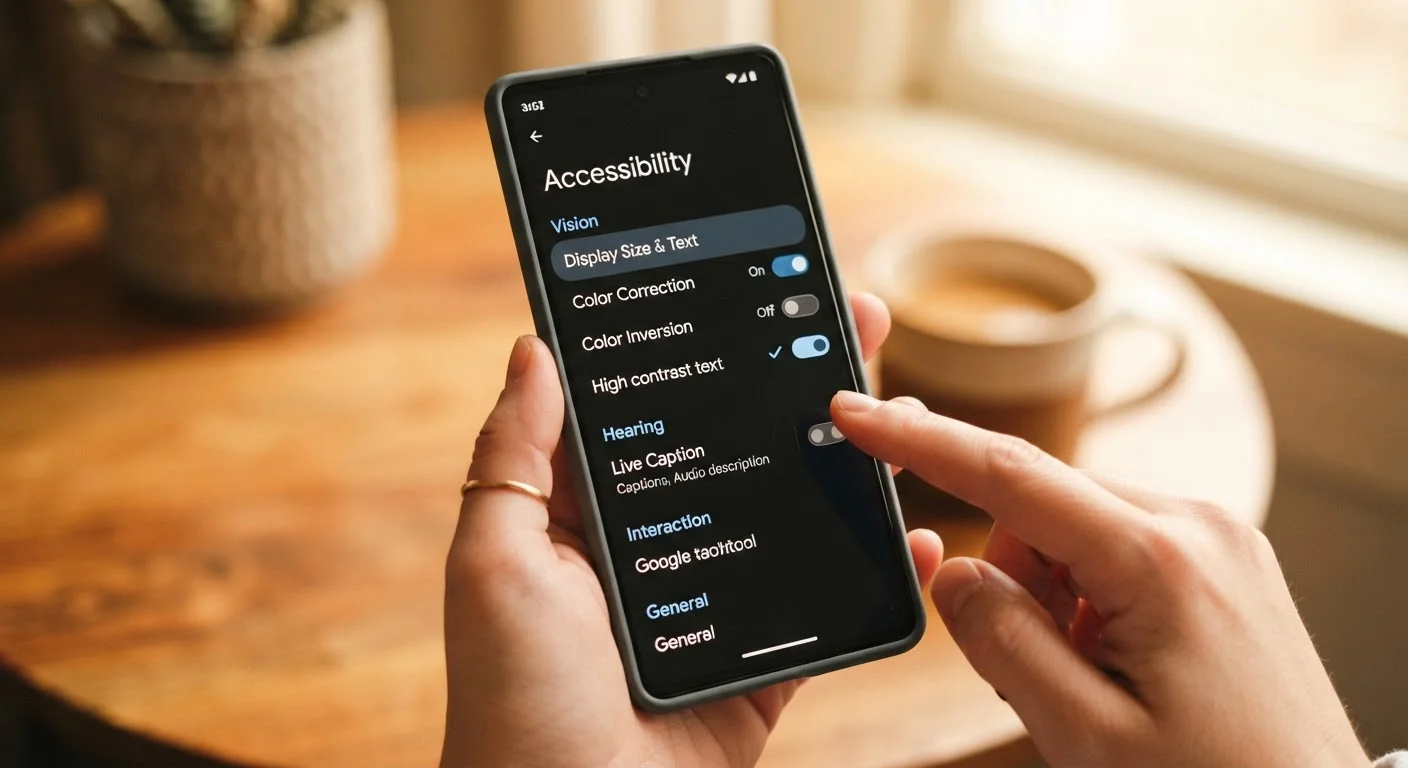
Photo credit: GadgetLite.net | All Things Tech
In this article
Built-in accessibility tools on modern phones go far beyond large text. Here's what's available and who benefits from turning these on.
Key Takeaways
- Built-in accessibility features on Android and iOS go far beyond adjusting text size.
- Many tools — like live captions and sound recognition — benefit users without disabilities too.
- Most accessibility settings are free, pre-installed, and take under a minute to turn on.
- Voice control and switch access can replace touch entirely for users who need it.
- Customizing display and audio settings can reduce eye strain and improve daily comfort.
More Than a Font Size Slider
When people think about phone accessibility, they usually picture large text or maybe a magnifier. But modern smartphones — on both Android and iOS — ship with a surprisingly deep toolkit designed to change how you see, hear, and control your device. These aren't niche features buried in forgotten menus; they're polished, well-maintained tools that millions of people rely on daily.
What's notable is how often these features benefit users who wouldn't describe themselves as having a disability at all. Someone recovering from wrist surgery, a parent navigating a phone one-handed while carrying a child, or a commuter in a noisy environment can all find genuine value here. As our plain-language flagship phone guide explains, the software layer of a modern phone is just as powerful as the hardware — and accessibility is a prime example.
Below are the features most worth knowing about, what they actually do, and who tends to find them most useful.
Live Captions
Live Captions automatically transcribes any audio playing on your phone — videos, voice messages, podcasts, even phone calls — in real time, displayed as on-screen text. Originally designed for users who are deaf or hard of hearing, it's become widely used in situations where audio isn't practical: watching a video in a waiting room, following a voice note in a loud café, or simply preferring to read rather than listen.
On Android, it's found under Accessibility > Hearing. On iOS, it's listed as Live Captions under Accessibility > Accessibility Features. No internet connection is required — processing happens on-device.
Live Captions work on-device with no internet, making them fast and private.
Sound Recognition
This feature listens for specific environmental sounds — a doorbell, smoke alarm, baby crying, or knocking — and sends a phone notification when it detects them. It's designed for users who are deaf or hard of hearing, but it's also useful for anyone who wears headphones for long periods or works in an isolated room.
On iOS, Sound Recognition lives under Accessibility > Sound Recognition. Android's equivalent, Sound Notifications, is available via the Sound Amplifier app or directly in Accessibility settings on supported devices. The phone does not record or store audio — detection is local and discarded immediately.
Sound Recognition alerts you to alarms and doorbells even when headphones are in.
Voice Control
Voice Control allows a user to operate their phone entirely by speaking — not just launching apps with a wake word, but navigating menus, typing text, and tapping specific buttons using spoken commands. Unlike a virtual assistant, it doesn't require an internet connection for most functions and responds to a broad command vocabulary.
This is a critical tool for users with motor impairments, but it's also practical for anyone with temporary hand injuries or for hands-free operation while driving or cooking. Both platforms support it: Voice Control on iOS and Voice Access on Android.
Voice Control can replace every touch gesture — menus, typing, scrolling — by voice alone.
Switch Access
Switch Access lets users control their phone using one or more external switches — physical buttons, sip-and-puff devices, or facial expressions detected by the front camera. It's built for people with significant motor disabilities who cannot reliably use a touchscreen.
The setup involves assigning actions to switches (next item, select, back) and the phone scans through on-screen elements sequentially. Android has native Switch Access under Accessibility; iOS supports it through Switch Control. These systems take time to configure properly but enable full phone use for people who would otherwise be locked out entirely.
Switch Control opens full phone functionality to users who cannot operate a touchscreen.
Display and Color Adjustments
Beyond text size, phones offer color filters for users with color vision deficiencies (such as deuteranopia or protanopia), high-contrast modes that sharpen text against backgrounds, and Reduce Motion settings that limit animated transitions — useful for users who experience dizziness or sensory overload from visual effects.
Display accommodations also include Smart Invert and Dark Mode, which reduce blue light and overall screen brightness — helpful for people with light sensitivity or migraines. These settings are available under Accessibility > Display & Text Size on iOS and Accessibility > Color and Motion on Android.
Color filters and reduced motion settings help users with visual sensitivity, not just color blindness.
Guided Access and Focus Modes
Guided Access (iOS) locks the phone to a single app and can disable specific areas of the screen from responding to touch. It's used for children with cognitive disabilities, in therapeutic settings, or simply to prevent accidental navigation. Android's equivalent, Pinning, performs a similar lockdown.
For broader focus management, both platforms offer modes that filter notifications and limit available apps — reducing cognitive load for users who experience anxiety, ADHD, or sensory overwhelm. These aren't workarounds; they're intentional design choices to support focused, lower-stimulus interaction with a device that's otherwise designed to constantly demand attention.
Guided Access locks a phone to one app — useful for therapy, kids, or distraction-free focus.
Turning Awareness Into Action
Accessibility features work best when they're matched to the way you actually use your phone. A setting that's transformative for one person may be irrelevant to another — which is why it's worth spending ten minutes in your Accessibility settings just to see what's there. Both Android and iOS organize these tools into visual, audio, motor, and cognitive categories, making it easier to find relevant options quickly.
Try Accessibility Settings as General Comfort Tools
You don't need to have a disability to benefit from accessibility settings. Increasing text size, enabling Reduce Motion, or turning on Sound Recognition can simply make your phone more comfortable to use every day. Spend a few minutes browsing your Accessibility menu — many people discover features they wish they'd found sooner.
If you're curious how accessibility tools intersect with other everyday phone capabilities, your phone's built-in apps often extend these features further — live transcription in voice memos, for instance, builds on the same engine that powers live captions. And if you're weighing platforms, Android and iOS handle accessibility differently in meaningful ways worth understanding before you switch.

Author
Gadgets Editorial Team
Gadgets Editorial Team is the collective byline for our editorial team and contributor network. Articles published under this byline or an editorial pen name are researched, written, and reviewed according to our editorial standards for clarity, consistency, and independence before publication.
View all articles →