
Why Your Smart Devices Keep Dropping Off the Network
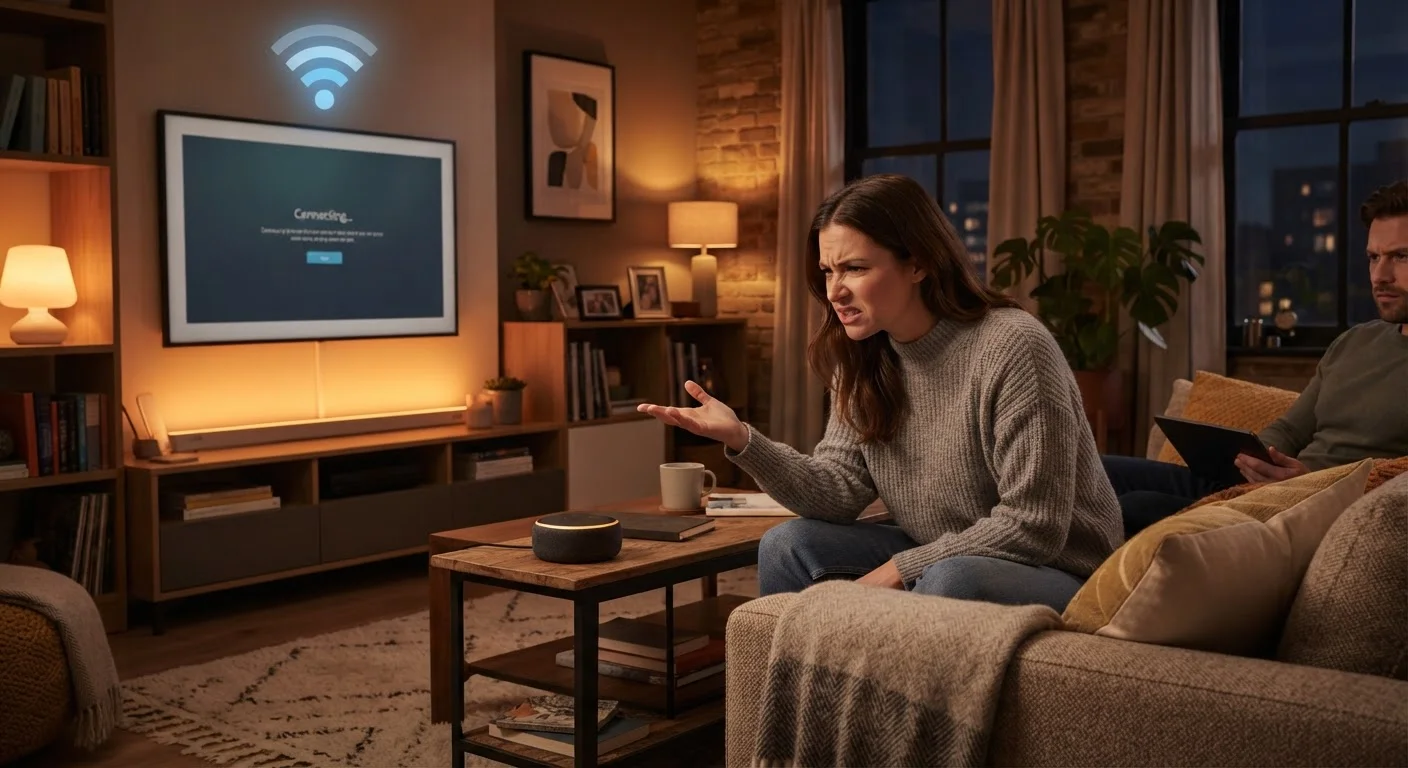
Photo credit: GadgetLite.net | All Things Tech
In this article
Disconnecting smart home gadgets are usually a Wi-Fi or mesh network problem, not a device fault. Here's how to diagnose and fix the root cause.
Key Takeaways
- Most smart device disconnections trace back to router placement, band steering, or network congestion — not faulty hardware.
- Placing too many devices on a single frequency band is one of the most overlooked causes of repeated drop-offs.
- Rebooting your router regularly and assigning devices fixed IP addresses can dramatically improve connection stability.
- Firmware updates on both your router and smart devices resolve many known connectivity bugs.
- A crowded or poorly positioned network is usually the root cause — not the smart device itself.
The Real Reason Smart Devices Keep Going Offline
It's a familiar frustration: you walk into a room, ask your smart speaker a question, and get nothing. Your smart thermostat has lost its schedule. The connected camera in the hallway has been offline for hours without you noticing. The instinct is to blame the device itself, but in most cases, the problem lives in your network — not the gadget.
Smart home devices are typically low-power, lightweight on the network, and engineered to stay connected. When they repeatedly drop off, something in the network environment is working against them. Understanding the most common setup and configuration mistakes is the fastest path to a stable home. For a broader look at why connectivity problems occur, our guide to smart home drop-off causes covers the full picture.
Placing the router too far from smart devices, especially those in walls, closets, or signal-blocking areas.
Why it happens: Routers are often tucked away for aesthetic reasons — in cabinets, closets, or corners — which significantly degrades signal reach to devices spread across the home.
Leaving band steering enabled without realizing it pushes smart devices onto the 5 GHz band, which has shorter range.
Why it happens: Many modern routers use band steering to automatically assign devices to the fastest available frequency. Smart home gadgets often connect more reliably on 2.4 GHz, which has longer range, but the router keeps pushing them to 5 GHz.
Never rebooting the router, allowing memory and connection table bloat to accumulate over weeks or months.
Why it happens: Routers are treated like always-on appliances. Without periodic restarts, internal memory fills with stale connection data that causes devices to fail to reconnect after a brief signal interruption.
Allowing smart devices to receive a different IP address every time they reconnect, causing app or automation failures.
Why it happens: Routers assign IP addresses dynamically by default, meaning a device's address can change after a reboot or reconnection. Smart home apps and local automations often cache the old address and lose contact with the device.
Running outdated firmware on both the router and the smart devices themselves.
Why it happens: Firmware updates feel optional and the prompts are easy to dismiss. However, both routers and smart home devices regularly ship patches that fix known Wi-Fi reconnection bugs and protocol compatibility issues.
Network Habits That Make Stability Worse
Beyond individual device settings, broader network habits quietly undermine reliability. One of the most common is ignoring how device count scales with your router's capacity. As you add smart bulbs, plugs, cameras, and sensors, you're steadily consuming connection slots and bandwidth that a basic router may not be designed to handle. The impact of device count on home networks article explains exactly how load builds over time.
25+
Average smart devices per connected US household
Industry estimates suggest many connected homes now maintain over two dozen networked devices, placing sustained load on consumer-grade routers not designed for that scale.
2.4 GHz
Preferred band for most smart home sensors
The longer wavelength of the 2.4 GHz band penetrates walls more effectively, making it the more reliable choice for low-bandwidth smart devices spread across a home.
Security settings can also interfere. Overly aggressive firewall rules or MAC address filtering, when misconfigured, silently block devices from reconnecting after a brief outage. Before tightening security, make sure your base connectivity is solid — then layer in protections. Our home tech security guide walks through this balance without requiring deep technical knowledge.
If you're ready to address the problem at the infrastructure level, setting up a home Wi-Fi network for smart devices provides a practical configuration roadmap. And for diagnosing general Wi-Fi instability, why home Wi-Fi keeps dropping is worth reading alongside this article.
Don't Reset the Device Before Checking the Network
Factory-resetting a smart device is often the first troubleshooting step people reach for — but it rarely solves the problem if the root cause is network-side. Resetting wipes your device's settings, removes it from automations, and forces a full reconfiguration. Always rule out router placement, band assignment, and firmware issues first before performing a factory reset.

Author
Electronics Editorial Team
Electronics Editorial Team is the collective byline for our editorial team and contributor network. Articles published under this byline or an editorial pen name are researched, written, and reviewed according to our editorial standards for clarity, consistency, and independence before publication.
View all articles →