
Wi-Fi Keeps Dropping? Here's Where Most Home Networks Go Wrong
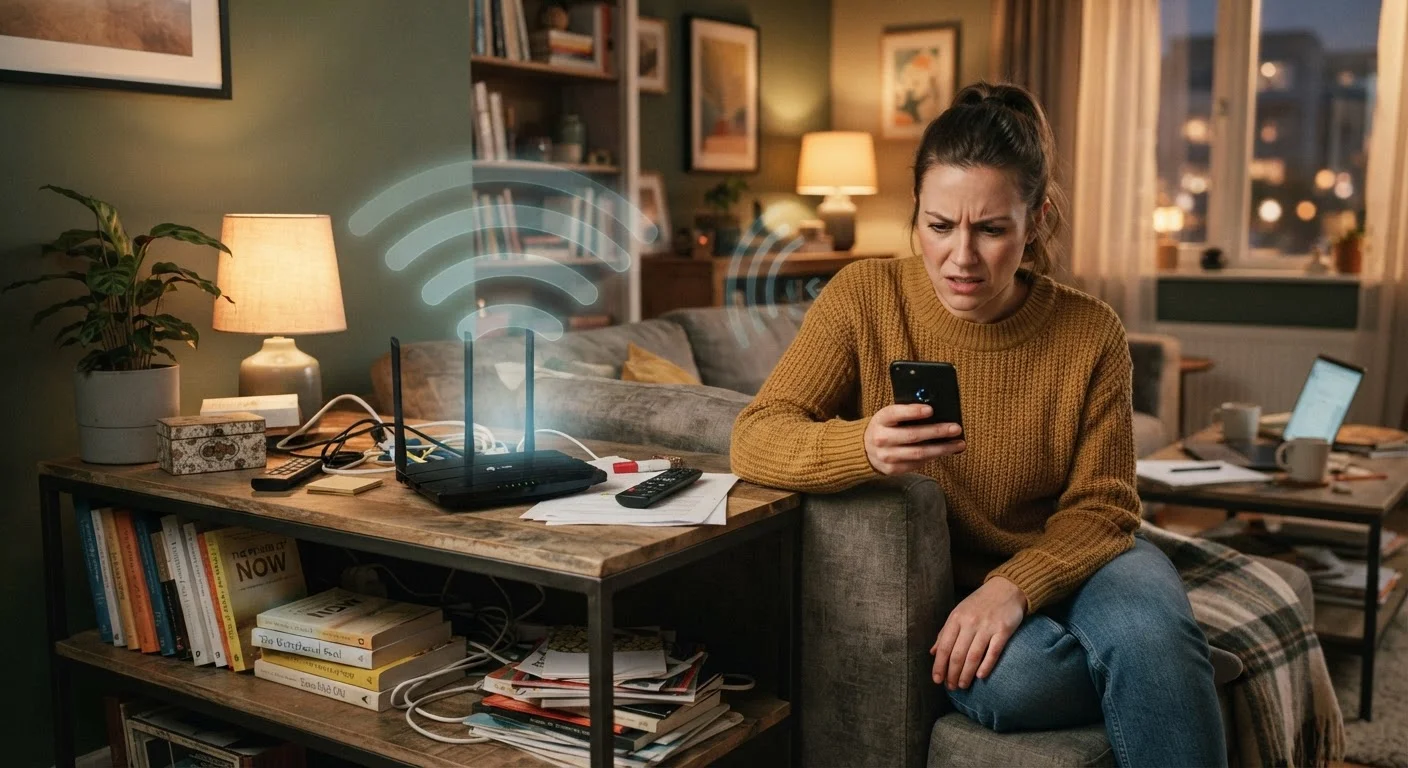
Photo credit: GadgetLite.net | All Things Tech
In this article
Unstable Wi-Fi is rarely random. Learn the most common reasons home networks lose connectivity and how to address each one.
Key Takeaways
- Router placement is one of the single biggest factors in Wi-Fi reliability and coverage.
- Wireless interference from everyday appliances and neighbors' networks causes more drops than most people realize.
- An outdated router or firmware can silently degrade your connection over time.
- Too many devices on one band overwhelms the router and causes repeated disconnections.
- Rebooting your router regularly and checking channel settings can resolve many persistent issues.
Why 'Just Restart the Router' Doesn't Fix Everything
Dropping Wi-Fi is one of the most common tech complaints in any household - and one of the most misunderstood. Most people assume it's their internet provider's fault, or that their router is just old and needs replacing. But in most cases, the real causes are setup and configuration problems that have nothing to do with the hardware's age or the ISP's service.
Understanding where things go wrong is the first step to getting a connection that actually stays stable. The mistakes below are the most common culprits - and every one of them is fixable without calling a technician.
Placing the router in a corner, closet, or against an exterior wall.
Why it happens: Routers often get tucked away for aesthetics or to hide cables, but walls and distance absorb wireless signal significantly.
Leaving the router on the same wireless channel as neighboring networks.
Why it happens: Routers default to automatic channel selection, which doesn't always pick the least congested option - especially in apartments or dense neighborhoods.
Never updating the router's firmware.
Why it happens: Unlike phones or computers, routers rarely prompt users to update, so firmware gets left behind for months or years.
Connecting every device to the same Wi-Fi band without considering load.
Why it happens: Most people connect everything to whichever network shows up first, without realizing there's a difference between the 2.4 GHz and 5 GHz bands.
Keeping the router running continuously for months without a reboot.
Why it happens: Routers are easy to forget about - they sit in the background and people assume they just work. Over time, memory fills up and performance degrades.
Ignoring physical interference from household appliances.
Why it happens: Microwaves, cordless phones, and baby monitors operate on frequencies that overlap with the 2.4 GHz Wi-Fi band, causing signal disruption that looks like random drops.
The Bigger Picture: What These Mistakes Have in Common
Most of these problems share a common thread: they're invisible. You can't see wireless interference, you won't notice a firmware update missed two years ago, and it's easy to forget how many devices are quietly demanding bandwidth in the background.
25+
Average connected devices per U.S. household
According to Deloitte's Digital Consumer Trends research, the average U.S. household has surpassed 25 connected devices - a load that most consumer routers weren't originally designed to manage simultaneously.
2.4 GHz
Most congested home Wi-Fi band
The 2.4 GHz band is shared by dozens of device types including microwaves, Bluetooth devices, and neighboring networks, making interference far more common than on the 5 GHz band.
If your home has more than a dozen connected devices - phones, laptops, smart TVs, thermostats, speakers - the strain on a single router can be significant. Our guide on setting up a network that handles smart devices walks through how to plan for that load properly.
It's also worth questioning some of the common assumptions people carry about home Wi-Fi. Many widely repeated tips - like always using the 5 GHz band or placing the router in a corner - aren't always good advice. The home network myths article breaks down what the evidence actually shows.
Don't Overlook Your Network's Security
A slow or dropping connection can sometimes be caused by unauthorized devices consuming bandwidth on your network. If you haven't reviewed your connected device list or changed your Wi-Fi password recently, it's worth doing both. Our home network security guide covers the practical steps to close common vulnerabilities without needing technical expertise.
If your smart devices specifically keep falling off the network even after addressing the mistakes above, the issue may be more nuanced. See why smart devices keep dropping off the network for a targeted diagnosis guide.

Author
Cloud Editorial Team
Cloud Editorial Team is the collective byline for our editorial team and contributor network. Articles published under this byline or an editorial pen name are researched, written, and reviewed according to our editorial standards for clarity, consistency, and independence before publication.
View all articles →