
Spotting a Fake Website Before Entering Any Information
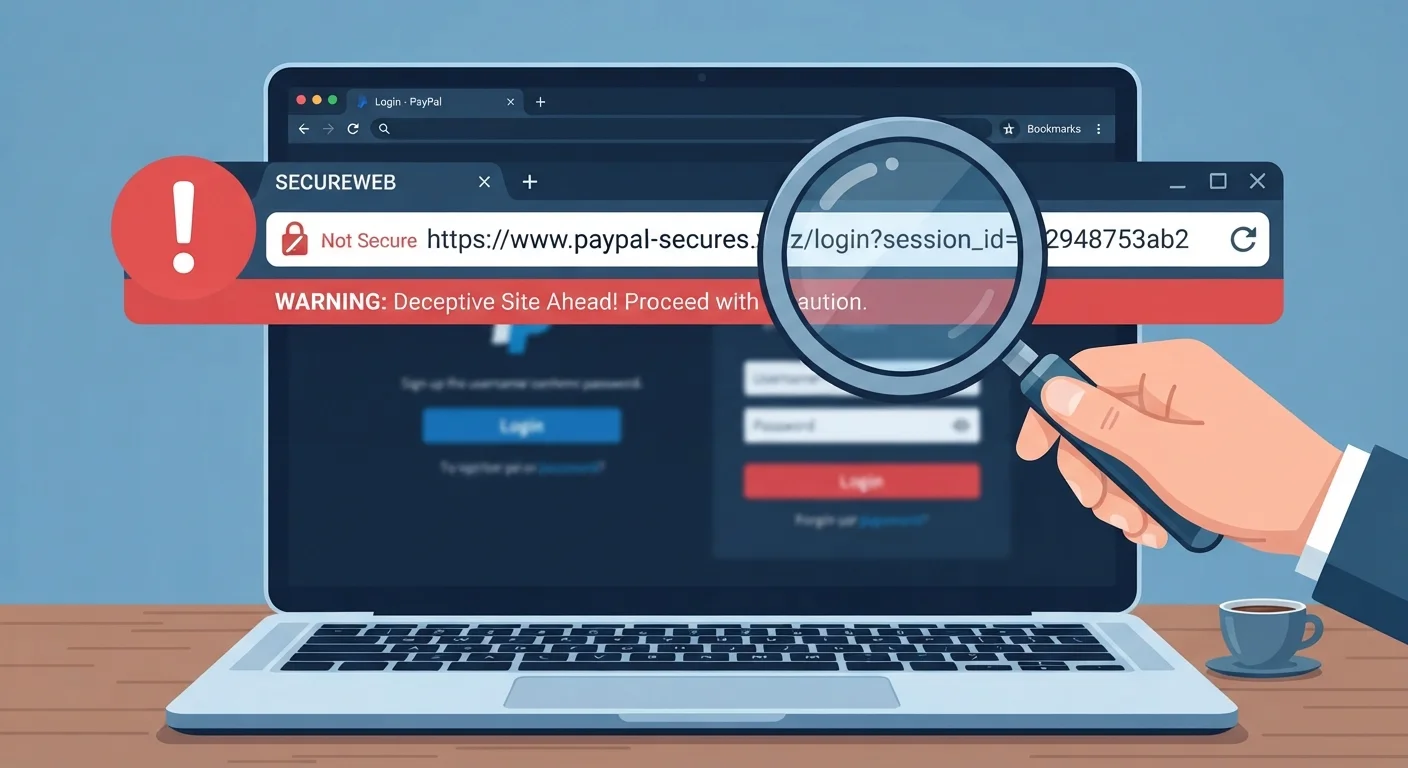
Photo credit: GadgetLite.net | All Things Tech
HTTPS alone doesn't make a site safe. Here's a reliable checklist for evaluating whether a website can be trusted.
Key Takeaways
- HTTPS encrypts your connection but does not verify a site is legitimate or trustworthy.
- Scammers routinely copy logos, layouts, and even real company names to appear credible.
- A site's domain name, contact details, and age are among the most reliable indicators of authenticity.
- Free lookup tools let you check who owns a domain and how long it has existed.
- When in doubt, navigate to a site directly by typing its address rather than clicking a link.
Why HTTPS Is Not Enough
Most people have been told to look for the padlock icon in the browser bar before entering sensitive information. That advice was useful — but it's no longer sufficient. Today, a large share of phishing and fraudulent websites also carry valid HTTPS certificates, because obtaining one is free and takes minutes. The padlock tells you that data traveling between your browser and the server is encrypted. It says nothing about whether the site on the other end is legitimate.
Scammers have adapted quickly, mimicking the visual cues that once signaled safety. As our article on how scammers fake legitimacy explains, logos, professional language, and even real company names can be copied with minimal effort. That's why you need a broader checklist — one that goes well beyond the padlock.
Use the checklist below every time you land on an unfamiliar site before typing a password, payment number, or personal detail.
WHOIS Lookup Tool
Reveals when a domain was registered and who owns it, helping you spot newly created sites that may be impersonating established brands.
Google Safe Browsing Transparency Report
Lets you check whether Google has flagged a URL as dangerous or deceptive before you visit it.
Have I Been Pwned
Checks whether your email address has appeared in known data breaches, useful context if you suspect a site may have already harvested your credentials.
Web browser developer tools (built-in)
Allows you to inspect SSL certificate details directly in your browser to confirm the certificate was issued to the domain you expect.
The Website Verification Checklist
Work through these checks in order. The earlier items are quick visual scans; the later ones require a simple lookup tool. You don't need technical expertise — just a few minutes and a healthy habit of pausing before you type.
Address Bar Checks
Visual and Content Quality
Domain and Ownership Lookup
Trust Signal Verification
Behavioral Red Flags
Never Enter Credentials on a Linked Site
If you arrived at a login page by clicking a link in an email, text, or social post, do not enter your username or password — even if the page looks exactly right. Instead, open a new browser tab and navigate to the official site by typing the address yourself. This single habit prevents the majority of credential-theft attacks.
Copied Logos Don't Mean a Trusted Site
Any image on the internet — including your bank's logo, government agency seals, or payment processor badges — can be copied and pasted onto a fraudulent page in seconds. Visual branding alone should never be treated as evidence that a site is genuine. Always cross-reference with domain ownership and direct navigation.
If a site fails two or more checks in any group, treat it as untrustworthy and leave. You can always find the official version of a business by searching its name and navigating directly to the result you recognize, rather than clicking a link in an email or message. For more on evaluating suspicious messages before acting on them, see our guide on verifying a suspicious message before you respond or click.
Putting It All Together
Building this habit takes practice, but the checks quickly become second nature. The highest-risk moments are when you've arrived at a site via a link in an email, a text, or a social media post — especially if the message created any sense of urgency. Those are exactly the conditions under which fake sites thrive. Our companion article on red flags in emails that security experts spot immediately covers the message side of that same threat.
If you're newer to thinking about online safety, protecting yourself online when you're new to all of this offers a gentle, jargon-free starting point. And before installing anything you find on an unfamiliar site, run through the software safety checklist as a second layer of protection.
No single check is foolproof, but applying several together significantly raises the cost and complexity for anyone trying to deceive you. That combination is your most reliable defense.

Author
Cyber Security Editorial Team
Cyber Security Editorial Team is the collective byline for our editorial team and contributor network. Articles published under this byline or an editorial pen name are researched, written, and reviewed according to our editorial standards for clarity, consistency, and independence before publication.
View all articles →