
Handling Your Privacy Across Devices: Phones, Laptops, and Smart Speakers
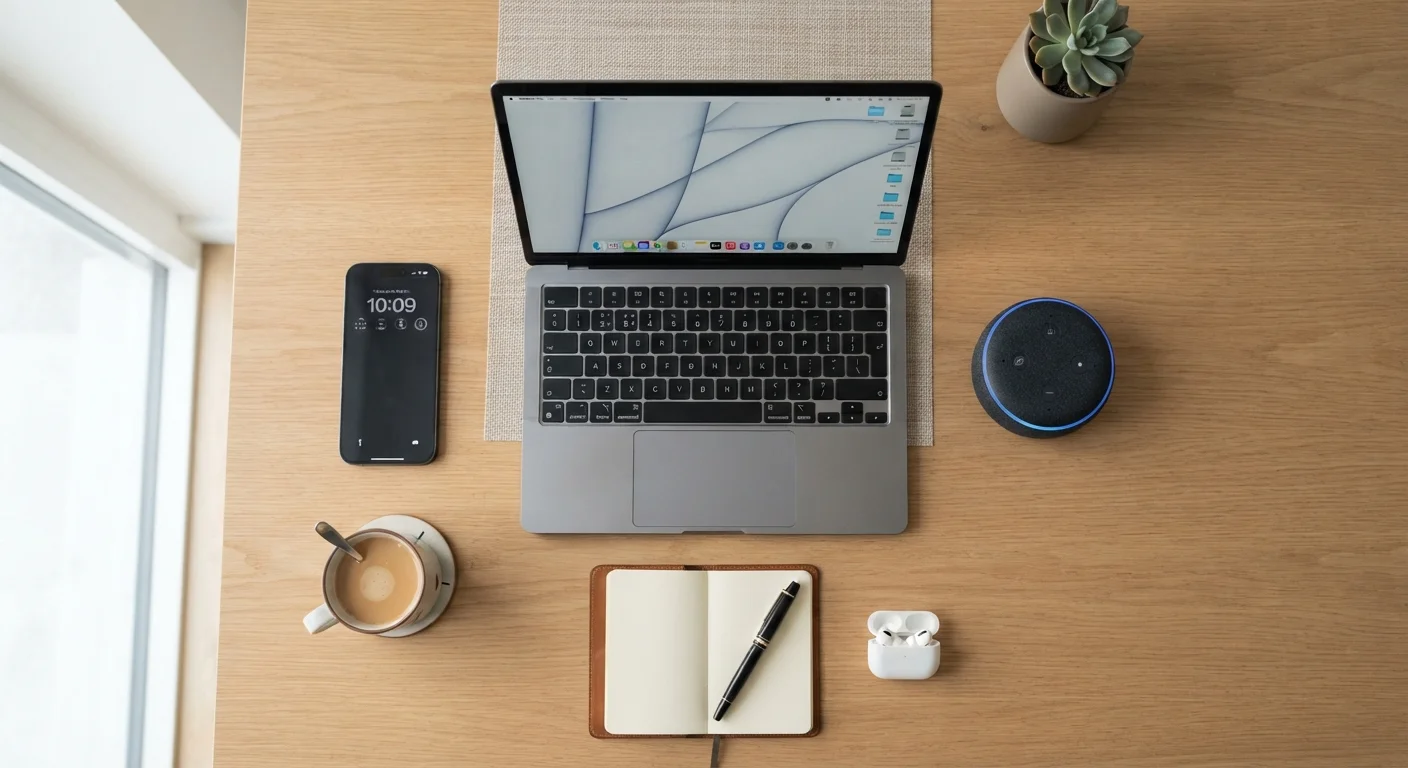
Photo credit: GadgetLite.net | All Things Tech
In this article
Each device type collects data differently. An end-to-end look at managing your privacy settings across the gadgets you use every day.
Key Takeaways
- Phones, laptops, and smart speakers each collect data through different mechanisms requiring tailored privacy steps.
- App permissions on smartphones are the single highest-impact privacy setting most users overlook.
- Smart speakers store voice recordings by default - you can review and delete them in the companion app.
- Laptop privacy includes browser settings, webcam access, and diagnostic data sent to the OS maker.
- A simple monthly review of permissions across all devices is enough to stay meaningfully in control.
Why Each Device Is a Different Privacy Challenge
Most people think of privacy as a single switch - either you're protected or you're not. In reality, every device in your home gathers data through different sensors, software layers, and network connections. Your phone tracks location continuously. Your laptop sends diagnostic telemetry to the operating system maker. Your smart speaker listens for a wake word around the clock. Treating them the same way leaves real gaps.
If you're new to thinking about this, our plain-language primer on online privacy explains what personal data is and who collects it - a useful foundation before diving into device-specific steps. This guide picks up from there, walking through each device category with concrete actions you can take today.
79%
Americans concerned about data collection
A Pew Research Center survey found roughly 79% of U.S. adults report concern about how companies use their data.
45+
Average apps installed per smartphone
Research from app analytics firms consistently finds U.S. smartphone users have more than 45 apps installed, each potentially requesting permissions.
3 in 4
Smart speaker owners unaware of voice history
Consumer advocacy research has found most smart speaker owners do not know their devices save recordings that can be reviewed or deleted.
Managing Privacy on Your Smartphone
Smartphones are the richest data source most people carry. They combine location history, contact lists, microphone access, camera permissions, and browsing habits - often shared across dozens of apps simultaneously.
Audit App Permissions Regularly
Both Android and iOS let you see exactly which apps have access to sensitive capabilities like your location, microphone, camera, and contacts. Navigate to your phone's Settings > Privacy (iOS) or Settings > Apps > Permissions (Android) and work through each category. Ask yourself: does this app genuinely need this access to function? A flashlight app with microphone permission is a red flag.
Use Location Permissions Wisely
Set location access to While Using rather than Always for any app that doesn't have a clear reason to track you in the background. Navigation and ride-sharing apps may need continuous access; most others don't.
Review Ad Tracking
On iOS, go to Settings > Privacy & Security > Tracking and turn off "Allow Apps to Request to Track." On Android, visit Settings > Privacy > Ads and opt out of personalized advertising. Neither step blocks ads - it limits how your behavior is profiled across apps.
After installing any new app, immediately go to Settings and manually verify every permission it requested - don't rely on the install prompt alone.
Install-time permission dialogs are easy to tap through quickly; a deliberate post-install check catches permissions you may have granted without realizing their scope.
Set a recurring calendar reminder - monthly works well - specifically labeled 'privacy check' so it doesn't get skipped during busy periods.
Privacy settings reset or expand when apps update. A scheduled review ensures permissions don't silently expand between your check-ins.
For ongoing discipline with app privacy, these repeatable app privacy habits are worth bookmarking.
Locking Down Your Laptop's Privacy Settings
Laptops present a different set of risks: browser tracking, operating system telemetry (data your OS sends back to its maker about how you use the device), and open webcam or microphone access for any app that requests it.
Operating System Telemetry
Windows includes a Diagnostics & Feedback setting under Settings > Privacy & Security where you can reduce the level of data sent to Microsoft. macOS has an equivalent under System Settings > Privacy & Security > Analytics & Improvements. Switching from "Full" to "Basic" or opting out of sharing analytics sends meaningfully less data without affecting normal use.
Camera and Microphone Access
Check which applications have been granted camera and microphone access - both Windows and macOS list these under their respective privacy menus. Revoke access for any app you don't recognize or that has no obvious need for audio or video input.
Browser Privacy
Your browser is often the leakiest part of your laptop's privacy posture. Understanding what browser privacy settings actually do - including third-party cookies and fingerprinting protection - helps you make informed choices rather than just toggling things at random.
Use a Browser Profile for Sensitive Tasks
Consider keeping a separate browser profile - or even a separate browser entirely - for sensitive activities like banking or health research. This prevents advertising trackers from linking those sessions to your general browsing history. Most major browsers support multiple profiles with distinct cookie and extension settings.
Smart Speakers: Convenience vs. Always-On Listening
Smart speakers like those running voice-assistant platforms are designed to listen continuously for a wake word. That processing happens on the device, but when the wake word is detected, the audio clip - and sometimes a few seconds before it - is sent to the cloud for the assistant to respond.
Review and Delete Voice History
Every major voice-assistant platform provides a way to review saved recordings and delete them, accessible through the companion smartphone app or a web dashboard. Look for a Voice History or Activity section and schedule a monthly review.
Mute When Not in Use
All consumer smart speakers include a physical mute button that disables the microphone at the hardware level - meaning software cannot override it. Use it whenever you're having private conversations or simply aren't using the device.
Limit Third-Party Skills and Actions
Voice assistant platforms allow third-party "skills" or "actions" - mini-apps that extend what the speaker can do. Each one is an additional data receiver. Periodically open your assistant's app, navigate to your enabled skills, and remove any you no longer use.
For a deeper look at the trade-offs involved in always-on microphones at home, this guide on always-on microphones and cameras covers what you should know before plugging these devices in.
Wake-Word Detection Is Not Foolproof
Smart speakers occasionally activate in response to sounds that resemble their wake word - a well-documented behavior acknowledged by the major platform makers. During those false activations, audio may be sent to the cloud for processing. If you discuss sensitive personal, financial, or medical information at home, using the hardware mute button or placing the device in another room is the safest approach.
Building a Cross-Device Privacy Routine
Individual settings matter, but privacy is most durable as a habit rather than a one-time project. A short monthly review - checking permissions, deleting voice history, and clearing browser cookies - takes under fifteen minutes and covers most of what tends to drift over time.
When you add a new device, run through a structured setup review before connecting it to your network. A device setup privacy checklist is a reliable way to make sure nothing critical gets skipped in the excitement of a new gadget.
It's also worth understanding the broader picture. Every app and service involves a trade-off between the convenience you gain and the data you give up. Knowing that dynamic helps you make deliberate decisions rather than just accepting defaults.
Ongoing App Privacy Habits Guide
A practical, repeatable framework for staying in control of your data across apps over the long term - not just at initial setup.
New Device Privacy Checklist
A step-by-step checklist covering the privacy settings, permissions, and account security steps to complete every time you set up a new device.
Browser Privacy Settings Explainer
Plain-language breakdowns of what each browser privacy option - cookies, tracking protection, fingerprinting - actually controls and when to enable it.
Privacy across devices isn't about achieving perfection - it's about reducing unnecessary exposure, one setting at a time. The steps in this guide are enough to meaningfully improve your position without requiring technical expertise.

Author
Cyber Security Editorial Team
Cyber Security Editorial Team is the collective byline for our editorial team and contributor network. Articles published under this byline or an editorial pen name are researched, written, and reviewed according to our editorial standards for clarity, consistency, and independence before publication.
View all articles →