
How File Syncing Works Across Your Devices
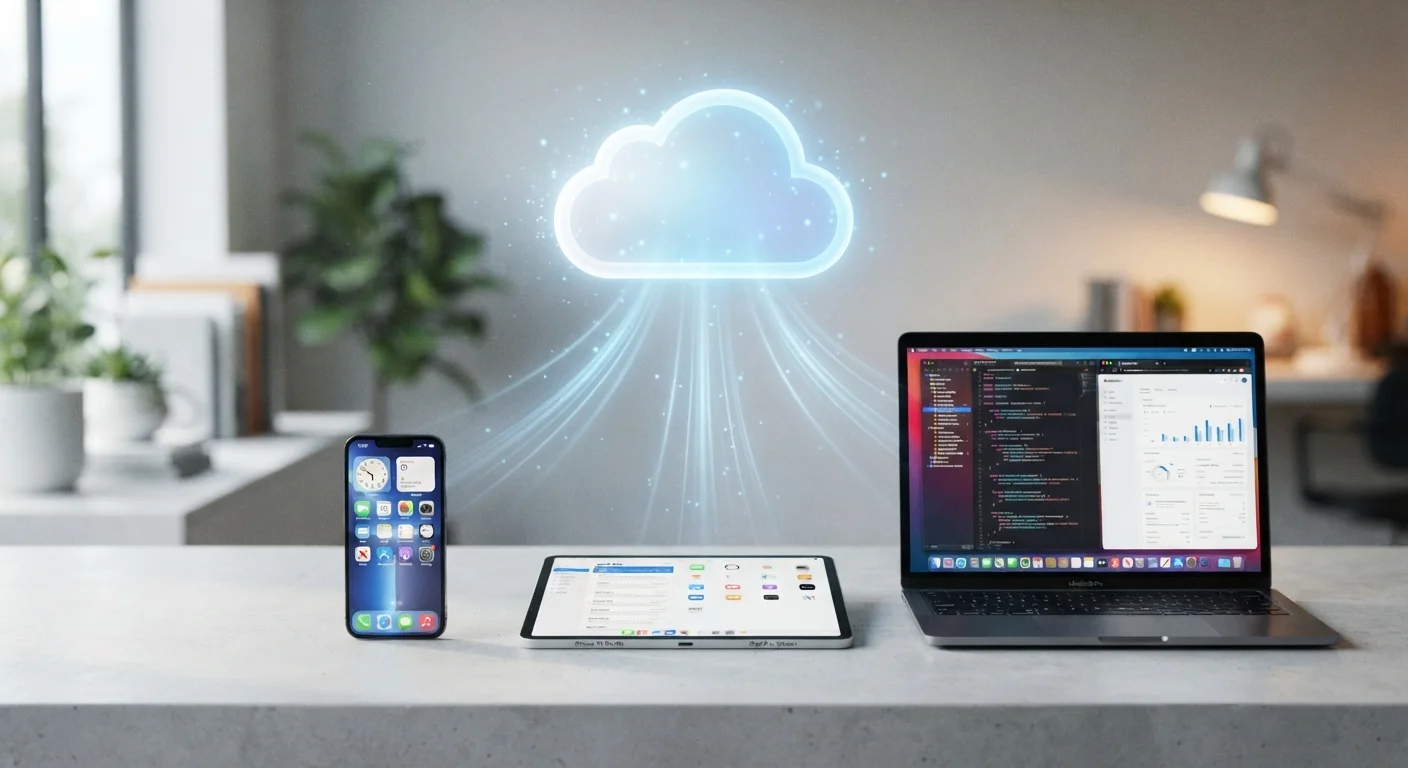
Photo credit: GadgetLite.net | All Things Tech
In this article
Ever wondered how a photo taken on your phone appears instantly on your laptop? Here's the step-by-step story behind cloud syncing.
Key Takeaways
- File syncing keeps the same version of your files available on every connected device.
- Changes are detected automatically; you don't need to manually copy anything.
- Syncing relies on a cloud server acting as a central hub between your devices.
- Sync and backup are related but different - syncing isn't a replacement for a true backup.
- An internet connection is required to sync; changes made offline are uploaded when you reconnect.
The Basic Idea: A Central Hub for Your Files
When you take a photo on your phone and it shows up on your laptop a few seconds later, it feels almost like magic. But the process behind it is actually pretty straightforward once you see the steps laid out.
The key piece is a cloud server - essentially a powerful computer operated by a service provider and connected to the internet around the clock. Your devices don't sync directly with each other. Instead, they each talk to that central server. Your phone uploads a change; the server stores it; your laptop checks in, sees something new, and downloads it. That server in the middle is what makes syncing across different devices and operating systems possible.
For a broader look at how this fits into your digital life, the complete guide to syncing and backing up your digital life is a useful starting point.
Sync Folders Are Special Folders
Most sync services work by designating a specific folder on your device - anything you place inside it is automatically synced. Files outside that folder are not touched. This is worth knowing if you're wondering why some files don't appear on your other devices: they may simply be saved in the wrong location.
Step by Step: What Actually Happens
Here's the sequence that plays out every time a file changes:
- Detection: A small background app on your device watches a specific folder. The moment a file in that folder is created, edited, or deleted, the app notices.
- Upload: The changed file - or just the changed portion of it - is sent over your internet connection to the cloud server.
- Storage and version tracking: The server saves the new version. Many services also keep older versions for a limited time, so you can roll back a mistake.
- Notification: The server signals your other devices that something has changed.
- Download: Each linked device pulls down the updated file, replacing the older version in its local sync folder.
The whole cycle can happen in seconds on a fast connection. Want a deeper look at what's happening under the hood? Our article on what actually happens when your phone syncs to the cloud covers the mechanics in more detail.
Use Wi-Fi for Large Syncs
If you have a lot of new photos or large files waiting to upload, connect your device to Wi-Fi before opening the sync app. Most services let you restrict syncing to Wi-Fi only, which prevents unexpected mobile data charges and tends to be significantly faster.
Syncing Photos, Documents, and Settings
File syncing applies to more than just documents. Photos are among the most common things people sync - snap a picture on your phone and it's available on your tablet within moments. Documents you're working on in a notes or word-processing app update across devices the same way.
Settings and app data work a little differently. Some apps sync their own internal data - think saved game progress or app preferences - using their own systems rather than a general file sync folder. The underlying concept is the same, but the pipeline is separate.
~15 GB
Free cloud storage offered by major services
Many major cloud platforms offer around 15 GB of free storage per account, which is enough to sync thousands of documents or several thousand photos at standard resolution.
3x
More devices the average household owns vs. a decade ago
Research from various consumer technology surveys suggests the number of connected devices per household has roughly tripled over the past decade, making cross-device sync increasingly relevant.
If you want to make sure your photos are always protected automatically, our walkthrough on setting up automatic photo backup walks through the setup process step by step.
When Syncing Goes Wrong - and How to Handle It
Sync conflicts happen when two devices edit the same file before either change has had a chance to upload. Most services resolve this gracefully by saving both versions with a note in the filename so you can review them. Occasionally you'll need to pick the right one manually and delete the duplicate.
Storage limits can also interrupt syncing. If your cloud account is full, new changes won't upload until you clear space or upgrade your plan. A sync error notification from the app usually tells you what's wrong.
One thing worth repeating: syncing is not the same as backing up. A sync deletion propagates to all your devices. For households managing multiple gadgets, the strategies in keeping your phone, tablet, and laptop in sync without the chaos can help you avoid common headaches. For phones and tablets specifically, the smartphones and tablets hub has relevant context as well.
Frequently Asked Questions

Author
Cloud Editorial Team
Cloud Editorial Team is the collective byline for our editorial team and contributor network. Articles published under this byline or an editorial pen name are researched, written, and reviewed according to our editorial standards for clarity, consistency, and independence before publication.
View all articles →