
App Permissions Explained: What Your Phone Is Really Asking For
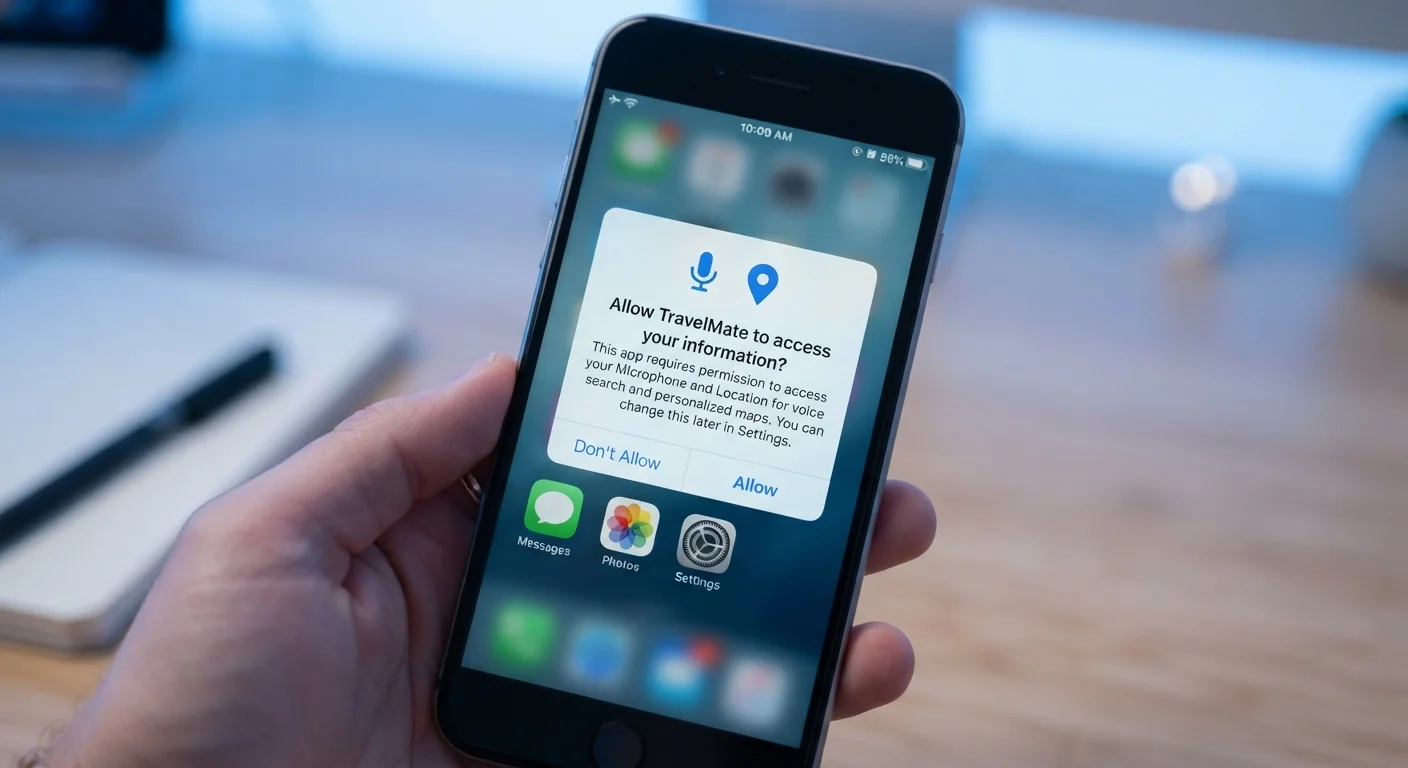
Photo credit: GadgetLite.net | All Things Tech
In this article
Microphone, contacts, location — understand what each app permission actually means and when granting it is reasonable.
Key Takeaways
- App permissions control which parts of your phone - camera, microphone, contacts, location - an app can access.
- Permissions should match what an app actually does; a flashlight app rarely needs your contacts.
- You can review and revoke most permissions at any time in your phone's settings.
- Both Android and iOS let you grant partial access, such as approximate location instead of precise GPS.
- Reflexively tapping 'Allow' on every prompt is one of the most common ways people unknowingly share personal data.
What the Most Common Permissions Actually Do
When an app pops up a permission request, it can feel like a speed bump - something to tap through quickly. But each request represents real access to real data. Here's what the most frequently requested permissions actually involve:
- Location: Gives the app access to where you physically are. This powers maps, weather, and local search - but it can also be used to build a profile of your daily movements.
- Camera: Lets the app open your camera or capture photos and video. Essential for photo editors or video-call apps, but unrelated to most utility tools.
- Microphone: Enables the app to record audio. Voice assistants and call apps obviously need this; a recipe app almost certainly doesn't.
- Contacts: Grants read access to your entire address book, including names, phone numbers, and email addresses of people who haven't consented to share their data.
- Storage / Photos: Allows the app to read or write files on your device, including saved photos and documents.
- Notifications: Permits the app to send you alerts, badges, and sounds - which can range from useful reminders to relentless promotional pings.
Understanding the function behind each permission makes it much easier to judge whether a request is reasonable. For a deeper look at how this language is used across the app ecosystem, the app data terminology glossary is a useful reference.
Permissions Don't Always Fire Immediately
On iOS, apps can request a permission the moment they need it rather than all at once at install. This context-aware timing is intentional - it helps you understand why the request is being made. Android also increasingly follows this pattern. If a prompt appears mid-task, that's usually a sign the feature genuinely needs that access right now.
How to Tell Whether a Permission Request Makes Sense
The core question to ask is simple: Does this feature require this access to work? A navigation app asking for location is logical. A wallpaper app asking for your microphone is not. This mismatch test catches the most obvious cases of over-reach.
A few practical rules of thumb:
- Match the permission to a visible feature. If you can identify exactly which button or screen in the app would use that resource, the request is probably legitimate.
- Be cautious with contacts. Sharing your address book shares other people's information without their knowledge. Grant this only to apps where syncing contacts is a core function, like a messaging or email app.
- Prefer limited access when offered. Both Android and iOS now offer scoped options - approximate location instead of precise, or access to specific photos rather than your entire library. Use these when available.
- Deny and test first. You can always deny a permission and see what stops working. If nothing important breaks, you probably didn't need to grant it.
Start With Deny, Upgrade If Needed
When in doubt about a permission, deny it and continue using the app. If a specific feature you want stops working, you'll know exactly which permission to enable - and you'll enable it intentionally rather than by reflex. This approach puts you in control of the exchange rather than leaving it up to the app's default behavior.
For a structured approach to reviewing existing permissions on your device, the app permissions audit guide walks through exactly what to check and how to decide.
The Habit That Puts Most People at Risk
Research consistently shows that most users tap 'Allow' on permission prompts without reading them. This reflex is understandable - the dialogs appear mid-task, and the friction of stopping feels disruptive. But the cumulative effect is significant: over time, dozens of apps may hold access to your location history, photo library, or contact list with no ongoing benefit to you.
45%
Users who never review app permissions
A Pew Research Center survey found that roughly 45% of smartphone users report they never check or change app permissions after installation.
3 in 4
Apps requesting location access
Studies of app store listings have found that approximately three in four apps request some form of location data, according to published mobile privacy research.
The good news is that reviewing and adjusting permissions requires no technical skill. On an iPhone, go to Settings → Privacy & Security. On Android, go to Settings → Privacy → Permission Manager. Both interfaces let you see, at a glance, which apps have access to your camera, microphone, location, and more - and change any of them in seconds.
Building a quick habit of checking these settings a few times a year - or whenever you delete an app - goes a long way toward keeping your data accessible only to apps that genuinely need it. If you want to understand the broader consequences of over-permissioning, the hidden risks of over-permissioning apps explores what's actually at stake.
Frequently Asked Questions

Author
Apps & Software Editorial Team
Apps & Software Editorial Team is the collective byline for our editorial team and contributor network. Articles published under this byline or an editorial pen name are researched, written, and reviewed according to our editorial standards for clarity, consistency, and independence before publication.
View all articles →