
What App Permissions Actually Mean - and Why They Matter
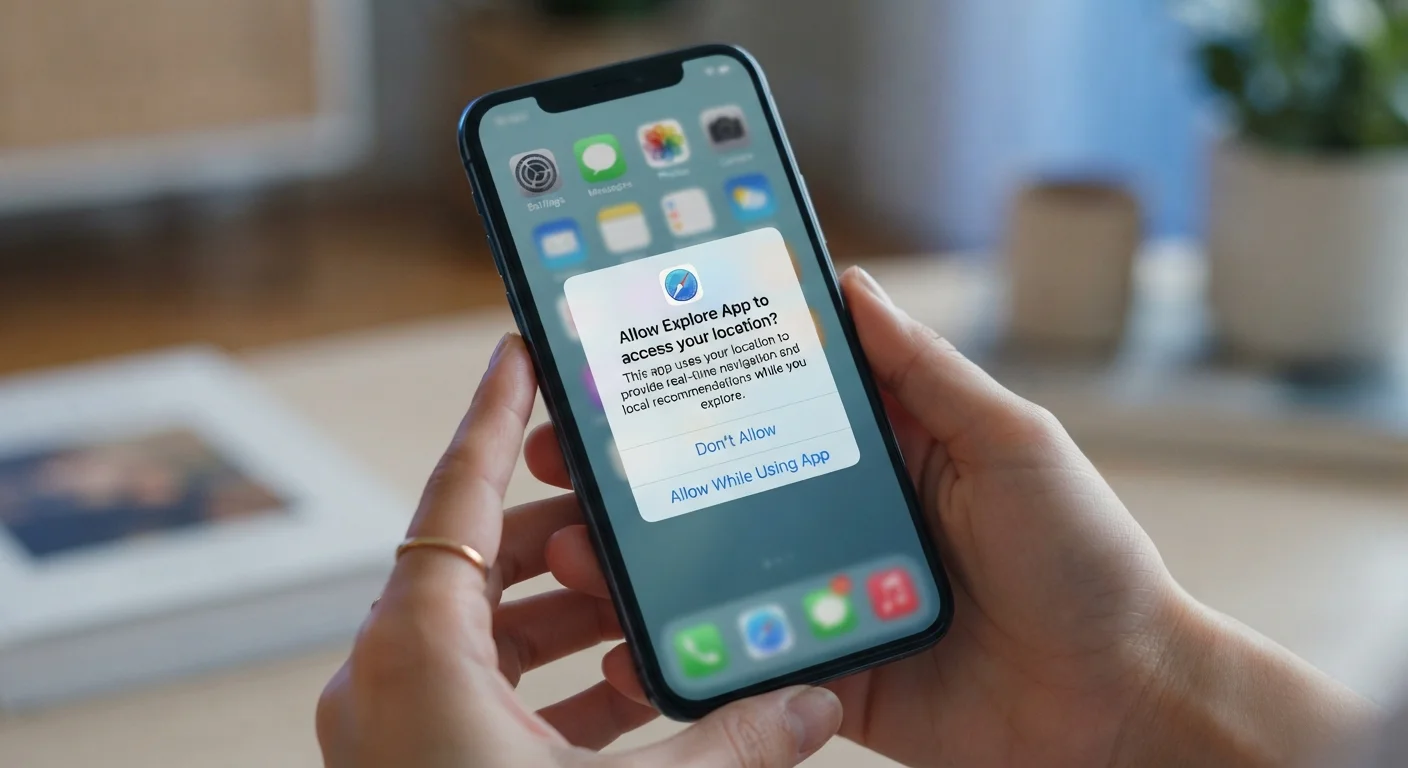
Photo credit: GadgetLite.net | All Things Tech
In this article
Camera, microphone, contacts — learn what app permissions really do and how to decide which ones are worth granting.
Key Takeaways
- App permissions control which parts of your phone - camera, microphone, contacts, location - an app can access.
- A permission request is not automatic proof that an app needs the access it's asking for.
- You can review and revoke permissions at any time through your phone's Settings app.
- Denying a permission often still allows the core function of an app to work.
- Some permissions carry more privacy risk than others - location and microphone deserve extra scrutiny.
What Happens When an App Asks for Permission
The moment you open a new app and a dialog box pops up asking to access your camera or location, you're being asked to make a privacy decision - often without enough context to make it confidently. That prompt is your phone's operating system acting as a gatekeeper, requiring your explicit consent before any app can reach sensitive hardware or data.
Each permission category maps to something specific. Camera access lets an app activate your device's camera to capture photos or video. Microphone access enables audio recording. Contacts access allows the app to read - and sometimes copy - names, phone numbers, and email addresses stored on your device. Location can be precise (your GPS coordinates) or approximate (your general region). Storage lets an app read or write files. Understanding these distinctions helps you evaluate whether a request actually makes sense for what the app does.
For a deeper look at what each specific permission type really means in practice, the App Permissions Explained guide covers each category in detail.
Your Phone Is Already Doing Some of the Work
Modern versions of iOS and Android automatically revoke permissions for apps you haven't used in several months. This 'permission auto-reset' feature is active by default on recent Android versions and is part of iOS's app privacy protections. It's a useful safety net, but it doesn't replace active review.
How to Decide Whether to Grant or Deny
The most useful question to ask when any permission prompt appears is: Does this app need this access to do what I downloaded it for? A ride-sharing app needs location - that's the product. A recipe app asking for your contacts has no obvious reason to do so.
Both iPhone and Android now offer graduated options for many permissions. Location, for example, typically offers three choices: Always (including when the app is closed), While Using the App, and Never. Choosing the middle option is often the right balance - the app gets what it needs during active use, but isn't quietly tracking you in the background.
If you're unsure about a request, deny it for now. You can always grant access later through Settings, and the app will usually prompt you again if it genuinely needs that feature to function. This approach - deny first, grant when needed - reduces unnecessary exposure without disrupting your experience.
Deny First, Grant When You Need It
When a permission prompt appears and you're not sure, tap Deny. If the app genuinely needs that access for a feature you want to use, it will ask again in context - making the reason much clearer. This simple habit reduces unnecessary data sharing without breaking your app experience.
The Permissions That Deserve Extra Attention
Not all permissions carry equal privacy weight. Microphone and camera access are among the most sensitive because they can capture what's happening in your physical environment. Most legitimate apps - video calling, voice memos, QR scanners - have clear reasons to need them. An app without an obvious audio or visual function asking for either should raise questions.
Contacts access is particularly consequential because it exposes data about other people, not just you. When an app reads your contacts, it may collect names, numbers, and emails belonging to people who never agreed to share their information with that app.
Location at the 'Always' level creates a detailed record of where you go and when. Unless navigation or local discovery is the primary purpose of the app, 'While Using' or 'Never' is usually the smarter choice.
45%
Apps requesting more permissions than needed
Research published by privacy analysts has found that a significant portion of mobile apps request permissions that aren't necessary for their stated purpose.
3 in 4
Users who rarely review granted permissions
Surveys on mobile privacy habits consistently show that most people never revisit permissions after initially installing an app.
Top 3
Most-requested sensitive permissions
Location, camera, and microphone are consistently the most frequently requested sensitive permissions across app stores, according to app store analyses.
If you want to audit what you've already granted across your installed apps, the App Permissions Audit checklist is a practical starting point. And for context on how over-granting permissions can expose more than you expect, see Think Twice Before Tapping Allow.
Managing Permissions After You've Already Granted Them
The permission decisions you made when you first installed an app aren't permanent. Both iOS and Android make it straightforward to revisit and change them at any time. On an iPhone, open Settings, scroll down to the app name, and you'll see every permission toggle. On Android, go to Settings > Apps, select the app, and tap Permissions.
Both platforms also offer a reversed view - instead of looking at one app's permissions, you can look at one permission type and see every app that has it. On iOS this is under Settings > Privacy & Security. On Android it's called Permission Manager under Settings > Privacy. This view is especially useful for spotting apps that have access you forgot you granted.
Making a habit of reviewing permissions every few months - especially after installing new apps - is a practical way to stay in control of your data. For broader context on how app privacy and safety decisions fit together, including how to read privacy labels alongside permissions, see Privacy Labels vs. App Store Ratings.
Frequently Asked Questions

Author
Apps & Software Editorial Team
Apps & Software Editorial Team is the collective byline for our editorial team and contributor network. Articles published under this byline or an editorial pen name are researched, written, and reviewed according to our editorial standards for clarity, consistency, and independence before publication.
View all articles →