
The Hidden Drain: How Background App Activity Affects Your Battery
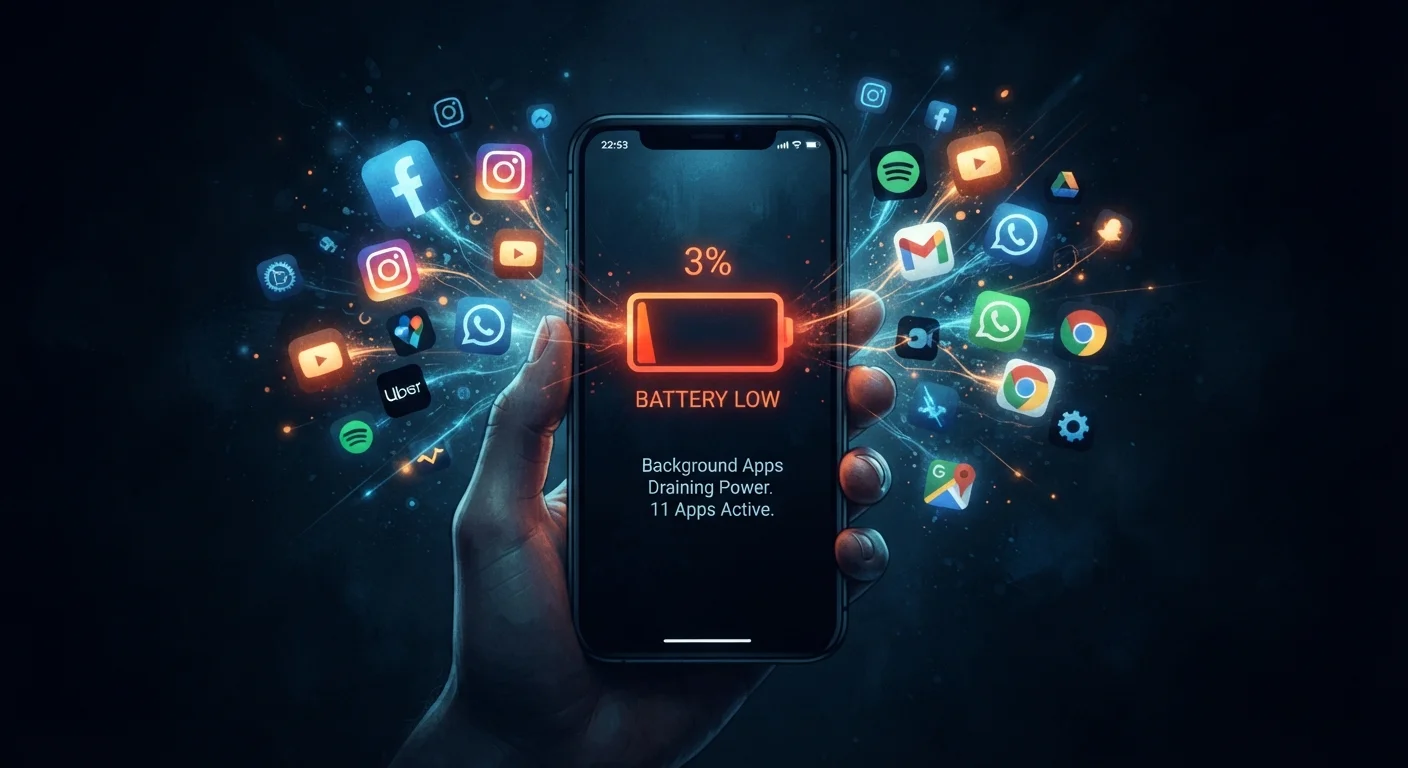
Photo credit: GadgetLite.net | All Things Tech
In this article
Find out which types of apps silently consume battery in the background and what you can realistically do about it.
Key Takeaways
- Apps can consume battery power even when you're not actively using them.
- Location, email, and social media apps are among the most common background battery offenders.
- Both Android and iOS offer built-in settings to limit which apps can run in the background.
- Unexpected battery drain can sometimes signal an app behaving poorly, not just normally.
- Limiting background activity for non-essential apps is one of the most effective real-world battery tips.
What's Actually Happening When Your Phone's in Your Pocket
Your phone looks idle when the screen is off, but behind the scenes it's often very busy. Apps installed on your device are continuously performing tasks: pulling in new emails, refreshing your social media feed, syncing your calendar, and checking your GPS location for weather or navigation apps. This is background app activity, and it's designed to make your experience feel seamless - but it comes at a cost.
The reason your phone feels warm after sitting on a table untouched, or why the battery drops noticeably overnight, is often explained by this hidden layer of activity. It's not a bug; it's how modern smartphones are built. The question is whether all of it is necessary for you.
Background Activity Is a Feature, Not Always a Flaw
Background app refresh was introduced to improve user experience - so that when you open an app, new content is already waiting for you. The system itself tries to learn your habits and limit activity for apps you rarely use. The problem arises when too many apps are given full background access, or when a specific app is poorly optimized.
The App Categories That Quietly Consume the Most Power
Not all apps are equal when it comes to background behavior. Some categories are consistently heavier consumers:
- Location-based apps: Navigation, ride-share, weather, and fitness apps that continuously poll your GPS are among the biggest offenders. Even when you're not using them, some request your location at regular intervals.
- Social media apps: Platforms designed to maximize engagement tend to refresh content aggressively in the background so your feed is ready the instant you open them.
- Email and messaging apps: Constant server checks to deliver near-instant notifications keep these apps active around the clock.
- Streaming and media apps: Some music and podcast apps pre-cache content in the background, consuming both battery and data.
You can see exactly which apps are consuming your battery by checking your phone's battery usage screen. On iPhone, go to Settings > Battery. On Android, look under Settings > Battery > Battery Usage. Any app with notably high background usage that you rarely open is worth restricting.
~20%
Battery used by background activity on average
Research from mobile analytics firms has consistently found that background processes account for a meaningful share of daily battery consumption on smartphones.
Top 3
Apps responsible for majority of background drain
Studies on smartphone battery behavior suggest that a small number of apps - often social media, email, and location services - account for the majority of background power use on a given device.
What You Can Realistically Do About It
The good news is that both major mobile operating systems give you direct control over which apps are allowed to run in the background. Here's a practical approach:
- Audit your battery usage screen weekly. Look for apps consuming a disproportionate amount of battery relative to how often you use them.
- Disable Background App Refresh for non-essential apps. On iPhone, this is a single toggle per app. On Android, you can restrict background battery use on an app-by-app basis.
- Revoke unnecessary location permissions. Change location access from "Always" to "While Using" for apps that don't need your location passively. Most apps work perfectly well with this restriction.
- Uninstall apps you no longer use. Even dormant apps can occasionally wake up to check for updates or sync data.
It's worth noting that force-closing apps isn't the same thing as restricting background activity - and it's often less effective than people assume. The common myths about closing apps to save battery article explains why this widely repeated habit doesn't always deliver the results people expect.
Start With Your Top Three Offenders
Rather than blanket-disabling background activity for every app, check your battery usage screen and focus on the three apps using the most background power. Restricting just those often makes a noticeable difference without disrupting your daily routine. Review the list again after a few days to see the impact.
When Background Drain Is a Sign of Something Else
Unusual battery drain isn't always the result of normal background activity. Sometimes it signals that an app is misbehaving - running in loops, crashing repeatedly, or making far more network requests than it should. Apps that exhibit this behavior may also be requesting permissions they don't need, which connects to a broader concern about how apps use your data. The signs that an app may be overstepping its boundaries are often subtle, but battery drain is one of the clearest red flags.
For a broader view of what genuinely helps your phone last through the day - beyond just background apps - the guide on battery life on modern phones covers the full picture. Background activity is one piece of a larger puzzle that includes screen brightness, network conditions, and hardware age.
“The smartphone OS is already doing a lot of work to manage background processes intelligently. But users who take a few minutes to audit their app permissions and background settings will almost always see a real benefit in daily battery life.”
— Mobile Platform Documentation Team, Technical guidance published in Android and iOS developer documentation
Frequently Asked Questions

Author
Apps & Software Editorial Team
Apps & Software Editorial Team is the collective byline for our editorial team and contributor network. Articles published under this byline or an editorial pen name are researched, written, and reviewed according to our editorial standards for clarity, consistency, and independence before publication.
View all articles →