
Cloud Sync vs Local Storage: Where Your App Data Actually Lives
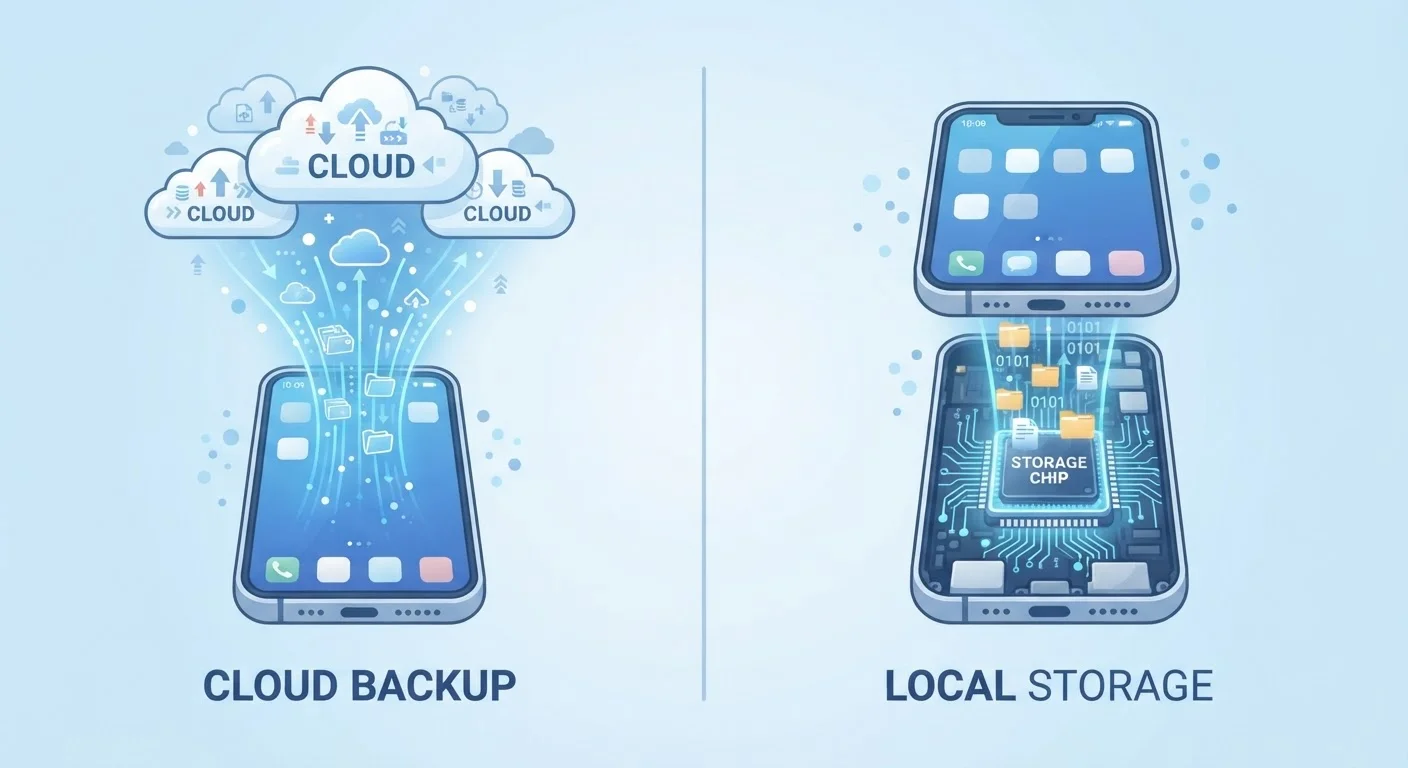
Photo credit: GadgetLite.net | All Things Tech
In this article
Understand the difference between cloud-synced and locally stored app data, and what it means if you lose your phone.
Key Takeaways
- Cloud-synced app data is stored on remote servers and automatically updates across your devices.
- Locally stored app data lives only on your device - if you lose the phone, you can lose that data.
- Many apps blend both approaches, syncing some data while keeping other data local only.
- Cloud sync requires an internet connection and an active account to restore your data.
- Understanding which method your apps use helps you plan what to back up and how.
What Cloud Sync and Local Storage Actually Mean
When you open an app and see your notes, game progress, or workout history, that data is physically stored somewhere. The two main options are cloud sync and local storage - and they behave very differently from each other.
Local storage means your app data is saved directly on your device's internal memory. It stays there unless you delete it or the device is wiped. No internet connection is required to access it, and nothing is sent to an outside server. It's private by default, but it's also device-dependent.
Cloud sync means your app data is automatically sent to remote servers over the internet - typically managed by the app developer or a cloud platform - and then pulled back down whenever you open the app on any signed-in device. Think of how your contacts appear on a new phone the moment you log into your Google or Apple account. That's cloud sync at work.
For a broader look at how these two storage methods compare beyond apps, see our article on local storage vs cloud storage.
| Criterion | Cloud Sync | Local Storage |
|---|---|---|
| Where data lives | Remote servers (the cloud) | Your device's internal memory |
| Internet required | Yes, to sync and restore | No |
| Survives a lost phone | Yes, if account is active | No, unless separately backed up |
| Works across multiple devices | Yes, automatically | No |
| Privacy control | Data held by third-party servers | Data stays on your device |
| Requires an account | Usually yes | Usually no |
| Risk of accidental deletion spreading | Yes - deletions can sync everywhere | No - only affects this device |
What Really Happens When You Lose Your Phone
This is where the difference becomes genuinely important. If your app data is stored locally and your phone is lost, stolen, or destroyed, that data is gone - unless you had a separate backup in place.
If your app uses cloud sync, your data survives the lost phone. Log into the app on a new device with the same account, and your history, settings, and content reappear. This is why apps like Gmail, Spotify, and most password managers feel seamless across devices - they're built on cloud sync.
But not every app syncs everything. Some games, for example, save basic progress to the cloud but keep certain local game files on the device. A journaling app might let you export entries but not sync them automatically unless you've turned on a backup option in settings.
68%
Americans who've lost data from device failure
According to a Backblaze consumer survey, roughly two-thirds of people have experienced data loss due to a device failure, accident, or theft.
3-2-1
The widely recommended backup rule
Data protection experts commonly recommend keeping 3 copies of important data on 2 different media types, with 1 copy stored offsite or in the cloud.
It's also worth knowing that cloud sync is not the same as a backup. If you accidentally delete a note or a photo, that deletion can sync to the cloud too - removing it everywhere. Our article on why cloud storage isn't a backup explains this important distinction in full.
How to Tell Which Method Your Apps Use
Most apps don't announce this upfront, so here are practical ways to find out:
- Check if a login is required. Apps that ask you to create an account almost always sync data to the cloud. The account is what ties your data to you, not just to one device.
- Test it yourself. Install the app on a second device, sign in, and see if your data appears. If it does, the app is syncing to the cloud.
- Look in app settings. Many apps have a dedicated "Backup" or "Sync" section that shows what's being saved and where.
- Check privacy policies. These documents (often long, but searchable) will specify whether user data is stored on-device or on company servers.
Some apps, like certain offline-first note or budgeting apps, store everything locally by design and require you to manually export or back up your data. Others - like cloud-based productivity tools - sync continuously in the background without you ever thinking about it. Understanding what happens when your phone syncs to the cloud can help you read those settings more confidently.
If you're curious about managing the storage your apps take up on your device day-to-day, app storage explained walks through cache, data, and downloads in plain terms.
When Apps Blend Both Approaches
Many modern apps use a hybrid model - storing some data locally for speed and offline access while syncing key information to the cloud for continuity. For example, a music app might cache recently played songs on-device while keeping your playlist library synced online. This means you may have partial data even without an internet connection, but a full restore still depends on cloud access. Always check your specific app's settings to understand what's covered.

Author
Apps & Software Editorial Team
Apps & Software Editorial Team is the collective byline for our editorial team and contributor network. Articles published under this byline or an editorial pen name are researched, written, and reviewed according to our editorial standards for clarity, consistency, and independence before publication.
View all articles →