
Before You Delete an App: A Short Checklist
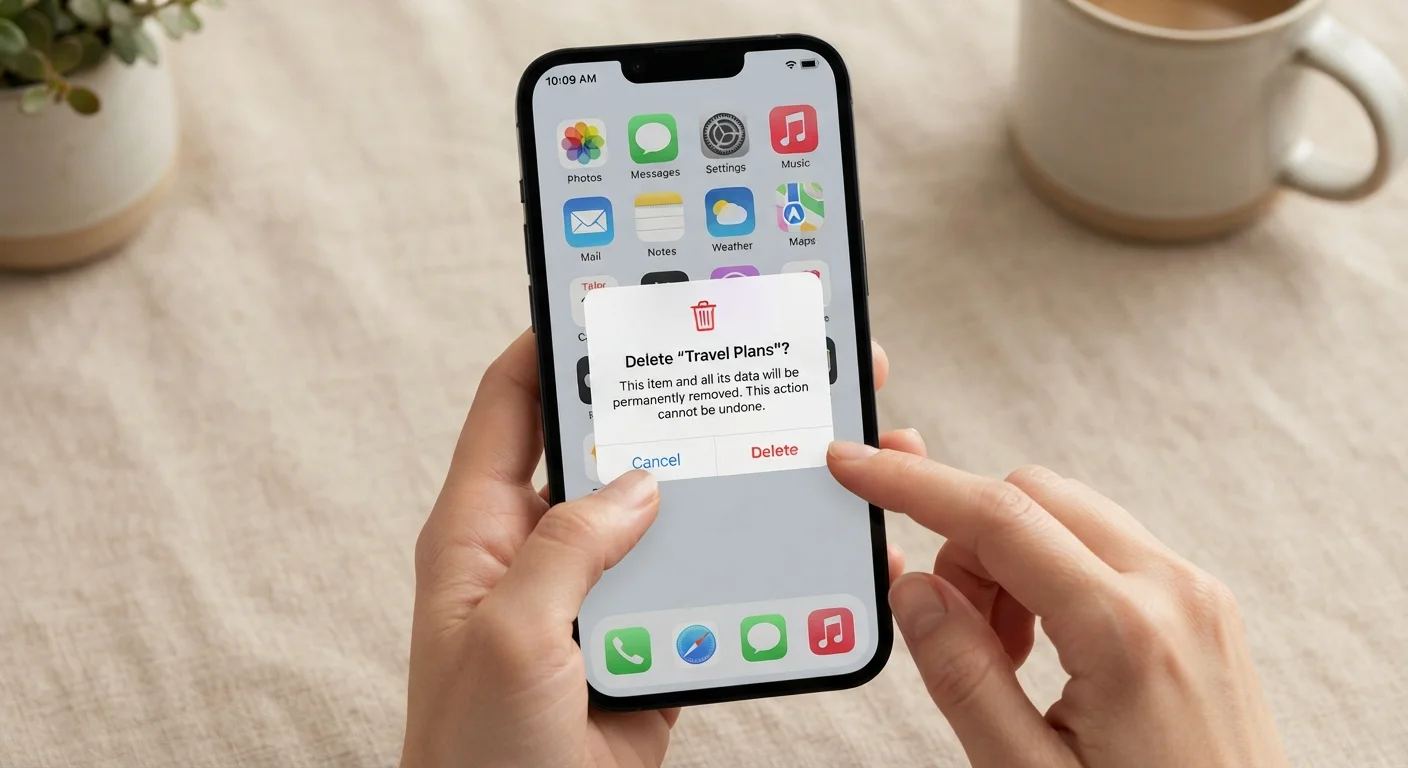
Photo credit: GadgetLite.net | All Things Tech
In this article
Make sure you've backed up your data, cancelled subscriptions, and saved important content before uninstalling.
Key Takeaways
- Deleting an app does not automatically cancel any paid subscription tied to it.
- Some app data - like game saves or journal entries - may only exist locally on your device.
- Backing up or exporting your data before deleting prevents permanent loss.
- Revoking app permissions before deletion is a good privacy practice.
- Logging out of an app first can help protect your account from unauthorized access.
Why a Quick Check Matters Before You Delete
Deleting an app feels simple - press, hold, tap. But what happens behind the scenes is a little more complicated. Some data disappears permanently with the app. Some subscriptions keep charging even after the icon is gone. And some accounts stay connected to third-party services long after you stop using them.
This checklist walks you through 14 quick checks that take under 15 minutes total. Whether you're clearing space on your phone or doing a broader digital cleanup, these steps help you delete with confidence rather than regret. For a deeper look at what storage components are actually removed when you uninstall, see our guide to app storage.
Cancelling an App Does Not Cancel Its Subscription
This is the most common and costly mistake people make. On both iOS and Android, subscriptions are managed separately from the app itself. Deleting the app from your home screen will not stop billing. You must cancel the subscription through your App Store or Google Play account settings before or after deleting - and confirm the cancellation was processed.
The Checklist
Work through each group below before you hit delete. Most steps take under a minute - but skipping them can cost you data, money, or access to something you actually need.
Subscriptions & Payments
Data & Content Backup
Account & Login
Permissions & Privacy
If you're doing a broader review of your app collection, pairing this checklist with a full app privacy audit is worth your time. It covers permissions, connected accounts, and data-sharing settings across everything installed on your device.
What You'll Need
No special tools are required, but having a few things ready will make the process smoother.
Phone Settings App
Used to review and revoke app permissions (camera, location, microphone, contacts) before deletion.
App Store or Google Play Subscriptions Page
Used to check for and cancel any active paid subscriptions tied to the app.
Password Manager
Used to securely store login credentials before you log out and delete the app.
Cloud Storage or Backup Service
Used to verify that app data and device backups are current before you uninstall.
One More Thing: Deleting the App Isn't the End of Your Data Trail
Many people assume that deleting an app erases all the information they ever shared with it. In most cases, that's not true. The app developer typically retains your account information, usage history, and any content you uploaded - sometimes indefinitely. Our article on common app privacy myths goes deeper on this topic.
If privacy is your main concern, check whether the app or its developer offers a way to request data deletion through their privacy settings or support page. This is separate from simply uninstalling. And if you're planning to reinstall something else in its place, review what to check before downloading a new app to avoid repeating the same oversights.
Your Data May Outlive the App on Your Device
When you delete an app, the developer's servers typically retain your account data, usage history, and any content you submitted - often for months or years, depending on their privacy policy. If you want that data removed, you usually need to submit a separate data deletion request through the developer's privacy portal or support channel. Simply uninstalling is not equivalent to closing your account.

Author
Apps & Software Editorial Team
Apps & Software Editorial Team is the collective byline for our editorial team and contributor network. Articles published under this byline or an editorial pen name are researched, written, and reviewed according to our editorial standards for clarity, consistency, and independence before publication.
View all articles →