
Always-On vs. Only While Using: The Real Difference in Location Permission
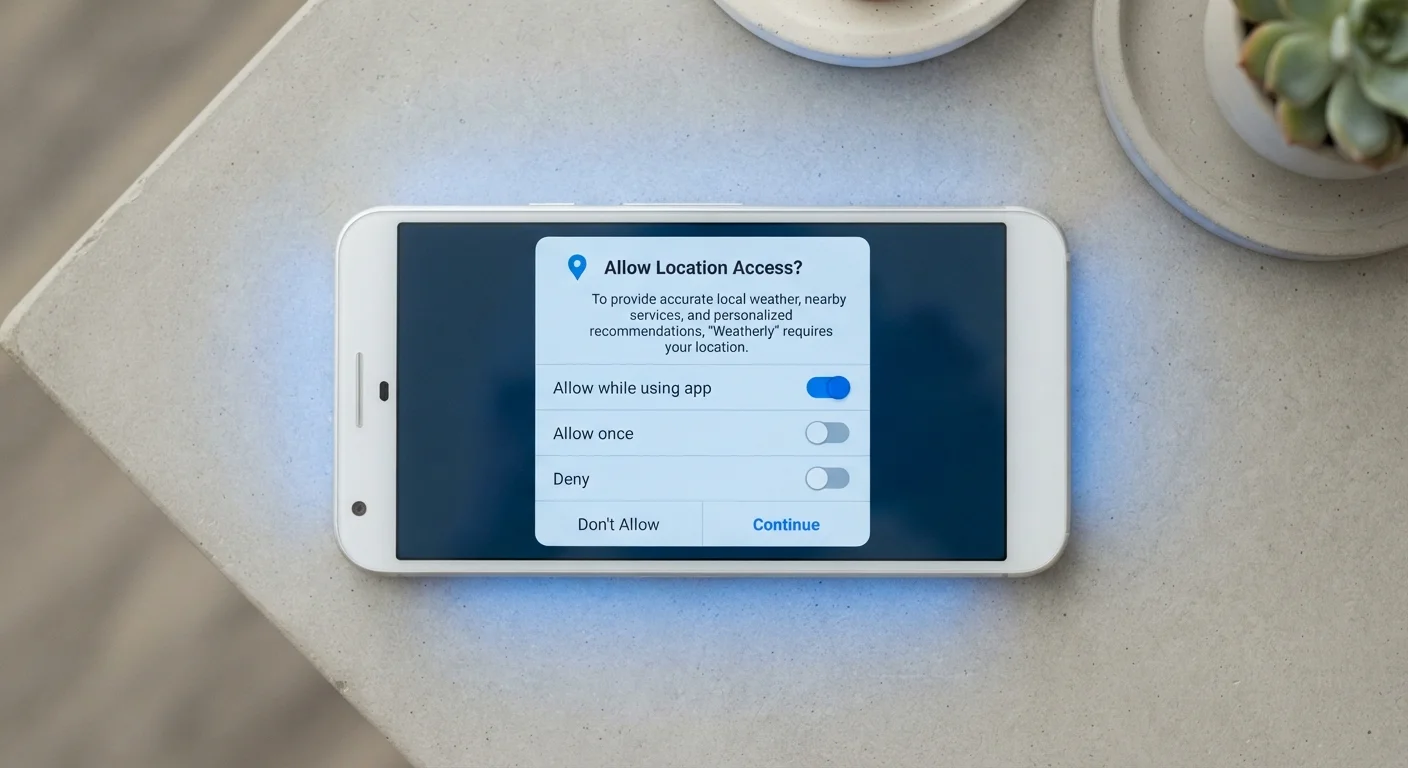
Photo credit: GadgetLite.net | All Things Tech
In this article
Choosing between location permission modes isn't obvious. This article breaks down the practical privacy difference for everyday users.
Key Takeaways
- "Always On" lets apps read your location 24/7, including when you're not using them.
- "Only While Using" restricts location access to moments when the app is open and active.
- Most apps function perfectly well with "Only While Using" - they rarely need more.
- Always-On permission creates a persistent data trail that can be shared with third parties.
- Both iOS and Android now make it easier to review and downgrade location permissions.
What These Two Permissions Actually Do
When an app asks for your location, your phone offers a choice - and the wording varies slightly by device. On iOS, you'll see options like "Always" and "While Using the App." On Android, it's "Allow all the time" versus "Allow only while using the app." They sound like minor variations, but they describe fundamentally different levels of access.
Always On means the app can access your GPS coordinates at any time - whether the app is open on your screen, running quietly in the background, or hasn't been touched in days. The app doesn't need your active participation to collect location data.
Only While Using means location access is gated to moments when the app is visibly open or was very recently in use. The moment you switch to another app or lock your screen, location access stops. This is a meaningful privacy wall.
To understand how this fits into the broader picture of what apps can request from your phone, see what app permissions actually mean - it covers camera, microphone, and contacts alongside location.
| Criterion | Always On | Only While Using |
|---|---|---|
| When location is accessed | Anytime, including background | Only when app is open |
| Data collection volume | High - continuous tracking | Low - session-based only |
| Privacy risk | Higher - full movement log possible | Lower - limited exposure |
| Required for background features | Yes - navigation, auto-logging | No - active use only |
| Recommended default for most apps | No | Yes |
| Third-party data sharing risk | Greater potential exposure | Significantly reduced |
The Privacy Stakes Are Higher Than They Look
Always-On location permission doesn't just power a feature - it creates a continuous log of your movements. Over days and weeks, that data can reveal where you live, where you work, your daily commute, which medical offices you visit, and which places of worship you attend. That's sensitive information, even if no single data point seems significant.
The concern isn't hypothetical. Many apps share or sell location data with third-party advertising networks or data brokers. An app you trust may have a privacy policy that permits sharing aggregated or anonymized location data - terms that don't always offer as much protection as they sound. App permissions explained breaks down how to evaluate what you're actually agreeing to when you tap "Allow."
87%
Of apps request location access
Research published by Carnegie Mellon University found the vast majority of Android apps request location data, often more than users realize.
~1 in 3
Apps share location with third parties
Studies examining mobile app ecosystems have consistently found a significant portion of apps pass location data to external advertising or analytics partners.
"Only While Using" dramatically reduces this exposure. An app that can only see your location when you're actively using it collects far less data overall - and has fewer opportunities to share it.
It's worth noting that how much protection each setting actually provides can vary between platforms. Android and iOS handle these permissions differently, so your experience will depend on which device you use.
How to Audit and Adjust Your Location Settings
Both Android and iOS have made it easier in recent years to review which apps have which level of location access - and to change it without uninstalling anything.
On iPhone (iOS): Go to Settings → Privacy & Security → Location Services. You'll see every app that has requested location access, along with its current setting. Tap any app to change it.
iOS also offers a "Precise Location" toggle within the "While Using" setting, allowing you to share only an approximate area rather than your exact GPS coordinates - a useful middle ground for apps like weather or local news.
iOS will occasionally ask whether you want to keep your current setting or switch an Always-On app to "While Using" only - this is worth paying attention to when it appears.
On Android: Go to Settings → Location → App permissions (exact path varies by manufacturer). You'll see apps grouped by their current permission level. Android also sends periodic reminders if an app with Always-On access hasn't been used in a while, prompting you to review.
When 'Only While Using' Might Break an App
A small number of apps genuinely need Always-On access to work correctly - turn-by-turn navigation, automatic workout tracking, and geofencing reminders are real examples. If you downgrade an app's permission and a key feature stops working, that's a signal it may need background access. You can always restore it. For the majority of apps, however, "Only While Using" will not affect functionality at all.
A practical starting point: scan your list and identify any apps set to Always On that you don't use daily, or that have no obvious reason to need background location. Switching them to "Only While Using" - or removing location access entirely - takes seconds and carries real privacy benefits.
If you're thinking more broadly about the data your devices and apps collect, always-on microphones and cameras raise similar questions worth considering at home.

Author
Apps & Software Editorial Team
Apps & Software Editorial Team is the collective byline for our editorial team and contributor network. Articles published under this byline or an editorial pen name are researched, written, and reviewed according to our editorial standards for clarity, consistency, and independence before publication.
View all articles →