
Switching From Android to iPhone — What Actually Changes Day to Day
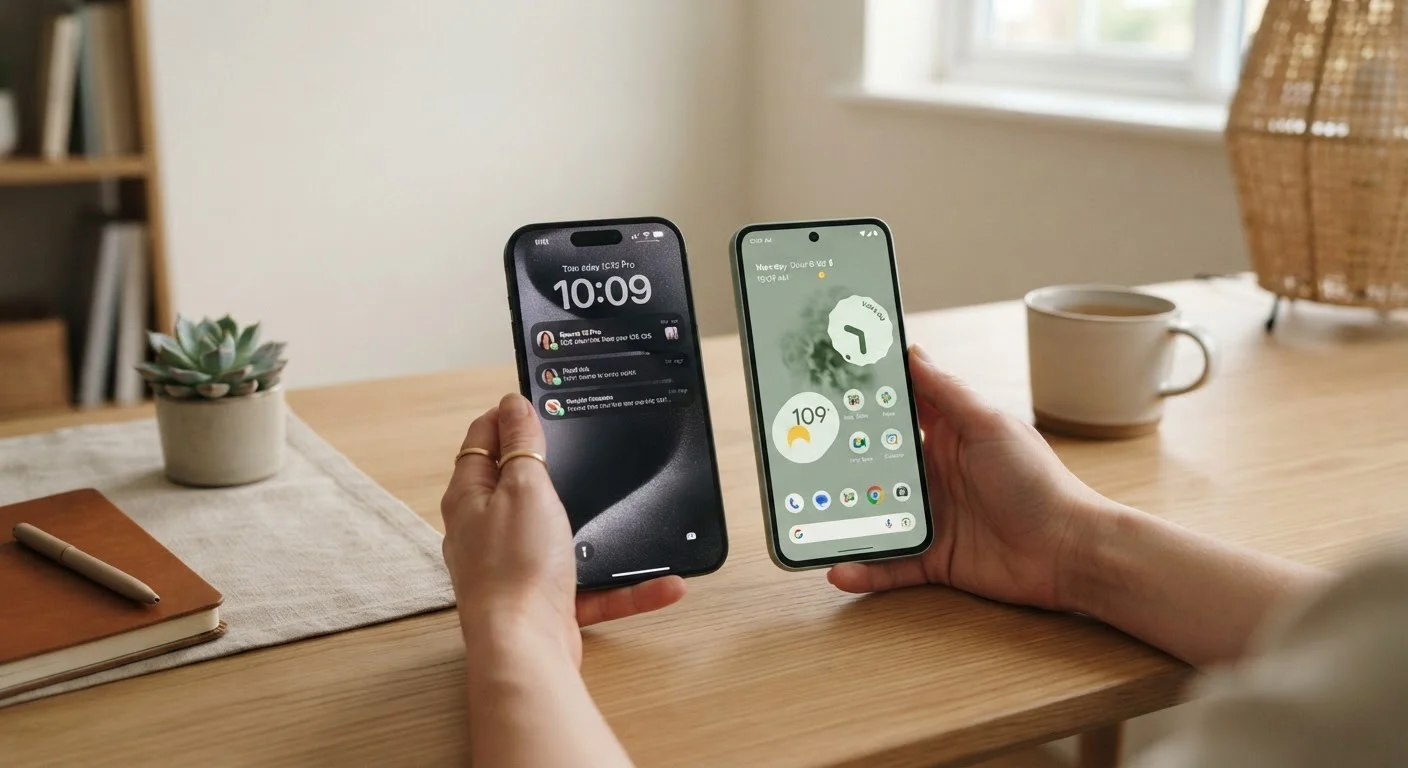
Photo credit: GadgetLite.net | All Things Tech
In this article
Beyond the home screen, moving between ecosystems affects messaging, backups, app habits, and more. Here's what to realistically expect.
Key Takeaways
- iMessage replaces SMS for Apple-to-Apple conversations, but Android contacts still get standard texts.
- Google Drive and Android backups don't transfer automatically — data migration requires deliberate steps.
- Most major apps exist on both platforms, but paid app purchases and in-app items don't carry over.
- iPhone navigation feels different enough that muscle memory takes a few days to reset.
- iCloud becomes your primary sync hub, replacing Google Photos, Drive, or Samsung Cloud.
What You're Actually Swapping Out
Switching from Android to iPhone isn't just a hardware change — it's a platform migration. The apps, services, and habits you built on Android were designed around Google's ecosystem. On iPhone, Apple's ecosystem takes over: iCloud instead of Google Drive for core sync, the App Store instead of Google Play, and Safari as the default browser (though alternatives are available). For a broader look at how the two platforms diverge in everyday use, see how iOS and Android differ in daily life.
The reassuring part: most of your data — photos, contacts, messages, app accounts — can survive the move if you prepare properly. What doesn't survive is anything tied specifically to one platform's store or billing system. Think of it less like moving house and more like moving country: most of what matters comes with you, but some things need to be rebuilt from scratch.
What you will need
Before You Start: Tools and Preparation
A smooth migration depends almost entirely on preparation done before you power on the new iPhone. Skipping the groundwork leads to the most common complaints: lost app purchases, locked accounts, and missing photos. The tools below cover what you'll need.
Move to iOS (Android app)
Apple's official tool for transferring contacts, messages, photos, and some app data from Android to iPhone during setup.
Google Takeout
Exports your Google account data — including contacts, Drive files, and Google Photos — as downloadable archives before you leave Android.
iCloud
Apple's cloud service that backs up and syncs your iPhone data, replacing the role Google services played on Android.
Authenticator App (e.g., Authy or Google Authenticator)
Stores two-factor authentication codes; must be manually migrated as these codes don't transfer automatically.
Use 'Move to iOS' Early, Not After Setup
Apple's free Move to iOS app on Android works best when run during the iPhone's initial setup wizard. Starting it after your iPhone is already configured makes the migration more complicated and limits what can be transferred automatically. Download it on your Android before you power up the new iPhone.
Step-by-Step: Making the Switch
Follow these steps in order. The sequence matters — particularly for two-factor authentication and the Move to iOS transfer, which must happen at specific points in the process. For a more general walkthrough of migrating any new phone, the full new phone setup guide is worth reviewing alongside these steps.
Back Up Your Android Data Before You Begin
Open your Android's Settings and run a full backup to Google One or your manufacturer's cloud service. Then use Google Takeout to export contacts, photos, and Drive files as downloadable archives — store these somewhere accessible, like a laptop or external drive. This gives you a safety net regardless of how the transfer goes.
Handle Two-Factor Authentication Apps First
If you use an authenticator app for 2FA codes, migrate it before resetting your Android. Apps like Authy have built-in account transfer features. Google Authenticator supports encrypted exports. If you skip this step and wipe your Android, you can be locked out of important accounts permanently.
Run Move to iOS During iPhone First Boot
Power on your new iPhone and work through the setup wizard until you reach the Apps & Data screen. Select Move Data from Android. On your Android, open the Move to iOS app and follow the on-screen prompts to connect both devices over a temporary Wi-Fi network. The transfer covers contacts, message history, photos, videos, bookmarks, and some free app equivalents.
Set Up iCloud and Choose What to Sync
Once the iPhone is running, sign into iCloud (Settings → your name → iCloud) and select which data types to sync: Photos, Contacts, Calendars, Notes, and so on. iCloud's free storage tier is 5 GB — if your photo library is large, you'll need a paid iCloud+ plan or an alternative like keeping Google Photos active on iPhone. See our guide to syncing and backup for a broader look at your options.
Reinstall Your Apps From the App Store
Open the App Store and search for each app you used on Android. Most major apps — streaming services, banking, social media, navigation — are available. Log in with your existing account credentials and your data (playlists, history, preferences stored server-side) will typically restore automatically. For apps where you had paid for premium features through Google Play, you'll need to check the developer's policy on cross-platform subscription recognition.
Learn the Navigation Differences
iPhones manufactured since 2017's iPhone X use gesture-based navigation — there's no back button. Swipe right from the left edge to go back, swipe up from the bottom to return to the home screen, and swipe up and hold to see open apps. If you're on an older iPhone with a physical Home button, the pattern is slightly different. Give yourself a few days before judging — the adjustment is real but short-lived. Our overview of iOS vs Android daily differences covers more of these nuances.
Understand How Messaging Changes
iMessage activates automatically when you sign in with your Apple ID. Messages between iPhone users appear in blue bubbles over iMessage (encrypted, free, and data-based). Messages to Android contacts still go as standard SMS/MMS — green bubbles. If group chats with Android users feel degraded (no reactions, lower image quality), that's a known limitation of cross-platform SMS. For rich cross-platform messaging, apps like WhatsApp or Signal work identically on both systems.
Paid Apps Don't Transfer Between Stores
Any app you purchased on the Google Play Store must be repurchased on the Apple App Store. In-app purchases and subscriptions tied to a platform's billing system are also lost. Before switching, audit your paid apps and check whether the developer offers cross-platform account recovery for subscriptions.
What Will Feel Different After Day One
Even after a clean transfer, some adjustments linger. The home screen on iPhone doesn't support app widgets in the same freely-placed way Android does by default — widgets live in a dedicated panel or on the home screen in fixed grid positions. Sideloading apps (installing from outside the App Store) is not available on standard iPhones in most regions, which is a meaningful constraint if you relied on it.
Notifications behave differently too. iOS groups notifications by app but historically batches them more aggressively than Android. You can tune this in Settings → Notifications, but expect to spend 20 minutes customizing it. On the upside, cross-device continuity features — like answering calls or copying text between an iPhone and a Mac — work seamlessly if you're in Apple's ecosystem across devices.
Deregister iMessage Before Handing Off Your Android
If you ever switch back to Android later — or lend your number to another device — make sure to deregister your phone number from iMessage via Apple's online tool. Failing to do so can cause texts from iPhone contacts to disappear into the iMessage system rather than reaching your Android device.
If you use a lot of Google services (Gmail, Maps, Drive, YouTube), every one of them has an iOS app that works well. You're not forced to abandon them. But if you want a deep look at how app updates and interface changes might affect your existing workflow, here's why apps keep changing and how to adapt is worth a read.

Author
Releases Editorial Team
Releases Editorial Team is the collective byline for our editorial team and contributor network. Articles published under this byline or an editorial pen name are researched, written, and reviewed according to our editorial standards for clarity, consistency, and independence before publication.
View all articles →