
Two-Factor Authentication: The Extra Step That Makes a Real Difference
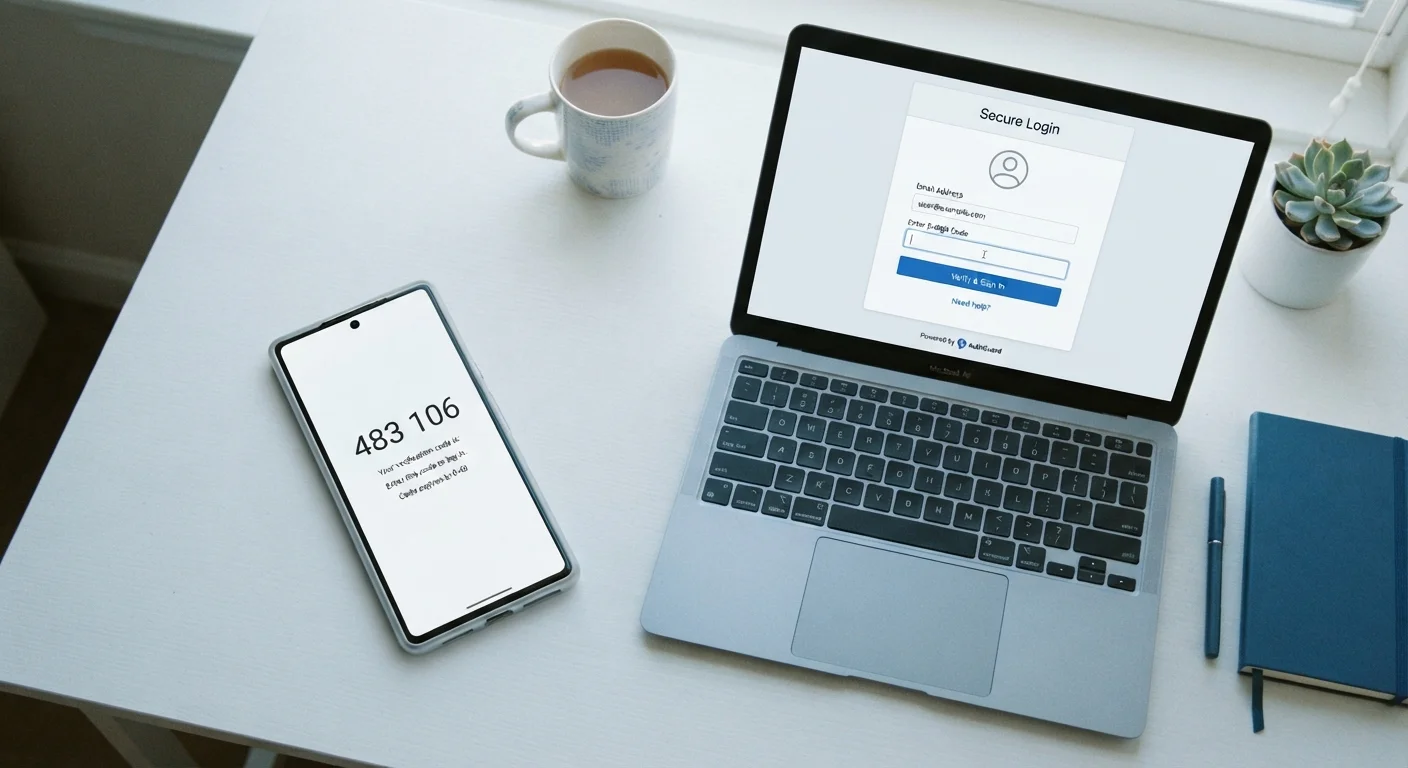
Photo credit: GadgetLite.net | All Things Tech
In this article
Two-factor authentication adds a second layer of security beyond your password. Here's what it is, how it works, and when to use it.
Key Takeaways
- A stolen password alone is not enough to breach an account protected by 2FA.
- Authenticator apps are generally more secure than SMS text codes for the second factor.
- Most major platforms - email, banking, social media - already support 2FA in their settings.
- Setting up 2FA on your most sensitive accounts takes only a few minutes.
- Saving backup codes when you enable 2FA prevents you from getting locked out.
Why Your Password Alone Isn't Enough
Passwords get exposed more often than most people realize - through data breaches at companies you trust, phishing emails that trick you into typing your credentials, or simply because the same password gets reused across multiple sites. Once a password is out in the wild, attackers can try it on dozens of your accounts automatically within minutes.
Two-factor authentication (2FA) closes that gap. It works on a simple principle: a thief who has your password still needs a second piece of proof that only you can provide. That proof is usually time-sensitive and delivered to a device you physically hold, making remote attacks dramatically harder to pull off.
For a broader look at building secure logins from scratch, see Your Account Security From the Ground Up. And if you're curious whether your current password habits are actually working, Password Security Myths That Give People False Confidence is worth a read first.
99.9%
Of automated account attacks blocked by MFA
Microsoft has reported that multi-factor authentication blocks over 99.9% of automated credential-stuffing and password-spray attacks targeting its platforms.
~80%
Of breaches involve stolen or weak credentials
Verizon's Data Breach Investigations Report has consistently found that the large majority of hacking-related breaches exploit compromised passwords.
The Three Main Types of 2FA
Not all second factors are created equal. Here's how the most common options compare:
- SMS text codes: The service texts a one-time code to your phone number. Easy to set up, but vulnerable to SIM-swapping attacks where a criminal convinces your carrier to transfer your number to their device.
- Authenticator apps: Apps like Google Authenticator or Authy generate time-based codes directly on your device without needing a network connection. Because codes never travel over a phone network, they're harder to intercept.
- Hardware security keys: A small physical device you plug in or tap against your phone. These offer the strongest protection and are practically immune to phishing, though they require carrying an extra item.
For most everyday users, an authenticator app offers the best balance of security and convenience. SMS codes are a solid step up from nothing, so don't skip them just because a better option exists - enable what you can today.
Choose an Authenticator App Over SMS When You Can
When a service offers both SMS and an authenticator app as 2FA options, opt for the app. Codes generated on-device never travel over a phone network, removing the risk of interception. Popular options are widely available and free - just search your device's app store for "authenticator app."
How to Turn On 2FA: A Simple Walkthrough
Enabling 2FA follows a similar pattern across most platforms:
- Go to your account's security settings. Look for terms like "Two-Step Verification," "Two-Factor Authentication," or "Login Security."
- Choose your second factor. Select an authenticator app if available; otherwise choose SMS.
- Link your device. If using an app, scan the QR code shown on screen. If using SMS, enter your phone number and confirm with the code the service sends.
- Save your backup codes. Almost every service generates a set of one-time recovery codes at this step. Screenshot them or write them down and keep them somewhere secure - not in your email inbox.
- Test the setup. Log out and sign back in to confirm everything works before you rely on it.
Prioritize your email account first - it controls password resets for virtually every other service you use. Then move on to banking, social media, and cloud storage. For a systematic way to check all your accounts at once, the Account Security Audit walkthrough provides a practical room-by-room checklist.
Making 2FA a Lasting Habit
The biggest barrier to 2FA isn't technical - it's the assumption that setup is complicated or that attacks won't happen to ordinary people. In reality, automated credential-stuffing tools target everyone indiscriminately, and account takeovers frequently happen within hours of a data breach being published.
Treat the extra login step the same way you treat locking your front door: a minor inconvenience that provides significant protection. Most services let you mark personal devices as trusted, reducing how often you need the second factor to new logins only.
Explore more Password & Account Safety strategies to keep building on the habits you've started here. Small, consistent steps compound into a meaningfully stronger security posture over time.
“Enabling multi-factor authentication is one of the most impactful steps individuals can take to protect their online accounts. It stops the overwhelming majority of credential-based attacks before they start.”
— Cybersecurity and Infrastructure Security Agency (CISA), U.S. federal agency responsible for national cybersecurity guidance
Frequently Asked Questions

Author
Cyber Security Editorial Team
Cyber Security Editorial Team is the collective byline for our editorial team and contributor network. Articles published under this byline or an editorial pen name are researched, written, and reviewed according to our editorial standards for clarity, consistency, and independence before publication.
View all articles →