
What Happens When You Install an App
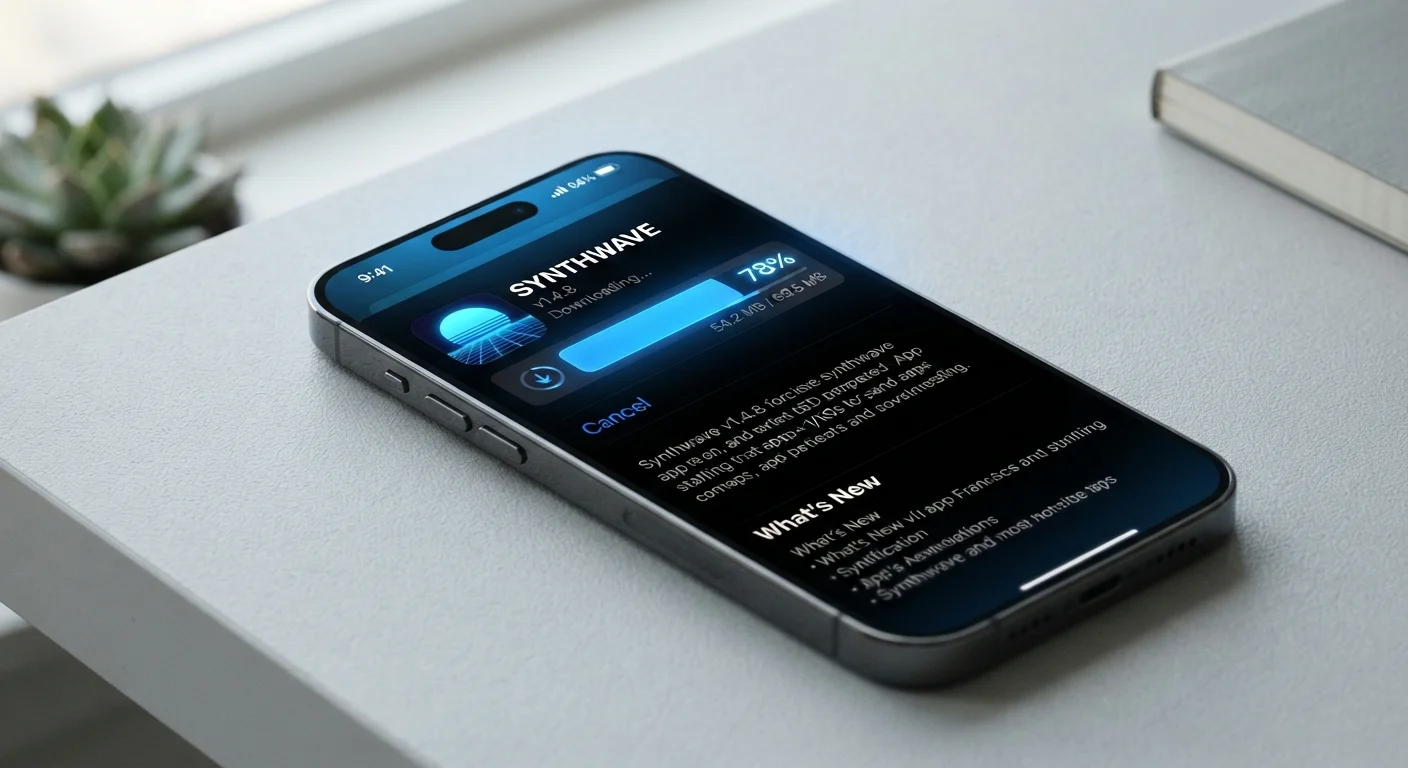
Photo credit: GadgetLite.net | All Things Tech
In this article
Installation feels instant, but a lot happens behind the scenes. Follow the full journey from download tap to a working app on your device.
Key Takeaways
- Tapping 'Install' triggers a download, verification, unpacking, and system registration sequence.
- Your operating system checks the app's digital signature before allowing it to run.
- Apps are installed in a sandbox - an isolated storage area separate from other apps.
- Permissions you grant at install or first launch define what device features the app can access.
- The app store caches metadata so re-installs are faster than the original install.
Step 1: The Download
When you tap Install in an app store, the first thing that happens is a download request to a content delivery server - a network of computers that stores app packages close to users geographically to speed up transfers. What downloads is a compressed package file: .apk on Android, .ipa on iOS. These packages contain the app's executable code, interface assets (images, fonts, layout files), and a manifest that tells the OS what the app is and what it needs.
The download is encrypted in transit using HTTPS, which prevents anyone intercepting the connection from tampering with the file before it reaches your device. Your app store client checks the transfer is complete before moving on.
Step 2: Verification and Signature Checking
Before a single line of code executes, the operating system verifies the package's digital signature - a cryptographic stamp applied by the developer when they submitted the app. If the signature doesn't match what the OS expects, installation stops immediately. This is how your phone detects whether an app has been modified after it left the developer's hands.
App stores add their own layer of review on top of this. Apple's App Store and Google Play both scan submitted apps for known malware patterns before they're ever made available. The signature check at install time is a second line of defense confirming you received exactly what was approved.
Signature Verification Protects You Silently
You won't see the signature check happen - it occurs automatically in the background during every install. If it fails, you'll simply see an error message and the installation won't complete. This quiet process is one of the key reasons installing from official app stores is generally considered safer than other sources.
Step 3: Unpacking, Writing, and Registration
Once verified, the OS unpacks the compressed package and writes its contents to a dedicated folder in your device's internal storage. This is the app's sandbox - a private, walled-off directory that other apps cannot read or write to. The OS also registers the app in a system database: this is what makes the icon appear on your home screen and what lets the OS know the app exists for features like file associations or sharing menus.
On Android, the OS also compiles parts of the app's code into a format optimized for your specific device hardware - a step called AOT compilation. That's why a first install can take a moment longer than opening the app afterward. iOS performs a similar optimization step called bitcode compilation server-side before the package reaches you.
Check the Installed Size Before You Tap
The size listed on an app store page is the download size, not the installed size. For games or media-heavy apps, the on-device footprint after unpacking can be significantly larger. If your storage is nearly full, check your device's storage settings to see how much free space you actually have before installing.
Step 4: Permissions and First Launch
With the app registered, the OS prepares a permissions profile based on what the app declared in its manifest. Some permissions - like internet access - are granted automatically. Sensitive ones - like your microphone, location, or contacts - require your explicit approval, either at install or the first time the app tries to use them.
This is one of the most important moments in the install process. Permissions define the boundaries of what an app can do on your device. Both Android and iOS let you review and change granted permissions any time in your device settings - you don't have to decide once and stick with it forever.
If you later decide you no longer want an app, it helps to know what you're leaving behind. Our pre-deletion checklist walks through what to back up and cancel first.
~2-3×
Installed size vs. download size
App packages are compressed for download; unpacking and compiling code on-device typically expands the footprint significantly beyond what the store listing shows.
255+
Permission types available on Android
Android's permission model includes over 255 declared permission types as of Android 13, though most everyday apps use only a small subset.
How Installation Differs Across Platforms
The steps above apply broadly to both Android and iOS, but the platforms handle a few things differently. Android allows sideloading - installing apps from outside the Play Store - which bypasses the store's review layer. iOS restricts this heavily, limiting it to enterprise certificates and developer profiles. If you're curious about what changes when you skip the official store entirely, our piece on App Store vs Direct Download covers the tradeoffs clearly.
The underlying device also shapes the experience. Smartphones and tablets share the same general install process, but tablets may trigger a different layout version of the same app if the developer has included one in their package. For readers moving between ecosystems, our guide on switching from Android to iPhone explains how app habits shift when you change platforms.
Frequently Asked Questions

Author
Apps & Software Editorial Team
Apps & Software Editorial Team is the collective byline for our editorial team and contributor network. Articles published under this byline or an editorial pen name are researched, written, and reviewed according to our editorial standards for clarity, consistency, and independence before publication.
View all articles →